What You Do Not Know – Advanced Image Cropping

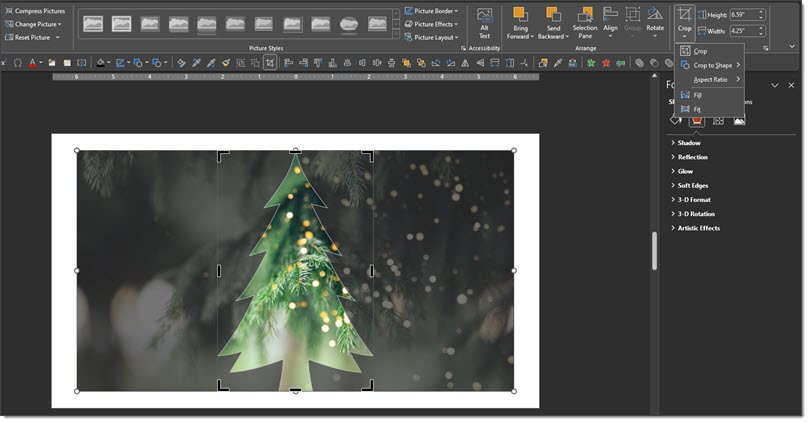
PowerPoint’s Image Crop tool is fantastic. Combine it with Crop to Aspect! Get the full tip at The Presentation Podcast, episode 192.

PowerPoint’s Image Crop tool is fantastic. Combine it with Crop to Aspect! Get the full tip at The Presentation Podcast, episode 192.
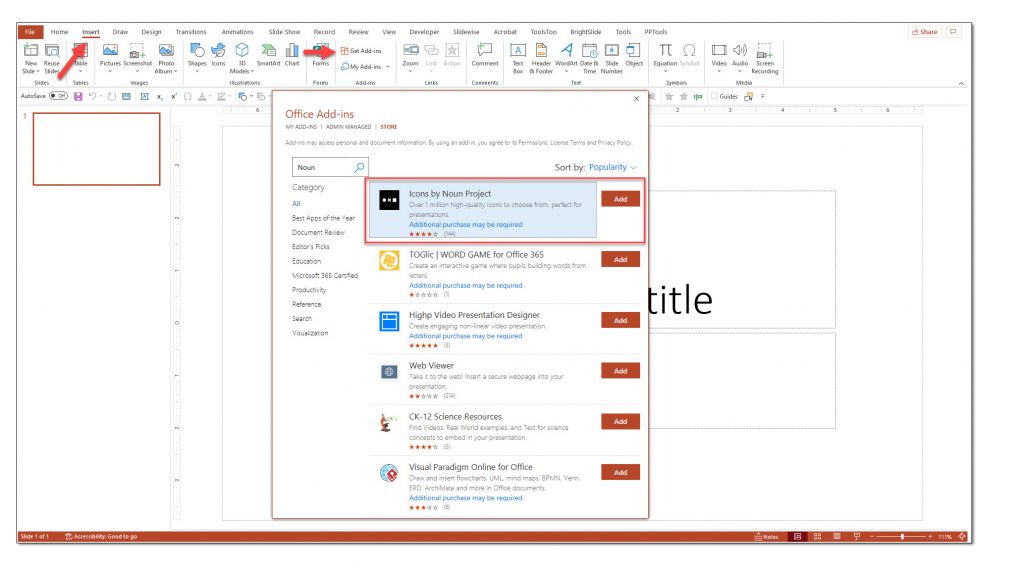
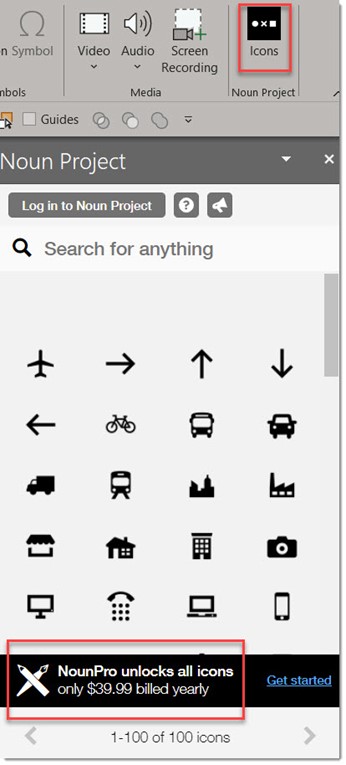
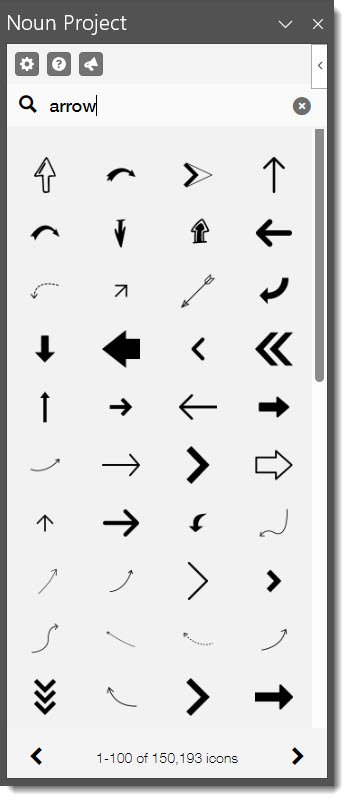
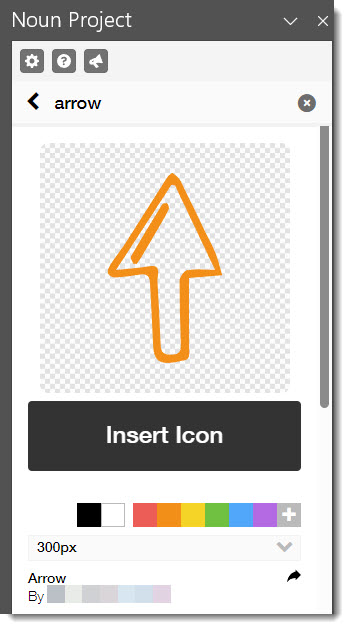
The Noun Project has a direct integration with PowerPoint and as a presentation designer is invaluable. If unfamiliar the Noun Project has “the most diverse collection of free icons and stock photos with over 5 million art-quality icons and free photos.”
Three great callouts:
TO GET STARTED


Troy @ TLC
Working a set of our TLC Creative show computers I had this frustrating error when attempting to open the MS Teams based presentation:
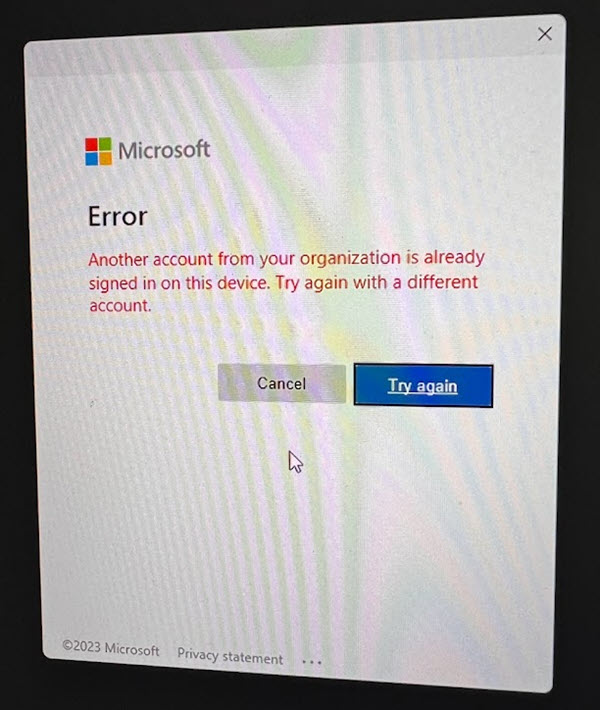
I confirmed MS Teams was logged in with my credentials. Confirmed I can access the Team, folder and file. I also confirmed I was able to open the PowerPoint file in the Teams viewer and web-based browser version of PowerPoint. But I did not confirm PowerPoint/MS Office was logged in with my account – the user seen in the upper right of PowerPoint.
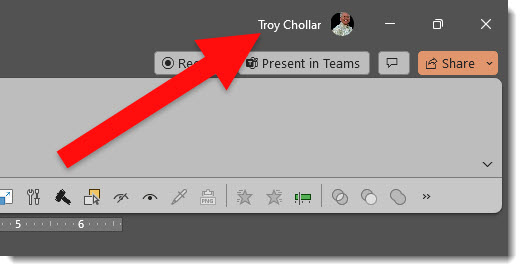
Each time I went through the process of logging myself as the profile for Office to use, the above error taunted me (argh!!). The solution, which I have confirmed works on yet another computer having the same Microsoft seizure, is to SIGN OUT of all profiles. Then sign in with your credentials. I have no idea why Office errors out when trying to login your profiles sometimes, but it does. And I now have a solution that works (but sorry to everyone else that needs to also use that computer and must go through the login profile process vs. just clicking to change profiles…).
– Troy @ TLC

The concept of the subject looking toward the content is not limited to people. Vehicles, roads, and animals all apply.
We can, all within PowerPoint, easily go from this:

To this:

Just some presentation design ideas for thought
Troy @ TLC
The previous post had these two (problem) slides.

The first image is an easy fix. The photo has no text, car steering wheel, or wedding band visible – all things that clearly show an image is in the wrong orientation. Using the FLIP HORIZONTAL in PowerPoint, updates the slide, and creates the reassuring visual of the subject looking at the slide content.

The second image is more difficult. The words on the white board prevent the image from being flipped. So we can be creative with the layout and “flip” the content to make the image work. We moved the bullet list to the left and the photo to the right, creating the reassuring visual of the subject looking at the slide content.

Troy @ TLC
What is wrong with these slides?


Maybe not “wrong” – but not aligning with design best practices. If you noted that the people in photos are looking away from the content!
Troy @ TLC
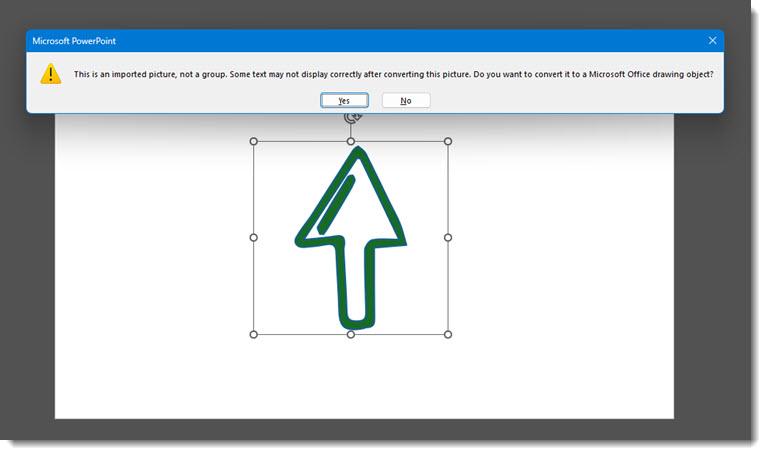
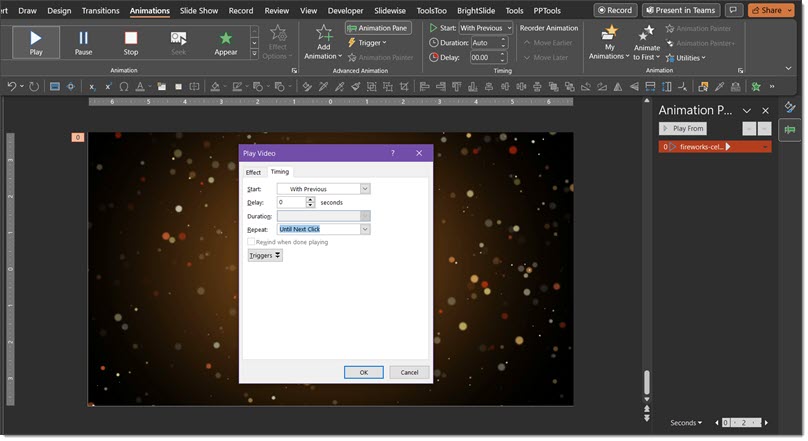
Wouldn’t be amazing if a shape or vector art could have a video fill it, like the previous posts showcased the Picture Fill? Although the capability of inserting a video into a custom shape isn’t possible just yet, there is a work around!


Troy @ TLC, with Christie on the TLC Creative presentation design team
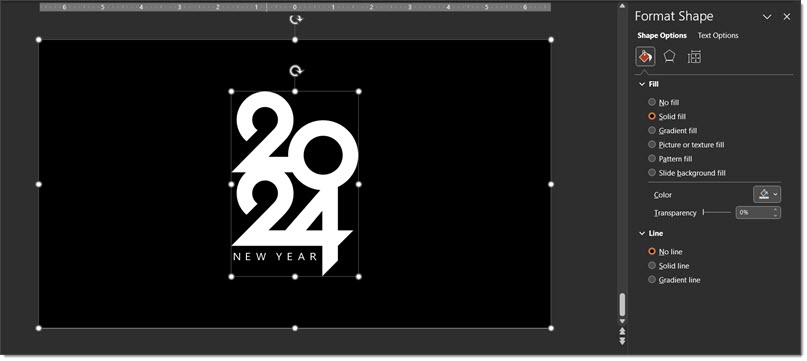
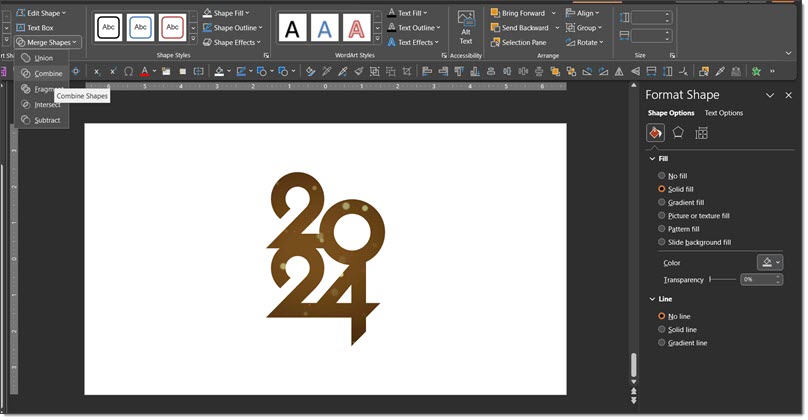
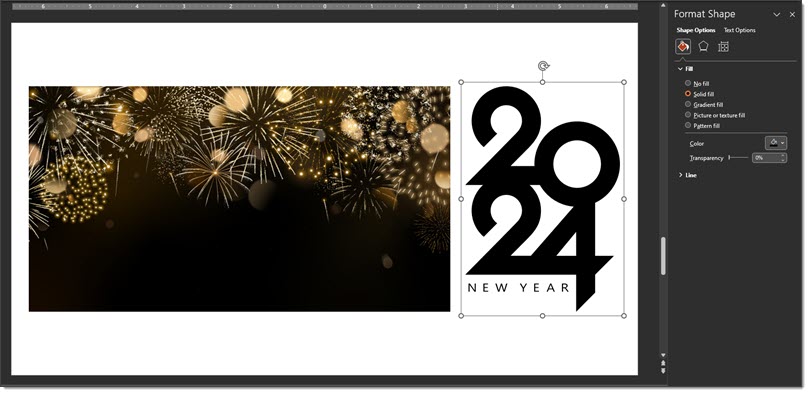
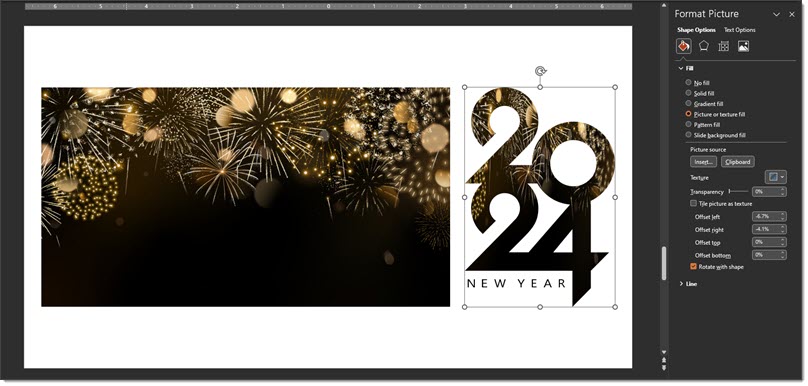
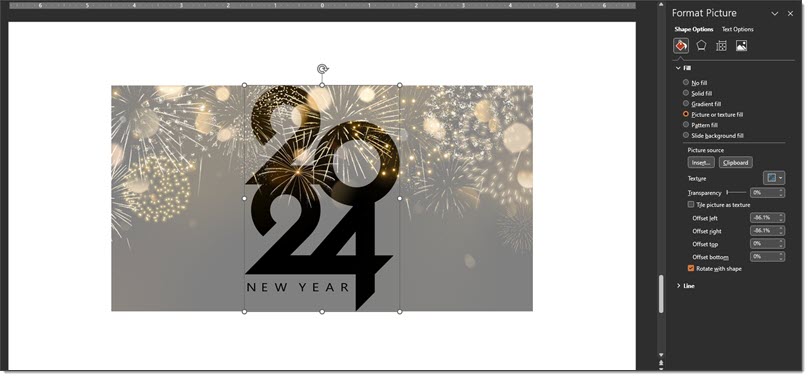
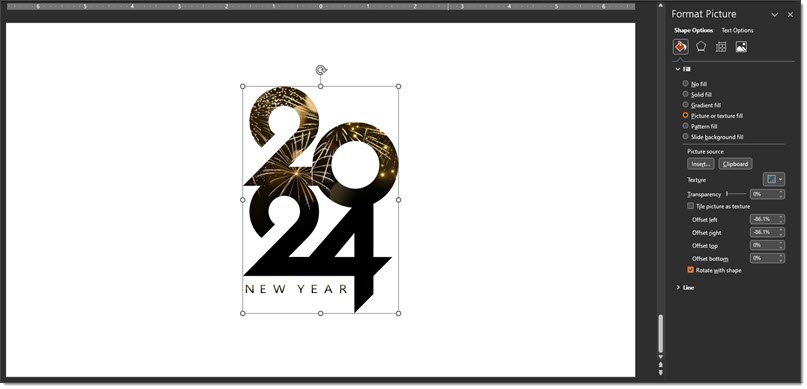
This is the last week of 2023 and we used the rapidly approaching start to 2024 as inspiration for another how-to on using PowerPoint’s Picture Fill feature.


Troy @ TLC, and Christie on the TLC Creative design team for the slides and screen capture!
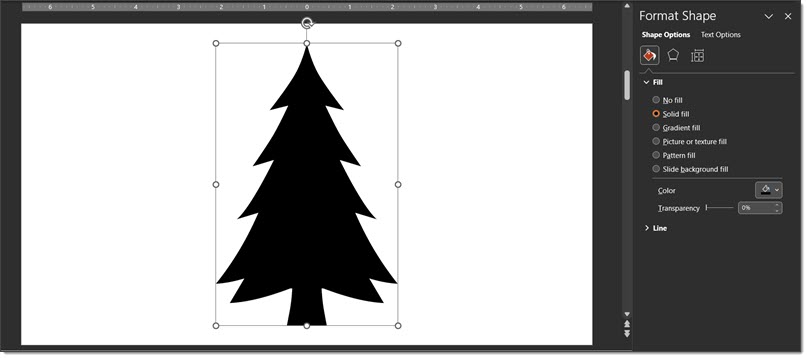
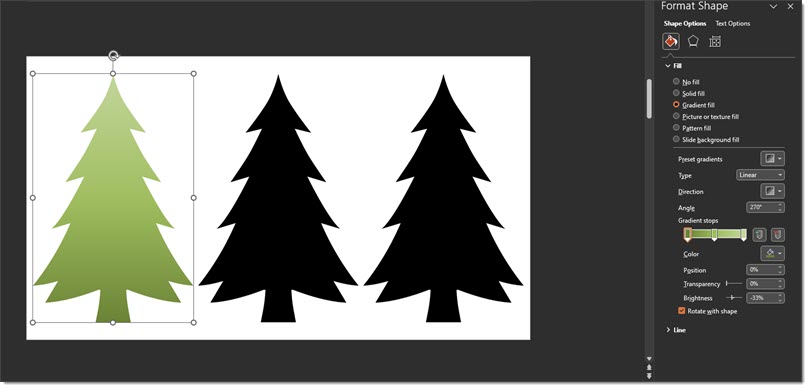
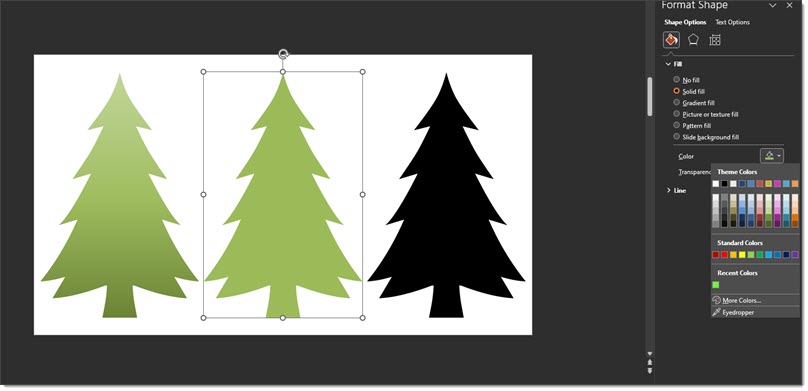
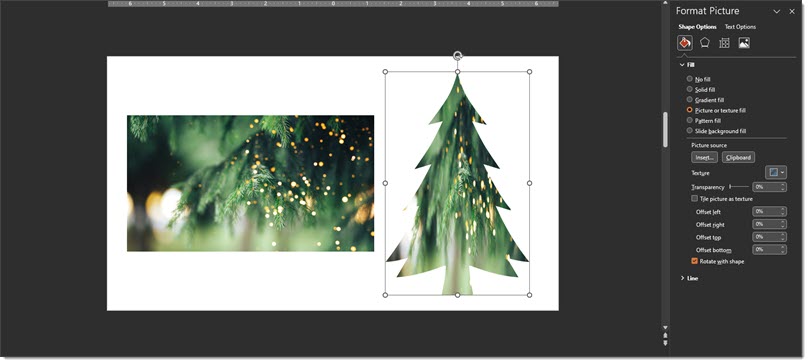
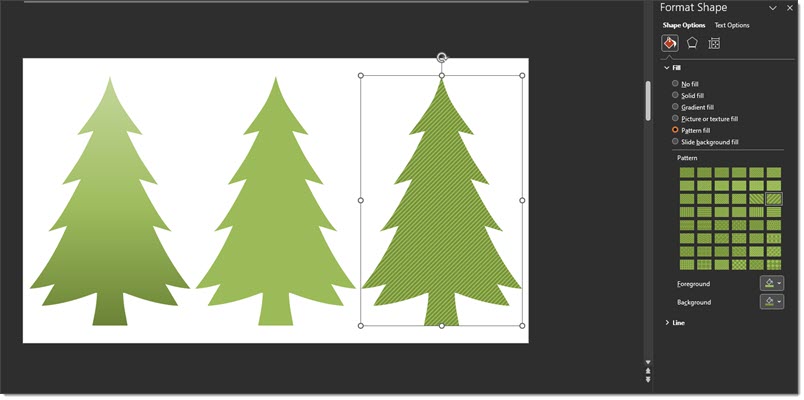
One of the hidden design features within PowerPoint is the PICTURE FILL option. I use this in combination with PowerPoint shapes and inserted vector art to create custom art elements for slides. Because it is Christmas time, my example is a Christmas Tree slide.


Troy @ TLC (with special thanks to Christie on the TLC Creative team for the screen captures!)
“Housekeeping” slides are a standard for many large events. The info and content varies, from location of restroom to silence your mobile device. From a recent meeting I liked this icon driven style for the housekeeping slide (vs. bullet list of text).
![]()
Troy @ TLC