Software/Add-Ins

(Update to) PowerPoint Video Test Toolkit

Earlier this week, a post released a copy of our internal PowerPoint Video test slides. It was drawn to my attention that there were 2 errors in the slides (1. the .avi was not set to play automatic like all others, 2. the .mpg1 was a really badly rendered video). Thank you for the those that sent emails!

The original post’s download link has been updated with a revised version of the PowerPoint Video Test Toolkit and here is same link:
Download here.

– Troy @ TLC

By |2016-08-10T10:12:22-07:00October 11th, 2013|Resource/Misc, Software/Add-Ins, Templates/Assets|

SnagIt OneClick – How to Disable

As a designer, SnagIt is one of my most valued go-to apps. But even the best software sometimes creates problems. In the latest version of SnagIt, a new feature, “OneClick,” (at least this is the first version I have noticed it) just gets in the way. The concept is to have an onscreen button to activate SnagIt vs. a keyboard command.

OneClick puts a small red button at the top of your screen.

Click the red button and a small menu drops down, allowing easy access to many of the SnagIt tools and settings.

The dilemma is that the button is ever present, sitting on top of everything: windows, apps, slide shows! This is not good and something that took a bit of investigating to figure out how to turn off. Half the effort is knowing the name of this unwelcome feature – OneClick.

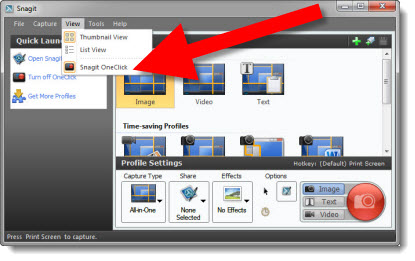
To turn off, open SnagIt, click the VIEW menu and click SNAGIT ONECLICK. This is an on/off toggle, so it should now be removed from your screen. You may also see a TURN OFF ONECLICK option in the Quick Launch dialog in the left action pane.

– Troy @ TLC

By |2016-08-10T10:12:50-07:00October 9th, 2013|Personal, Software/Add-Ins, Tutorial|

PowerPoint Video Test Toolkit

For TLC Creative Services, I developed a slide deck that the 5 most common video formats. To test a computer’s setup, we just open this PowerPoint presentation, go to the video format we want to confirm the computer is configured to play and see what happens. If the video plays, we know the computer and PowerPoint are setup for that format and then can troubleshoot the client file with the knowledge that it is not the computer or PowerPoint.

Feel free to download our PowerPoint Video Test Toolkit and use as needed.
Download here (24 MB).

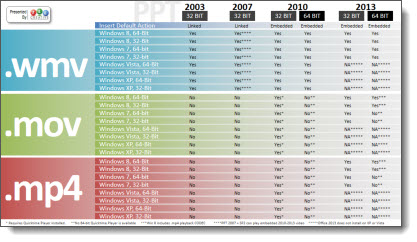
Also, check out the Sept 11 post of the video reference chart to know if a computer’s configuration is going to play a video format.

– Troy @ TLC

By |2016-08-10T10:13:10-07:00October 7th, 2013|Resource/Misc, Software/Add-Ins|

Mac Keynote Sample – Toyota

Does TLC Creative Services use Keynote? That is a question I hear from many new clients. Of course we do! Presentation design, with any of the available presentation software options, has the same design principles to engage the audience. Some of the technology and visual effects change, but the layout, messaging and use of animation “rules” remain the same.

We have recently added a video of a Keynote presentation project to our portfolio section. TLC Creative Services developed the template, did lots of custom Photoshop work to bring the provided script to life using the unique capabilities of the Apple’s Keynote app. See it here.

– Troy @ TLC

By |2016-08-10T10:25:52-07:00August 14th, 2013|Portfolio, Software/Add-Ins|

Add Twitter Feed To Slides

We were recently at a show to handle the presentations, and the presenter encouraged the audience to tweet about the conference daily events. During the break, we were asked to show the twitter feed. Advanced planning is great – this was not it.

We used Visibletweets.com to provide a solution. Visibletweets.com is a Flash based website with no download (other than the Flash player if not installed). On the website, you are prompted to type in a hash hag, search a term, or use someone’s twitter id.

Then one tweet at a time fills the page, each animates to the next. There are 3 types of animation to choose from: Letter by Letter (which is our favorite), Rotation, and Tag Cloud.

If you use the option to run the show in the web browser full screen, the background automatically changes colors.

There are 3 options for using visibletweets.com during a presentation.
Option 1: Run the website from a backup computer (with internet access) and toggle it to the screen.
Option 2: Have a link to the website on a slide and use it to switch from presentation to web browser (going back to the presentation requires using ALT+Tab or closing the web browser – so not as seamless and elegant).
Option 3: Use Shyam’s LiveWeb add-in to display a webpage directly on your presentation slide (this is a FREE add-in that can be downloaded here).

– Troy @ TLC

By |2016-08-10T10:31:07-07:00July 10th, 2013|Resource/Misc, Software/Add-Ins, Tutorial|

Stop PowerPoint from Getting the Animation Jitters!

Long scrolling animations worked great back in PPT 2003. But with the new .xml format (.pptx) came a new render engine for animations and it caused these same animations to stutter and “jitter” as they played.

You can fix these with a registry edit (Note: the registry controls the computer and in general mistakes in here can be very bad).

First, download this test file and run (download here, 3.7MB). Take note of how smooth, or jittery, the text animation is.

Close PowerPoint.

To update a computers PowerPoint settings:

1. Start >> search bar “regedit”

2. Go to Hkey Current User>>Software>>Microsoft>>Office>>15.0>>PowerPoint>>Options
– Note: This is the path for PPT 2013. For PPT 2010, it will be “12.0” vs. 15.0.

3. In the right section, right-click and select NEW >> DWORD (32-BIT) VALUE

4. Name it “DisableSpriteClipping”

5. Find the new entry and right-click and select MODIFY

6. In the VALUE DATA box, enter “1” (BASE can be Hex or Dec) and click OK

Start PPT and run the test file again. Take note of how smooth, or jittery, the text animation is.

Many thanks to Steve Rindsberg of PPTools for making me aware of Microsoft’s Chris Maloney’s shared bit of coding that works wonders for anyone fearful of animation jitters!

– Troy @ TLC

By |2016-08-10T10:31:29-07:00July 8th, 2013|Resource/Misc, Software/Add-Ins, Tutorial|

SlideDog – Out of Beta Review

Original review is here here.

TLC presentation designer, Amber, has done a follow up testing and review of the SlideDog offering. SlideDog has completed its Beta phase and released its first official version of the program. This version has significant improvements over the beta. I should note, this review is a bit overdue as we started it in January and lost track of it until this month.

Supported file types are PowerPoint (.ppt and .pptx), PDFs, Prezi, Movies (multiple formats), Web Pages (URLs), and images (multiple formats), with more expected.

SlideDog has the ability to seamlessly switch between applications, making it appear that they are all 1 file. You create playlists of different file types, run the show, and SlideDog takes care of the rest.

Download and Install is same as before. The setup process searches your system for the applications SlideDog requires to run the different file types. It helpfully provides links to download missing software it needs, which are all free options.

When you’re ready to create a SlideDog presentation, you can either browse for specific files or simply drag and drop into the playlist area (a great use of multi screen computer setups). SlideDog then generates thumbnails of each presentation element to give a preview of the files.

When you run the show, SlideDog preloads all of the files, which makes switching between the applications faster during the show, but you do have a dialog window with a preloading notice during this time. The preloading notice is onscreen depending on the number of files and their size. In our test, it was visible for up to 90 seconds, so this is something to consider when getting ready to present (you do not want the audience waiting and watching this dialog). The end result was a seamless presentation.

SlideDog now offers different licenses: Free, Pro, and Shared License. Pro offers dual screen mode, unbranded presentations with custom backgrounds and free updates for 1 year. Shared License has all of the Pro features, plus you can use SlideDog in an auditorium or meeting room with multiple users on the same computer. The free version allows you to create playlists and run them seamlessly, but with a SlideDog logo. There is also an option to try Pro for 15 minutes.

Note: The file wrapper error that was present in Beta is now fixed and the dual screen mode will close when SlideDog closes.

We did have a conflict with SlideDog not recognizing PowerPoint 2010. This was caused by having a dual installation of both PowerPoint 2010 and 2003. But it did create an opportunity to contact SlideDog’s support, which was top notch. Dag Hendrik worked with us for a few days to figure out the issues, and then sent patches which fixed them. It was very nice to have the issue resolved so quickly, with great customer service.

Our end result was that SlideDog has made a lot of great progress since the Beta release we reviewed, and we recommend testing it if you have presentations that need to use several different files, file types and even presenters (with the Shared License option).

– Troy @ TLC

By |2016-08-10T10:35:10-07:00June 19th, 2013|Software/Add-Ins|

Zebra on Wheel’s Add-in Review

The Zebra on Wheel’s Toolbar add-in is available for free for PPT 2007 and above.

When you download, you get a zipped folder with the add-in as well as a PDF that explains which folder on your computer to put it, and what to do in PowerPoint to add the add-in to your ribbon. Note: To download, you need to give your name, e-mail address, and agree to a disclaimer.

Zebra on Wheel’s adds a new Toolbar to the ribbon:

Tools added are:
Fix Title: Resets the title of the current slide to the template’s default position.
Template Bullets: Applies the template’s bullets to an existing text.
Select by Property: Selects objects using the same color, font and other properties.
Copy Property: Copy height, width, position, fill color, etc. from one object to others.
Graph Data: Extracts data table from unlinked/broken graphs.
Cell Colors: Copy/pastes table cell colors.
Merge Text: Merges the text content from different objects.
Hex Color: Uses web-style hex colors.
Explore: Opens the folder containing the current file in a Windows Explorer window.

Examples of some tools in use:

Graph Data: This add-in will pull data from charts and put it into a table. The description says it will work on unlinked and broken graphs, which could really come in handy! However, when I tried it on a broken graph an error popped up and no table was created. I inserted a new graph with the default values and the add-in produced a table with the data extracted. This is nice, but would have been nicer to have the data pulled from broken graphs as stated.

Merge Text: This add-in will take two text boxes and merge them into a single text box. I used the content placeholder and an inserted text box and hit the merge text add-in. It took the text and put them in a text box that wasn’t the placeholder, and completely disregarded the bullets and sub-bullets that were in place. (I tried merging by having the content placeholder selected first and the text box selected first, both yielded the same results. I would like this better if the bullets stayed intact.

Select by Property: This one is pretty cool and works as expected. I created a test shape on the slide with my chart and table. The only thing they had in common was the font. I selected my test shape and did select by line color, nothing happened as I thought. Then I selected by font name and all three objects on the slide were selected. This particular tools is very nice and has lots of time saving use.

– Amber @ TLC

By |2016-08-16T09:02:01-07:00October 22nd, 2012|Software/Add-Ins|

Shape Locker Add-in (Something We Have All Been Asking For!)

Last week, Excel and PowerPoint add-in developer Chirag at OfficeOne Solutions released Shape Locker. It took me only reading the description and who the developer was to know it was the answer to a lot of project requests – and this add-in does not disappoint!

Shape Locker is simply listed as a PowerPoint add-in to “Lock shape position, size, rotation, text and more with Shape Locker.” And it simply does exactly that! After downloading and installing, PowerPoint adds a new “Design Tools” tab.

There is only one button for the add-in. Select a shape in a presentation, go to the DESIGN TOOLS tab and click the LOCK SHAPES button.

The add-in is controlled through a single dialog box. Check the options desired, click OK and you are done.

Here are my test slides:

Slide 1 = is completely editable.
Slide 2 = I have applied different Shape Locker options to each text bar
You can download these slides to text the results here (57 KB .pptx)

———————–

The first bar has all editing options disabled, so you can select the shape, but do nothing to it (move, resize, change colors, edit text, etc.). Here are the Shape Locker settings applied:

For the second text bar, I left the text editing and disabled all other options, so you can change the words but not move/resize/re-color/etc. the shape.

On the 3rd bar, it is the opposite of the previous. The shape can be adjusted (move, recolor, resize, etc.), but the text cannot be modified.

And for the final text bar, I simply used the option to disable the ability to select the shape to completely lock it from any edits.

This is the functionality that users (especially myself) have been asking for since PPT 2000. But it does have a few downsides:
– Only 1 shape at a time can be locked. So if you want to lock a full presentation (or most of a presentation), it is going to take some time to click on each shape and apply the Shape Locker settings.
– To unlock a shape, it is also a time consuming process. Select a shape, open the Shape Locker dialog, uncheck the lock settings – for each shape, 1 at a time. Note: If the disable selection option (used in the final bar of the test slide) is used, that shape cannot be selected and cannot be unlocked (ie. It is permanently a part of that slide).
– Any computer with Shape Locker installed can unlock shapes.
– This add-in specifically says it works with PPT 2010 (32-bit and 64-bit) and PPT 2007. The add-in is not available in PPT 2003 and if a presentation with locked shapes is opened in PPT 2003, there are some unpredictable results. Here is the same test slide opened in PPT 2003 and among other things, if the text has been locked, it does not show up.

I was able to ask Chirag about a few issues and feature requests. The good news is a few features are already in the works that will resolve a few of the tedious use aspects and also add even more power to this fantastic add-in!

You can get the Shape Locker add-in from the OfficeOne site here. And if you first go to my friend Geetesh’s Indezine site, that review has a 50% off promo code (until August 31, 2012).

Last, fellow PowerPoint MVP Steve Rindsberg of PPTools offered this fun trivia about the Shape Locker add-in:
Q – “Why do they call it Shape Locker when it lets you lock placeholders, text boxes, video clips, and pictures as well?”
A – Because when coding everything on a slide is a Shape; placeholders, text boxes, videos, pictures, sounds, etc.

– Troy @ TLC

By |2016-08-16T09:18:42-07:00July 30th, 2012|Software/Add-Ins|

SlideDog – Review

SlideDog is a Windows only app that allows you to create a seamless presentation made up of multiple file types. SlideDog supports PowerPoint files (.ppt and .pptx), PDFs, videos, Prezi presentations, web pages, Word documents, Excel spreadsheets, flash animations and photos. The elements do not need to be combined into a single file, instead you sequence them in SlideDog and seamlessly shows each, no matter what file type, in the order set. It plays the files in the playlists by using the most appropriate tool available, which is going to vary sometimes, based on what is installed on the computer. Some files are played directly by SlideDog, others will by an external application (ie. Adobe Reader, for PDFs). But viewers see a single application for a clean and seamless presentation.

To achieve this, SlideDog launches the files in the playlist in full screen on the second monitor or projector without displaying the desktop which is loading the files. The presenter sees something similiar to PowerPoints “Presenter Mode” where they see and control what is being presented, either with the playlist order or manually jumping to elements with an on-the-fly order. The presenter can also see notes, timers and scroll through the files that are to be played.

Note: This is currently a beta release, so not something I can guarantee as a stable solution for a real meeting.

Amber, a TLC Creative Services presentation designer installed, tested and created this review of SlideDog.

Download and Install:
– Download from here.
– Installing is straightforward, the setup searches your system for applications it requires to run the different file types and if not found, provides links to download pages (all are free).

Using SlideDog:
You can drag and drop the files into the application, or browse for files. The program then creates thumbnails of the different files. When not presenting, there is an area for recent files added and playlists.

When you hit play on any of the files, the app goes into speaker mode and a timer starts. You are provided with a bigger viewer in the middle of the application that shows exactly what the audience is seeing on the secondary output (a 2nd monitor or projector). You are still able to see the other files in your playlist, and scroll through to view the thumbnails.

I used a Word document, PDF, and PowerPoint file to test. There was a minute to two minute load time switching from Word to PDF while SlideDog closed Word and opened Adobe Reader. Because it just displays the PDF full screen from Adobe Reader, the “Tips” that appear when Reader opens, are also displayed in the presentation. I can mouse over and close the window, but that ruins the presentation effect.
There were a few errors using the program that I experienced. When adding PowerPoint files, I receive an error about generating the thumbnails, and the PowerPoint doesn’t play. Also, when exiting the program my second monitor remained black with no visible way to exit. I had to go into Task Manager and end the pptWrapper.exe process. Hopefully these errors will be sorted out in the Beta phase.

– Troy and Amber @ TLC

By |2016-08-16T09:19:22-07:00July 25th, 2012|Software/Add-Ins|
Go to Top