Tutorial

Animated Timer

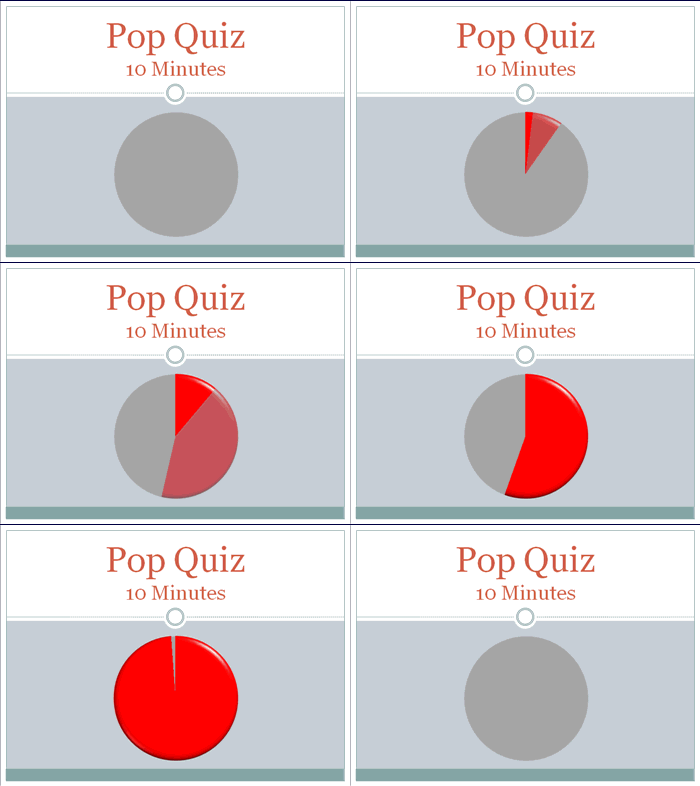
On a recent show I was asked (minutes before needed onscreen) to display a timer for some group interaction. Of course the answer was ‘no problem’… and I got to work. Here is the result:

New Transitions Sample

Making this visual timer is easy.

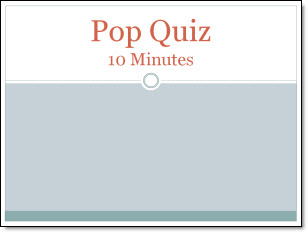
1. Here is my sample slide, using PPT 2007’s Civic template.

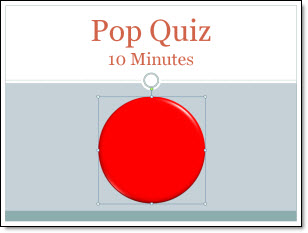
2. Next I created 2 cirlces of identical size. For the “timer” cirlce I made it red and applied some Shape Styling.

3. Using the alignment tools both circles are set to stack and then positioned on slide.

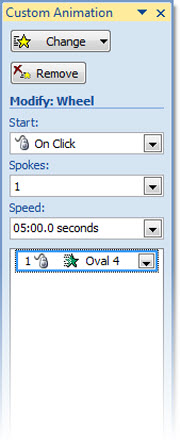
4. Apply an entrance animation to the top/red circle:
– Wheel
– 1 Spoke

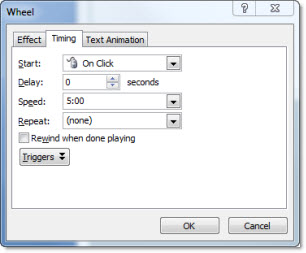
5. Customize the time (of the entrance animation) to anything up to 99 minutes.

6. Run the show!

– Troy @ TLC

By |2016-09-16T09:04:42-07:00January 29th, 2010|Tutorial|

Adjusting Bad Line Breaks

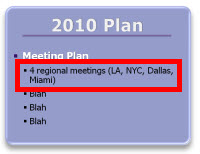
Here is a graphic from a recent client presentation (as sent to me – but with some text ‘removed’).

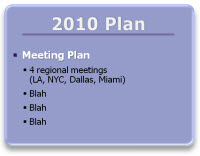
A simpe line break, soft-return (shift-return) grouped the topic/cities onto a single line which is much easier for the audience to interpret quickly.

– Troy @ TLC

By |2016-09-16T08:54:39-07:00January 13th, 2010|Tutorial|

Customizing SmartArt – Shadows

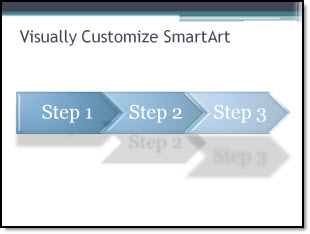
SmartArt is a great solution for converting text to visual elements. For a recent project I modified a simple timeline SmartArt (Closed Chevron Process) with customized drop shadows to add some visual interest to the slide.

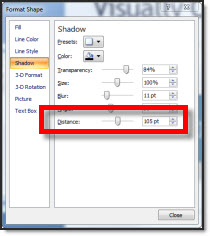
All was accomplished by adjusting the shadow distance for each of the 3 elements.

Download the slide here.

– Troy @ TLC

By |2016-09-16T09:10:42-07:00January 5th, 2010|Portfolio, Tutorial|

PPT 2007 vs. Imported PPT 2003 Tables (part 1)

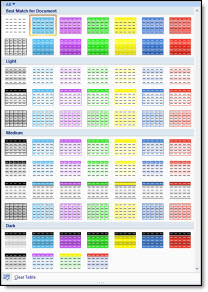
Here is a problem. You have a presentation where a number of tables are created and the Table Styles (Table Tools >> Design >> Table Styles) are used to make them look consistent and professional.

I often hear (and was one of people complaining too) that the styles are different for the PPT 2007 vs. the PPT 2003 table.

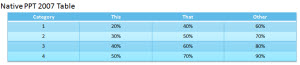
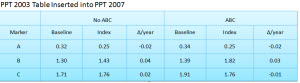
I have created a sample slide with these 2 tables on it:

Here is a link to download that slide (80K). See if you can make the two tables have an identical style/look using PPT 2007’s very helpful Table Styles. Feel free to use the post comment option to to tell us if you were successful, unsuccessful, or steps to accomplish.

Next post I will show what I check and do to accomplish this.

– Troy @ TLC

By |2016-09-16T09:13:25-07:00December 22nd, 2009|Tutorial|

More Options in Format Shape Dialog (for PPT 2010)

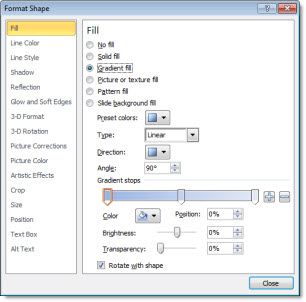
I had a few emails from the Nov. 30 post “#13 Gradients” about the additional items now in the Format Shape dialog. Yep, the options available in this dialog has increased! There are literally dozens of improvements that I did not cover in my top 15 and I look forward to spending the 2nd half of 2010 (after Office 2010 is released to retail) with in-depth posts.

Here is the dialog from the previous post:

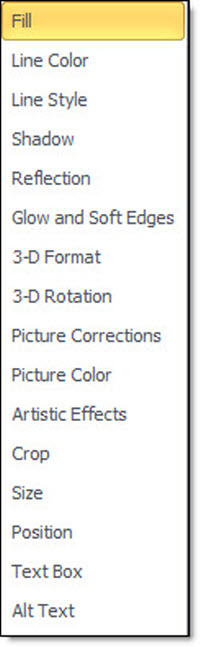
When you open the Format Shape dialog some of the currently available features get a full details pane like Reflection and Glow & Soft Edges.

Some features have more options available. “Picture” from PPT 2007 gets expanded to Picture Corrections and Picture Color.

And there are new dialogs such as Crop (see Nov. ## post), Artistic Effects (very cool stuff that probably should have been in my Top 15 list) and more with Size, Position, etc.

– Troy @ TLC

By |2016-09-16T09:16:08-07:00December 10th, 2009|Tutorial|

#15 – Presentation Info (in BackStage)

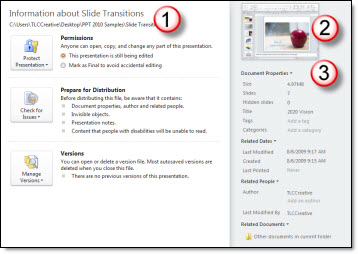
Lots of attention seems to have been given to the administrative functions of PowerPoint (print, save, etc.). Everything is now clustered in the ‘backoffice’ and there is lots to talk about. But one item I like is the ease of finding the details about the presentation you are working on.

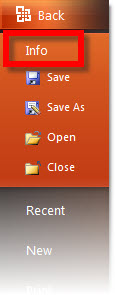
Simply go to the backoffice and info.

The right side window gives all of the presentation vitals, which were almost all available in previous versions – if you knew where to look.

1. Path to file
2. Thumbnail of presentation
3. All vital statistics of presentation (ranging from # slides to author information)

– Troy @ TLC

By |2016-09-16T09:16:59-07:00December 6th, 2009|Tutorial|

#14 – Customizable Ribbon

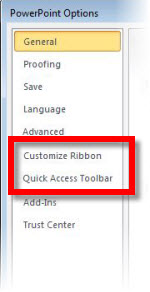
One item that really kept me from moving to PPT 2007 was the inability to customize the Ribbon. The QAT was the best offering and I have made good use of it. With PPT 2010 the main Ribbon becomes customizable!

When you look in the PowerPoint options, next to ‘Quick Access Toolbar’ is a new item “Customize Ribbon” – Yeah!

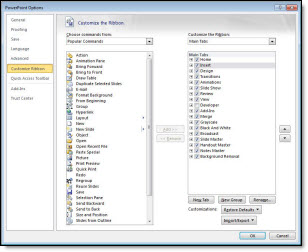
When open it uses the same interface as the QAT customization dialog.

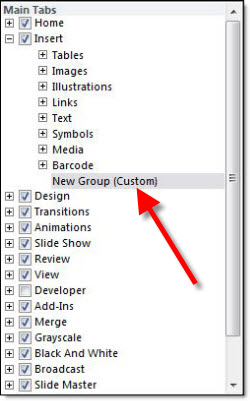
But it has an easy to see drill down navigation that goes from Tab to Section to Button. Here I have gone into the Insert tab and added a new section.

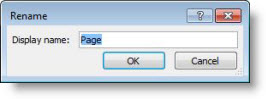
The new section can easily be renamed, which I have called “Page”

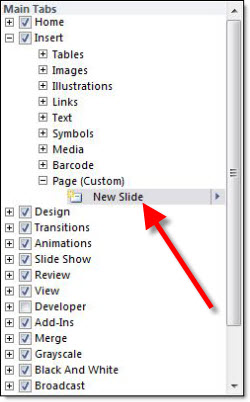
Within my new ‘Page’ section I have added the ‘New Slide’ button (funny how the Insert tab does not have ‘insert new slide’ on it…).

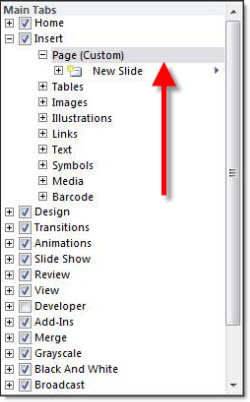
I then moved the position of the Section to be the first item – or far left on the Ribbon.

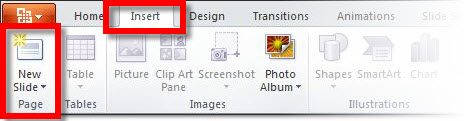
Here is my custom Ribbon. The Insert tab has the ‘New Slide’ button on it – right where I would expect it to be.

– Troy @ TLC

By |2016-09-16T09:17:23-07:00December 4th, 2009|Tutorial|

#13 New and Improved Gradient Tool

Gradients in PPT 2007 made so many great things possible (eg. not having to go out to Photoshop). But the User Interface was not very user friendly (okay it scares most people in my training classes). Now PPT 2010 gives the gradient fill tool a GREAT User Interface!

Everything works the same, uses the same dialog boxes, accessed the same, etc.

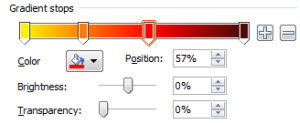
Everything new is found in the Gradient Stops dialog. Here is my sample gradient with 4 stops:

The drop-down menu approach of PPT 2007 is replaced with a visual bar that shows each stop and is a live preview of the gradient. To change attributes of any stop, just click on the stop “arrow” – easy!

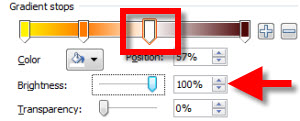
The Stop Position slider is gone as it is now integrated into the gradient bar. The Transparency slider remains and works the same. What is new is the Brightness slider. Here is my sample gradient with Stop 3’s Brightness at 100% – white:

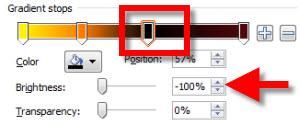
Here is the same gradient with Stop 3’s Brightness at -100% – black:

0% is the true color with various tints created as the Brightness slider is used. I am not certain how much I will use this feature, but it’s there.

The real improvement is the Gradient Bar with its integrated Stops and live preview, something I will be using a lot!

– Troy @ TLC

By |2016-09-16T09:17:40-07:00November 30th, 2009|PowerPoint, Tutorial|

#12 – Sections

For organizing content, multiple-topic or multiple-speaker presentations the new SECTIONS feature is fantastic! Basically it is an improved way of organizing slides when viewed in the slide sorter (also seen in the thumbnail pane).

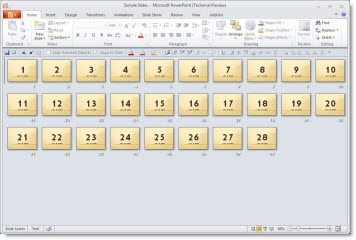
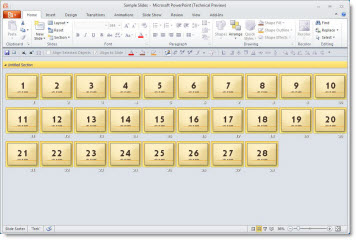
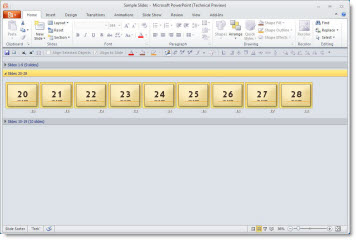
Here is my sample presentation – 28 slides.

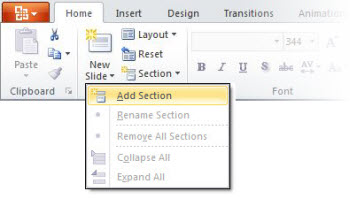
On the home tab the Sections menu a section can easily be added.

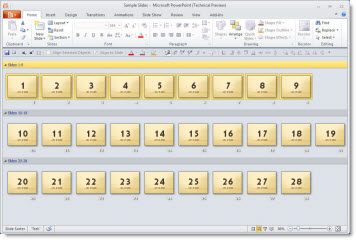
Here is the presentation divided into 3 sections.

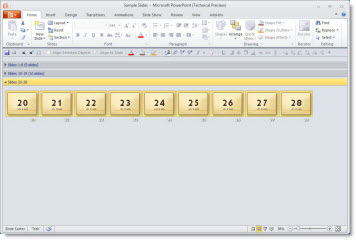
I collapsed the first two sections so only the last section (slides 20-28) is visible.

Same setup, but I collapsed the third section and expanded the second.

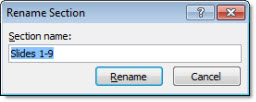
Sections can easily be renamed (eg. topic, speaker, etc.)

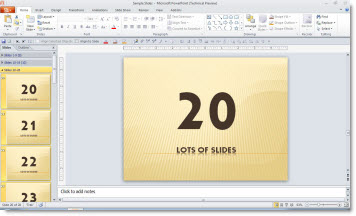
The sections also are seen and usable in the thumbnails. This is the same view as above, with the 1st and 2nd sections collapsed and the 3rd section visible.

Note: collapsed sections still view in slide show. The sections are only for organization and do not affect what is seen during a slide show.

– Troy @ TLC

By |2016-09-16T09:18:01-07:00November 28th, 2009|PowerPoint, Tutorial|

#11 – Remove Background Tool

I spend a lot of time in Photoshop preping images for presentations. But I may be able to spend a bit more time in PowerPoint thanks to this new tool. Tucker, one of the Microsoft developers described the way this really great new tool works is the “magic coding”. That’s a good enough description for me as it actually works better than Photoshop’s ‘magic wand’ tool.

1. Insert an image you want to remove the background on – typically I would open the file in PhotoShop, drop out the background, save the image as a .png with transparency, and then insert into PowerPoint. Here the image looks great, but I want the template background to show through, which is not white.

2. With image selected go to the format(tab) >> Background Removal Tool

3. The tool takes it guess at what is not wanted (purple mask)

4. Modify the selection with the + and – tools

5. Here is the image with all of the include image(+) and remove image(-) markers.

6. End up with a great image that allows the background to show!

The effect is not permanent, the background can be further modified at any time. The background remeval can be reset back to the original image too.

– Troy @ TLC

By |2016-09-16T09:18:43-07:00November 24th, 2009|PowerPoint, Tutorial|
Go to Top