
YAY Images PowerPoint Add-In
Previously, we looked at Adobe’s Image Search PowerPoint Add-In. Today, we’re looking at a similar tool, YAY Images. This add-in searches for images directly in PowerPoint and it has some advanced search filters to find the perfect image.

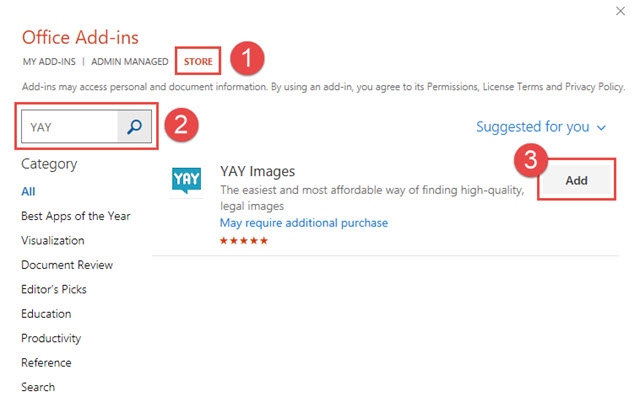
Go to th INSERT Tab> click the STORE button > search for “YAY.” Select “add” and after installed PowerPoint will open the YAY action pane.
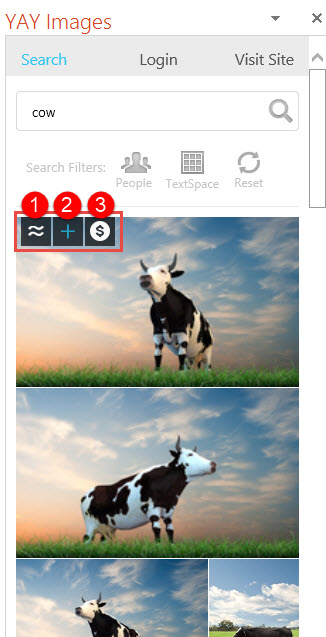
Within the action pane, search for images using a variety of options: (1) search for similar images, (2) insert previews into your presentation, or (3) directly license and insert image.
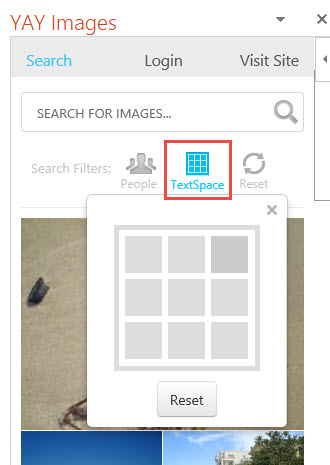
Our favorite thing about this tool is the advanced search options (it would be great to see some of the “big” stock photo sites integrate some of these options), such as the search by aspect, number of people in the photo, and the “TextSpace” is a great option!
But as with most image licensing tools and websites, licensing any of the images requires a subscription plan. Signing up for the account is free but plans range from around $10 – $100 depending on the number of images you are downloading each month.
Enjoy!
Adobe Stock PowerPoint Add-In
AdobeStock is a large royalty free image resource offering. TLC Creative opted to make it our current project resource (we change out services every few years). Adobe has released a PowerPoint add-in for Adobe Stock. If you’re a Adobe Stock subscriber, you can easily access the image search directly in PowerPoint.

Install the Adobe Stock PowerPoint Add-in: Insert Tab > My Add-ins (or Store) > See All > Add
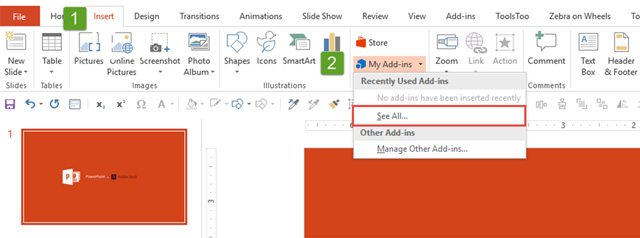
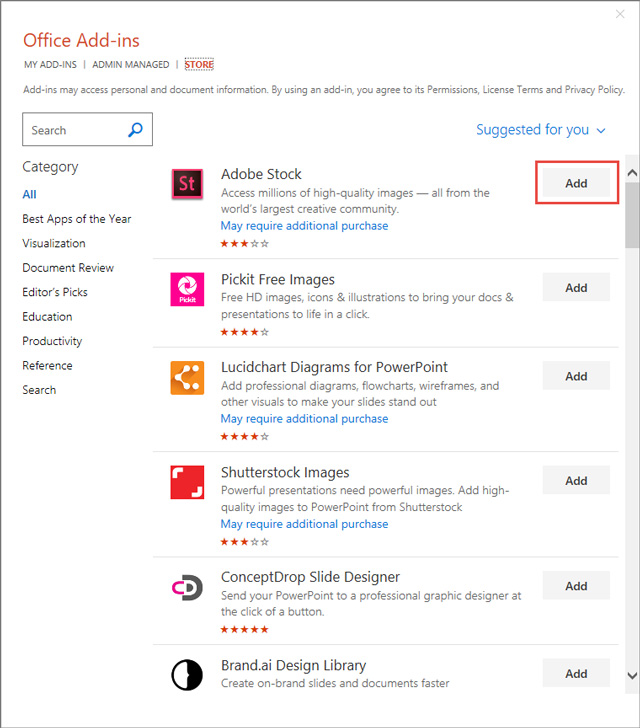
Click the Adobe Stock add-in button on the Insert tab to open the Adobe Stock action pane.
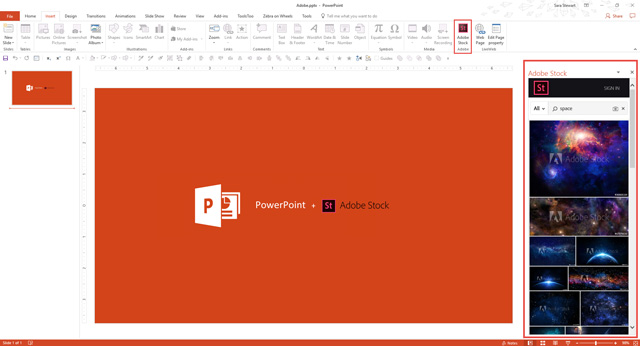
The process of searching, finding, selecting and inserting images onto a slide is very intuitive and easy. A few observations:
- You need to log in to your Adobe account the first time the Adobe Stock action pane is opened.
- When you select an image, there is an option to license or insert a watermarked comp image (Preview in PowerPoint).
- Images only exist in the PowerPoint file, vs. downloading an image file through the Adobe Stock site and then adding that file to a presentation.
- Vector graphics are inserted as raster .png images (but can be downloaded as vector files if downloaded direct from the Adobe Stock site, which ironically cannot be downloaded as a raster image from the website where it is only available as a vector graphic that must be converted to be PowerPoint compatible).
Enjoy!
Noun Project Add-In
The Noun Project is an amazing site for vector icon graphics.
It is also a Microsoft add-in for PowerPoint. This is a web based add-in (vs. local machine install). In PowerPoint, go to the INSERT tab, and click the STORE button.

On the Store tab, search for NOUN PROJECT and install.
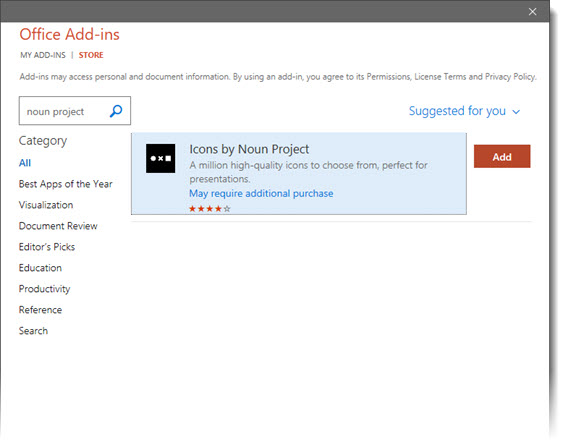
On the INSERT tab, the NOUN PROJECT button is available. Click to open the app pan and have instant access to over 1 million icons direct without leaving PowerPoint.
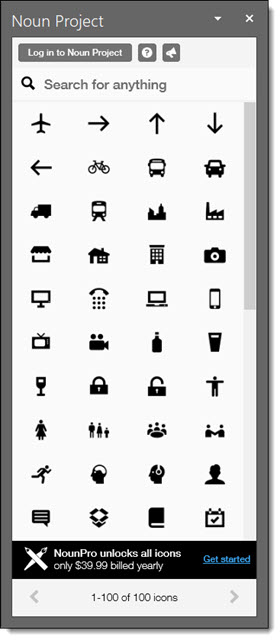
Everyone can access the free version, which are .PNG images, where each slide attribute the icon’s designer and icons are only added to a slide, they cannot be downloaded as separate art files. For TLC Creative we opted for the $40 annual subscription which does not need attribution, external art files can be downloaded and we can choose between SVG and PNG files every time we use. PowerPoint recently added its internal vector icon library (insert > icons), but if a presentation needs to expand beyond these, The Noun Project is something that can be found in many designers toolbox, and now it can be added directly in PowerPoint.
Troy @ TLC
The Presentation Podcast Episode #49 Released Today!
A new episode of The Presentation Podcast with Troy, Nolan, and Sandy is available today! Check out the latest episode, #49 – What Makes Presentation Slides Beautiful (with Mitch Grasso).
Beauty is subjective, as is slide design, all of which Troy, Nolan, Sandy and this week’s guest, Mitch Grasso, have strong opinions on. As founder of SlideRocket (acquired by VMware in 2011) and now Beautiful.ai (an online presentation design app that launched February 6, 2018), Mitch adds great insights into presentation design. Like TV shows that use a news headline for an episode storyline, we take Mitch’s new company name, and its mission, as our conversation topic and discuss what makes a beautiful presentation.
Beautiful.ai Review
Beautiful.AI is a stand alone (eg. not a PowerPoint companion or add-in) web-based presentation design app.

The immediate thing the TLC Creative team noted when testing Beautiful.ai was the visual and clean styling and layouts for presentations. Less is often better and the Beautiful.ai app focuses on that design aesthetic – in a good way.
[KGVID]https://thepowerpointblog.com/wp-content/uploads/2018/03/unnamed-file.mp4[/KGVID]
On the technical side, it is web-based. So no internet, no app. In addition it is a browser-based app, so no standalone app to launch, or even “button” to open a browser to the app. It also only functions in the Google Chrome browser. We have fast fiber internet service at the TLC Creative studio, but has noted other web-based apps still pause and have noticeable performance issues. Beautiful.ai was fast and never had us waiting for the internet to catch up.
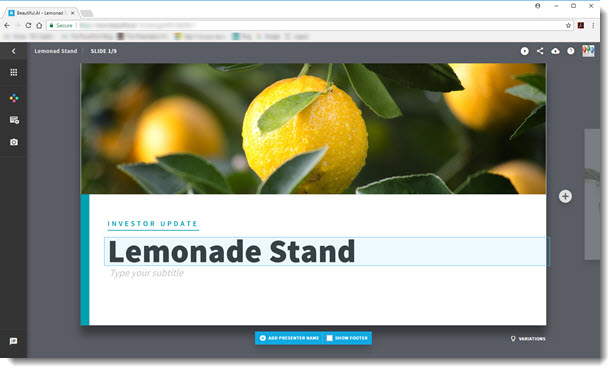
Using Beautiful AI to create a presentation:
- Click the plus symbol to “Add a Slide” and an array of 75+ preset layout options are available.
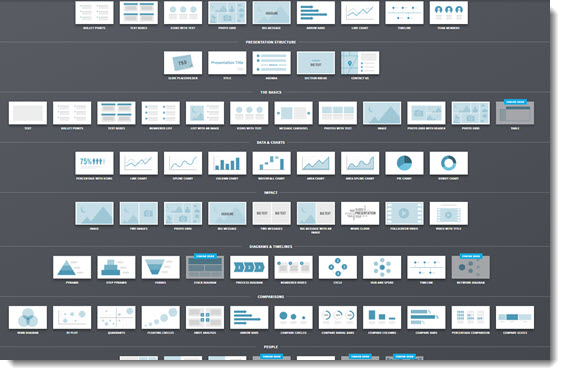
- Preset layouts can be customized with images (from internal app resources or from computer), text and several styling options. As example, the “Variations” icon is available at the bottom right and depending on what is selected on the slide it brings up a list of additional options to choose from, such as bullets, numbered icons, etc.
- Content is intuitive to add or delete, as are most of the styling options.
- Entrance animations are preset, and overall everything is elegant and professional.
- The “Artificial Intelligence” in the Beautiful.ai name shines with layouts that automatically readjust and realign for a professional and balanced arrangement. As example, adjusting a 5-item slide to a 3-item slide everything adjusts and centers on the slide area.
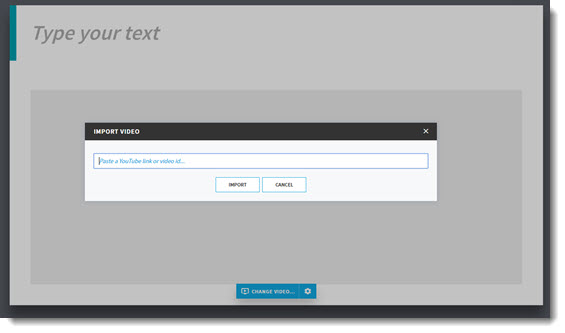
- Videos are possible with a YouTube import option. We were also informed that the ability to import your own video files is being added.
- For corporate PowerPoint template projects, one of our stand adds is a preset CONTACT layout. Beautiful.ai has a preset “CONTACT INFO” layout, and it has some nifty options such as add your address and it verifies the address from Google Maps and adds a Google Map to the slide. Plus you have the control of the map style and zoom level.

While this is one of the better web-based presentation design apps I have tested, there were points where I think the app became overwhelmed and it went into a never-ending spin mode (ie. it froze vs. being painfully slow to work with). There are also several limitations worth being aware of:
- Limited fonts available (okay, you use what it picks and no other choices are offered)
- No option to export editable files (PDF and PowerPoint deck made up of static images)
- No presenter view (to see presenter notes, a timer, etc.)
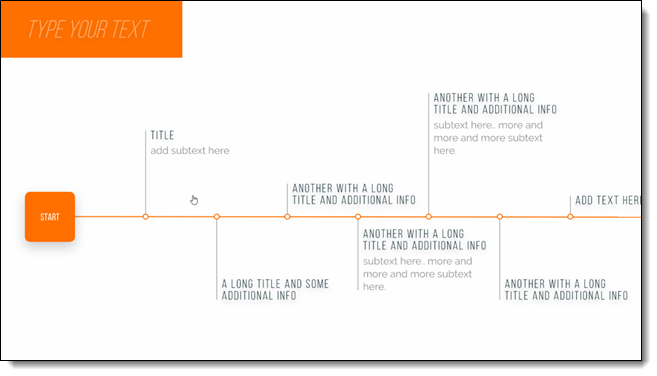
- And some styling limitations, such as on a timeline there is no control over the text wrapping. The layout is balanced between content, but often longer timeline elements need to be “off balance” from the rest of the content to create an overall balanced slide layout. Beautiful.ai follows some great rules for aesthetics, but does not have customization options for things that are outside its rules.
All in all, there’s a lot of pretty cool functions in Beautiful.ai. It is also valuable to take existing slides and content and see new design options presented by Beautiful.ai. My big takeaway is for the corporate user, I would still recommend using PowerPoint, but for one-off and the non-designer looking for a polished and professional visual styled presentation, Beautiful.ai should be an option to remember.
Troy @ TLC
Groundhog’s Day Slide Makeover #8
With the Feb. 2nd post, we displayed the original slide, which was handed off to the TLC Creative presentation design team with no notes or design notes.
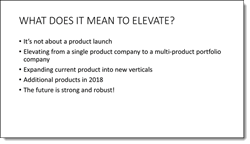
Here is Slide Makeover #8, done by Michelle.
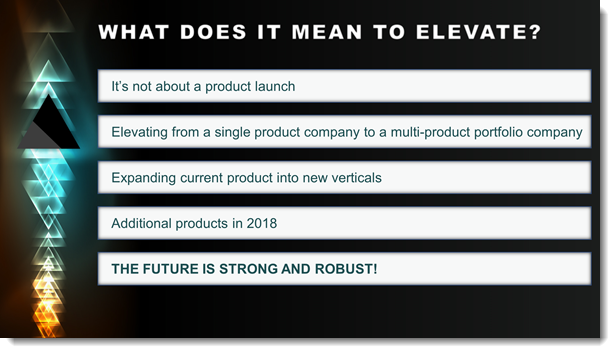
– Troy @ TLC Creative
Groundhog’s Day Slide Makeover #7
With the Feb. 2nd post, we displayed the original slide, which was handed off to the TLC Creative presentation design team with no notes or design notes.
Here is Amber’s presentation makeover.
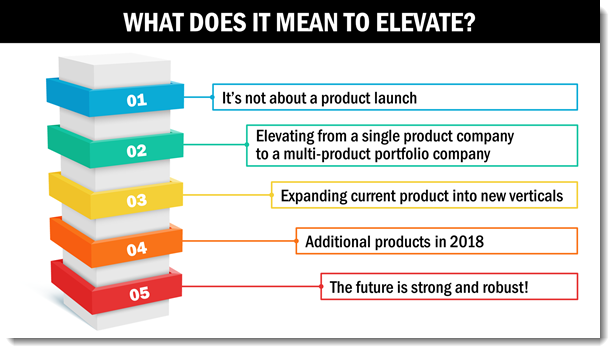
– Troy @ TLC