add-in

Make All Files Have SameTime Stamp

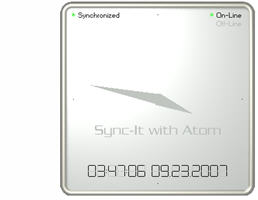
When working on multiple computers it is critical to be able to tell which files are new, or old, based on their time stamp. The solution is to run an application that updates the computer clock to an atomic clock through the internet.

I run SYNCIT With Atom on all of my computers, but there are tons of applications available. I have mine set to update/verifty clock accuracy every 45 seconds. And guarantee I know which file is the latest-and-greatest based on the time stamp – no matter what computer I was working on.

Click here to go to info/download page.

– Troy @ TLC

By |2016-11-17T16:32:45-08:00October 22nd, 2007|Software/Add-Ins|

Make Text MORE Legible

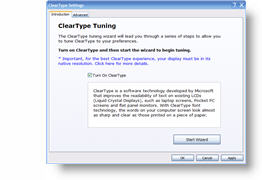
Another free application from Microsoft that ranges from good-to-great depending on your monitor is the CLEARTYPE TUNER. It basically tweaks the way Windows displays text on an LCD monitor.

It does not hinder, or noticably improve, displaying through a projector – and depending on your monitor it may or may not make a noticeable difference (on my 1900×1200 WXGA monitor it made a very noticeable effect, on a 1440×900 monitor it gave no noticeable difference).

Click here to go to download page

– Troy @ TLC

By |2016-11-17T16:32:14-08:00October 19th, 2007|Software/Add-Ins|

Be Visual with Active Apps

Being a graphic designer I admit that I understand things better when I can see them. One of the great features of the new Vista OS (and on Macs for awhile) is the ability to rollover the taskbar tab and see a thumbnail of the current application content. If you are running XP you can add this type feature to the Alt-Tab method of choosing your application.

With the Free Microsoft ALT-TAB tweak installed instead of seeing just the application/file name as you alt-tab through the active items, you see a thumbnail of the current content.

Click here to go to the download page at Microsoft.

– Troy @ TLC

By |2016-11-17T16:31:55-08:00October 17th, 2007|Software/Add-Ins|

Download or View PDF?

This is a browser add-in that I recently was told about and I like it. The frustration is when you click on a link to a PDF it is up to your browser settings whether it opens the PDF or downloads it (and Adobe’s default setting is to open it).

If I know I want to download the PDF there are three choices:
1. Right-click the link and choose ‘save file as’
2. Click the link, have it open, then click the save icon
3. Install the “PDF Download” add-in

With ‘PDF Download’ installed, every time a PDF link is clicked a dialog asks if it should be opened or saved – brilliant!

– Troy @ TLC

By |2016-11-17T16:30:04-08:00October 8th, 2007|Software/Add-Ins|

PPTXtreme MoreEdit Released

I have been happily using a beta version of this add-in for quite awhile. Now it is available to all (approx. $40 US). Here is their official press release:

pptXTREME releases moreEdit for Microsoft PowerPoint

pptXTREME has released moreEdit for Microsoft PowerPoint 2000, XP, 2003 and 2007. moreEdit consists of eight tools: SaveSelected, MakeHeader, MakeBody, Edit Word Art, MatchWidth, MatchHeight, Hide/Unhide and Notes.

With moreEdit’s MakeHeader and MakeBody, shapes that are created in PowerPoint without using the slide master can be formatted to the master. The process also removes “fake” bullets and extra lines and spaces left by the author to give the appearance of PowerPoint bullets.

The SaveSelected tool saves slides selected by the user into a file from within PowerPoint’s own sorter view.

Multiple elements on a slide can be aligned and formatted with the same width or height using the MatchWidth or MatchHeight tools. moreEdit’s Edit Word Art maintains the Word Art’s font size and formatting when you edit the Art’s text.

moreEdit’s HideSlide and UnhideSlides adds to PowerPoint’s default “hide” capabilities by making the hidden slides more visible in sorter view.

The Notes tool inserts text boxes for notes to the author that are formatted to be seen but can be hidden.

Get the full-function trial, click here.

– Troy @ TLC

By |2016-11-17T16:17:23-08:00July 23rd, 2007|Software/Add-Ins|

Sobolsoft Add-Ins

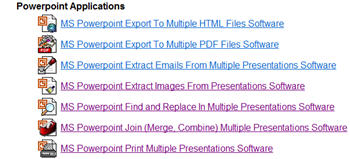
I use and have tested a ton of PowerPoint add-ins. I was recently sent a link to a company I have never seen (thanks Josh) and discovered they have a wide range of Microsoft Office add-ins.

Many are very project specific (ie. not useful outside their exact use), but definitely a resource to bookmark. Click here to check it out.

– Troy @ TLC

By |2016-11-17T16:14:35-08:00July 14th, 2007|Resource/Misc|

PFC Pro 2007

I have been fortunate enough to beta test and enjoy using the PFC Media add-ins since their inception. For those unfamiliar PFC stands for “Plays For Certain”. If you look at my top 10 recommended PPT add-ins on the TLC Creative website you will see PFC Media listed. The developer goes to enormous effort to assure this software works!

Just a few weeks ago the official 2007 compatible version of PFC Pro was released. If you add movies to presentations, I definitely endorse this as the best solution available. Click here for the PFC website.

Kathy Jacobs’ full review of PFC Pro 2007 is posted here.

– Troy @ TLC

By |2016-11-17T15:59:51-08:00May 19th, 2007|Software/Add-Ins|

Vista and PowerPoint Add-Ins

I am grappling with Vista and its new file structure and security ‘features.’ One thing I have discovered, and this affects several add-ins for PowerPoint, PhotoShop and Dreamweaver so far is the permissions settings for the PROGRAM FILES folder. It looks like Vista has made these default to read only, or non-accessible for many add-ins. Of course this is only a problem is the add-in installs itself in the Program Files folder (which almost all do).

I can offer two recommendations:
1. Give all users full permissions on the Program Files folder (Note: this may lead to other security issues as Microsoft has seen fit to change this globally)
2. Change where the add-in is installed. Create your own folder like C:Add-Ins (Note: the application will need to know to look for add-ins here)

Ah the joys of new technology… Maybe I will be able to get back to designing presentations soon.

– Troy @ TLC

By |2016-11-17T15:50:46-08:00March 26th, 2007|Software/Add-Ins|

Create a Glow with PPTXtreme SoftShadow

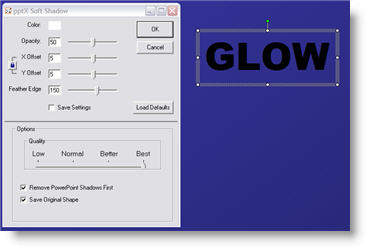
With creative use of PPTXtreme’s SoftShadow add-in instanst “Soft-Glows” can be created. If you have not checked out this very useful add-in go here.

(1) Select text, autoshape or image. Here are my setting for adding a white drop-shadow.

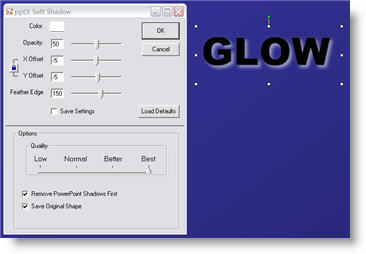
(2) Select the object again and apply a second softshadow. Note the negative (-5 and -5) X and Y positions, so the 2nd softshadow is positioned in the upper left. Here are my settings for this second softshadow.

(3) The result is a photoshop quality glow.

– Troy @ TLC

By |2016-11-17T14:47:06-08:00November 7th, 2006|Software/Add-Ins, Tutorial|
Go to Top