powerpoint

Olaf PowerPoint Slide

Special recognition to TLC designer Jennifer for this wonderful 3D illustration all developed in PowerPoint 2013!

Olaf-1

The video shows the development of Olaf in flip-book style animation. The first part of the video is a fast animation, followed by a slower version that shows each design step. Enjoy!

In addition to the obvious PowerPoint 3D and shadow options, most of the development relied on PowerPoint’s Merge Shapes tools.

Olaf-4

– Troy @ TLC

By |2025-04-02T12:40:37-07:00December 15th, 2014|Portfolio, PowerPoint, Resource/Misc|

Image + PowerPoint Graphic for Complete Slide Message

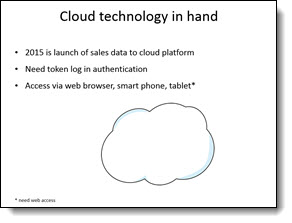
This is a slide from a recent project that I think is a good demonstration of seamlessly integrating PowerPoint content and graphics with photos. We developed from a script, so no design was done before our design team created the presentation – but I can easily see something like this being the “standard” PowerPoint slide:

CloudData1

Here is the TLC Creative Services slide for the presentation:

Complete Slide Message 2

Here is the development process for the complete slide message:

1. Review script, understand message, outline needed slide content to support message.

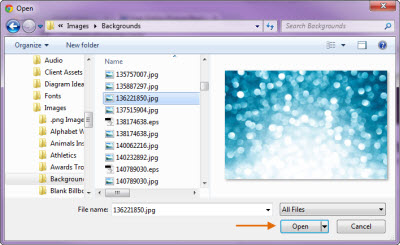
2. Research images, or develop image. For this slide we used this stock image:

CloudData3

3. Develop a cloud graphic in PowerPoint to animate and carry the message.

4. Use a combination of PowerPoint shapes and custom shapes that will become our PowerPoint cloud:

CloudData4

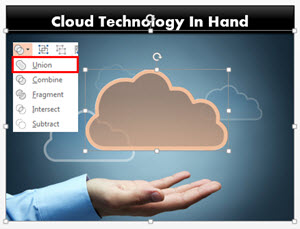
5. Turn all of the shapes into a single cloud using the MERGE SHAPES tool:

CloudData5

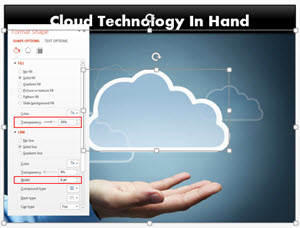
5. Adjust the color and fill/outline options:

CloudData6

6. Add the text (direct in the cloud shape):

CloudData7

7. Final step is to add an animated entrance effect:

CloudData8

Download the final slide here: CloudData

– Troy @ TLC

By |2016-08-10T09:16:06-07:00December 8th, 2014|Personal, Resource/Misc|

Pixar Cars Template

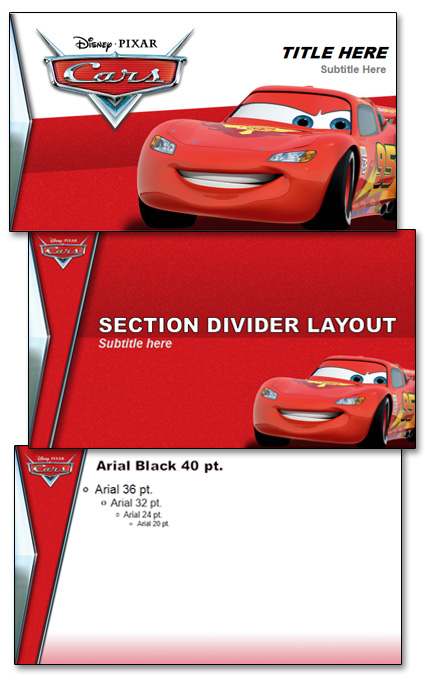
Pixar properties are fun projects! For this new marketing template for the Cars franchise, we were asked to develop a PowerPoint template that made use of a Chrome chevron/triangle, lots of McQueen’s metallic red paint, a McQueen character and the Disney Pixar Cars logo. Along with custom bullets (in the shape of bolts and rivets), this is the final template styling.

Pixar-Cars_template

Note: This post is only to highlight the design work of TLC, we cannot provide this template to anyone (sorry).


– Troy  @ TLC

By |2016-08-10T09:16:56-07:00December 3rd, 2014|Portfolio, Templates/Assets|

Fall Time Employee Recognition Slides

For a recent employee update presentation that TLC designed for one of our clients, we created a seasonal Fall Time themed set of slides for their employee recognition. Using PowerPoint 2013 and the ability to layer content on top of video, embed video, and custom motion path animations to develop these wonderful slides.

– Troy @ TLC

By |2025-04-02T12:45:42-07:00November 21st, 2014|Portfolio, PowerPoint|

Create Puzzle Pieces in PowerPoint

PowerPoint 2010 introduced the Merge Shapes toolset (trust me, it was hidden, but there). In PowerPoint 2013, the Merge Shapes toolset is much more accessible and refined. Here is an example we developed creating a much requested graphic element – puzzle pieces (download link below).


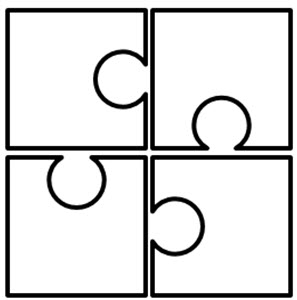
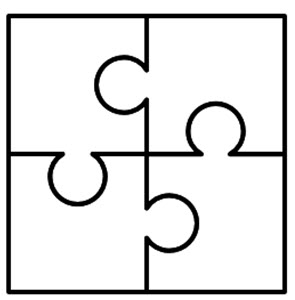
Here are the 4 puzzle pieces.

puzzle pieces-1

All are PowerPoint shapes


Here is a 4 step process to create your own:

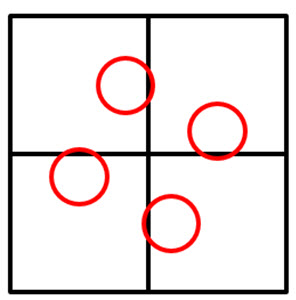
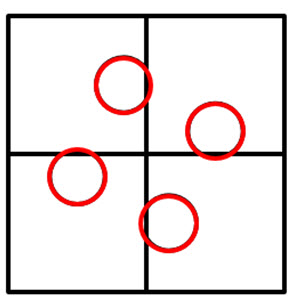
1. Add 4 squares AND 4 small circles, so there are 8 shapes on the slide. COPY the 4 circles.

puzzle pieces-4

Select all shapes and subtract the circles from the squares to get these 4 shapes.

puzzle pieces-5

Paste in the 4 circles, so there are 8 shapes on the slide again.

puzzle pieces-6

Select all 8 shapes and use the Merge Shapes tool to unite the circles to adjacent squares to create the 4 puzzle pieces.

puzzle pieces-7

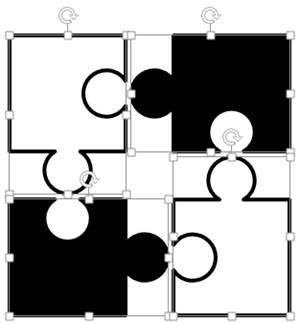
Each puzzle piece is a separate PowerPoint shape.

puzzle pieces-2

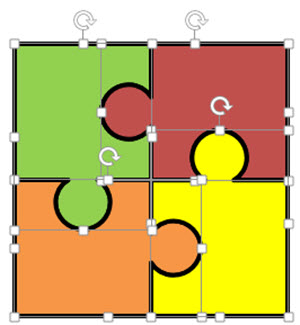
Each puzzle piece is a separate PowerPoint shape that can be resized, animated and recolored directly in PowerPoint.

puzzle pieces-9


Download a slide with the 4 puzzle pieces: PowerPoint_Puzzle_Pieces


– Troy @ TLC


By |2016-08-10T09:20:05-07:00November 6th, 2014|Resource/Misc, Tutorial|

(Try 2) Animation Sample – It’s a Small World

This is the 2nd posting of this sample as the post last week did not include the video of the PowerPoint slides… oops.

These are slides from a recent presentation and the video below is the animated version of the 4 slides:

SmallWorld-1

With some creative layout and PowerPoint animation, the presenter used this animated sequence to convey the message of their expanded Social Media presence and how it has a global reach (all animated on clicks):

– Troy @ TLC

By |2025-05-20T14:27:30-07:00November 3rd, 2014|Portfolio, PowerPoint|

Using Pic Resize to Optimize Images for PowerPoint

Pic Resize is a useful web-based app to optimize images for presentations, that is FREE. Images can be resized, cropped and have many editing options applied. This is a good, quick solution in the process of making images sized for a presentation and not jumbo multi-megabyte sized files from a digital camera or print project. TLC designer, Michelle, put together this overview of how Pic Resize is used and some of its options.

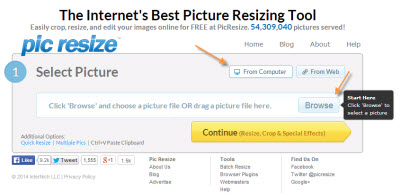
To get started, go to the Pic Resize webpage (here).

Click From Computer and then the Browse button. Locate a image on your computer and click Open.
Pic ReSize-1

Pic ReSize-2

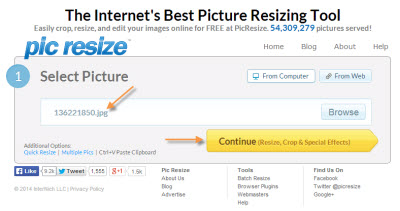
Once you have selected the image, click the Continue (Resize, Crop & Special Effects) button.
Pic ReSize-3

On the top portion of the next page, you can crop or rotate your image, if needed. Continue on to the second section to resize your image. The website defaults to resizing the image to 50% of the original size. If you need a different size, click on the drop down menu and select another preset percentage or resolution. You can also select Custom Size… to enter in the dimensions of your choice.
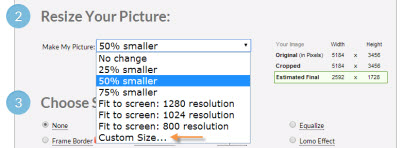
Pic ReSize-4

To optimize this image for use within PowerPoint, I will resize this image to 800 pixels wide. By leaving the Height field empty, Pic Resize will automatically keep the image proportionate by determining the correct height value.  You can also select a custom percentage of the original image by selecting Percent from the drop down image next to the Width or Height fields. The new dimensions of the image can be found on the right next to Estimated Final, which will be highlighted in green.
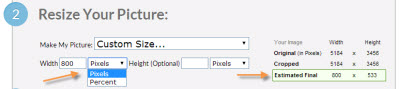
Pic ReSize-5

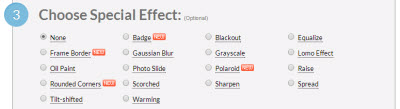
In the next section, you can select one of many special effects to enhance the image, if desired. Some of these special effects include Oil Paint, Scorched, Grayscale, and Sharpen, which can be seen below.
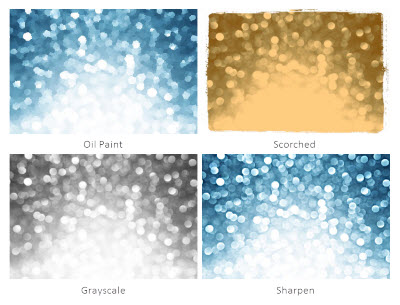
Pic ReSize-6

Pic reSize-7


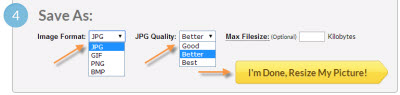
In the last step, you will select the format, quality (if JPEG) and maximum file size (optional) to save your image as. The original format of the image will be automatically populated but JPEG, GIF, PNG, and BMP are all supported. PNG images with alpha transparency are supported, so transparency will be maintained if resized. If resizing to a JPG as the format, you can also select the quality of the image being saved.
Pic ReSize-8

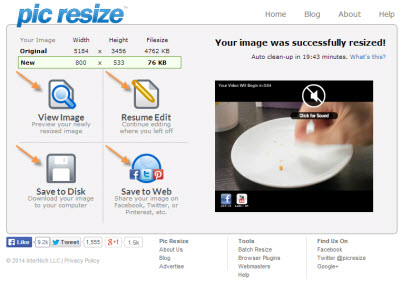
Once you have selected the format and quality, click the I’m Done, Resize My Picture! button. When successfully resized, you can select View Image to preview, Resume Edit to continue editing, Save to Disk to save onto your computer, or Save to Web to upload the image onto a social media website of your choice. For this instance, we would save the image to the desired location by clicking Save to Disk.
Pic ReSize-9

Once saved, you now have an optimized version of your image that can be easily used within PowerPoint. Below, you can see the new, optimized image, which was resized from 5184 x 3456 pixels down to 800 x 533 pixels.

– Michelle @ TLC

By |2016-08-10T09:23:22-07:00October 20th, 2014|Software/Add-Ins|

Spell Check and ALL CAPS

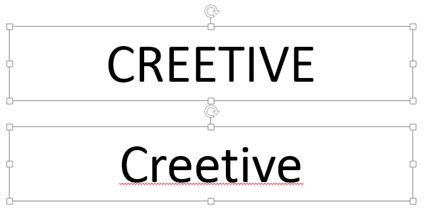
In PowerPoint 2013, the default settings can limit some of Microsoft’s helpful features. With the default settings if you type a word in lower case, spell check automatically lets us know if there is a typo. But if you type the same word in all caps, spell check is not used. Here is my example, which according to Microsoft Office only has 1 misspelled:

AllCaps-1

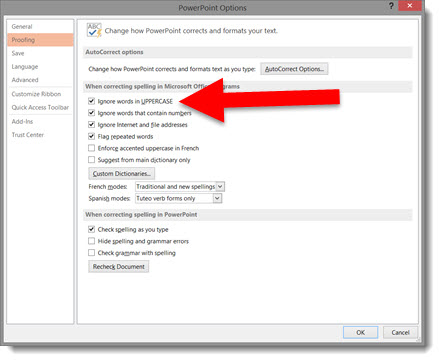
The setting to change is to go to FILE >> OPTIONS >> PROOFING tab

AllCaps-2

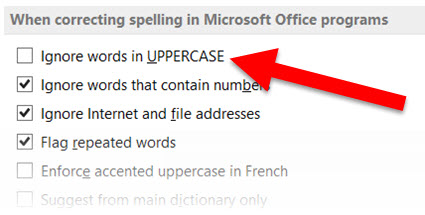
In the WHEN CORRECTING SPELLING IN MICROSOFT OFFICE PROGRAMS section, uncheck IGNORE WORDS IN UPPERCASE

AllCaps-3

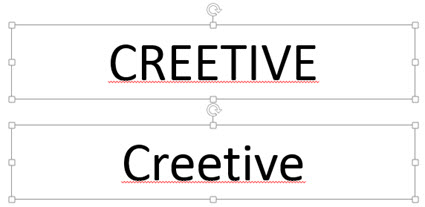
Now All Caps or Lower Case words are par of the spell check feature.

AllCaps-4

– Troy @ TLC

By |2016-08-10T09:24:08-07:00October 13th, 2014|Tutorial|

Replace Font Dialog, PowerPoint 2010 vs. 2013

PowerPoint is very weak in the area of font management. One of the few features PowerPoint does offer, Replace Font, has unfortunately become even less useful in PowerPoint 2013.

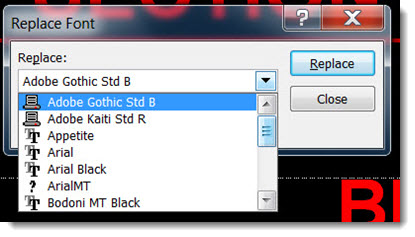
Here is the Replace Font dialog in PowerPoint 2010 (it remains the same for PowerPoint 2003 and 2007):

ReplaceFont-2010

Note that the drop down menu provides some good information. It indicates the type of font (True Type, Open Type, etc.) and if the font is not installed on the computer (indicated by a “?” next to the font name).


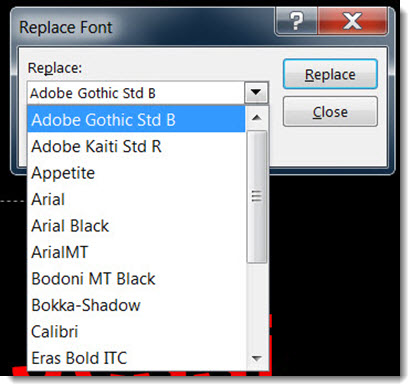
Here is the Replace Font dialog in PowerPoint 2013:

ReplaceFont-2013

The drop down menu no longer displays any of the icons indicating format and if missing from computer (arghh!).

Hopefully I will be able to update this post in the future with a note that Microsoft has returned these features to the dialog (or better, they have implemented new features to provide true font management!).

– Troy @ TLC

By |2016-08-10T09:24:33-07:00October 10th, 2014|Resource/Misc|
Go to Top