powerpoint

PowerPoint Bullet List to Timeline

A quick sample slide from a recent presentation makeover. After reviewing the content we determined the real message was an abstract timeline of tasks being promised as part of the new business setup. Rather than show a bullet list, the same information was recreated in a timeline visual.

bullet-2-timeline

– Troy @ TLC

By |2016-08-10T09:27:11-07:00September 26th, 2014|Portfolio|

The Problem with PowerPoints Selection Pane

The Selection Pane, introduced in PowerPoint 2007 is a great (and long over due) addition. But I think the dev team was not looking at the feature from a real-world use – and has not been updated yet (sigh…).

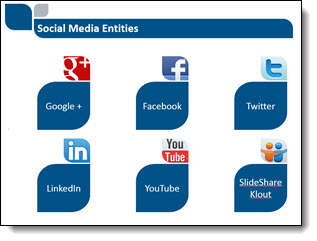
Here is my sample slide, that has many items on it. A good example of where the Selection Pane would be used.
SelectionPane_1


To open the Selection Pane: HOME >> EDITING >>  SELECT >> SELECTION PANE

SelectionPane_2SelectionPane_3


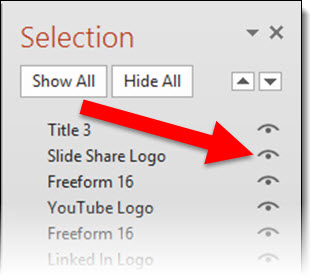
Note the on/off icon is on the right.
SelectionPane_4


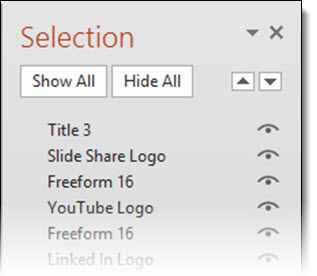
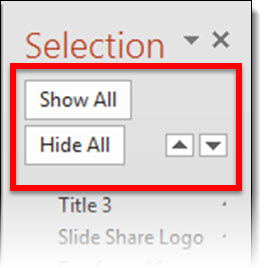
When the Selection Pane is made a smaller width, the tools at the top (Show All, Hide All, Move up/down) wrap nicely to fit the narrower layout.
SelectionPane_5


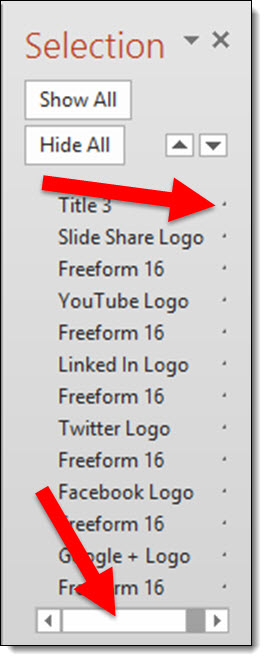
When the Selection Pane is made narrower, the names do not wrap, but the on/off icon is cut off and disappears rendering that feature unusable. At the bottom is a scroller, which does allow access the on/off icon – but it requires so many additional mouse clicks and movements it is not a practical option.
SelectionPane_6

To answer the inevitable question from the MS Dev team – “why would you need to make the Selection Pane so narrow?”. In the real world, we work with different resolutions (please test the Selection Pane at 1024×768 to see how much screen real estate it needs to be functional), have several panes open side-by-side, have dozens of objects on a slide – on and off the slide area – and want to work at the largest viewable size, and many other real situations where the selection pane is in the way when so wide.


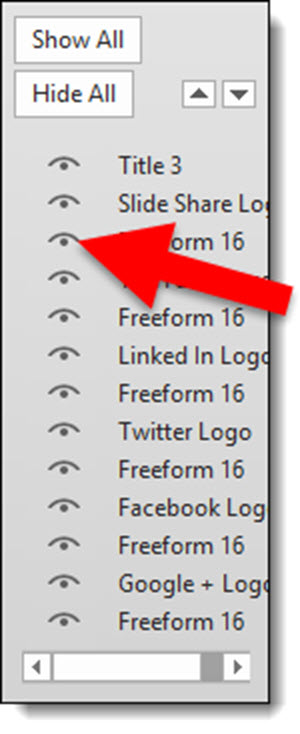
So what should the MS Dev team do? Simple: move the on/off icon to the left side and let the names get cut off.
SelectionPane_7

Leave a comment about your experience with the Selection Pane tool (in PPT 2007, 2010, 2013).

– Troy @ TLC

 

By |2016-08-10T09:32:03-07:00September 17th, 2014|PowerPoint, Resource/Misc|

Is That Straight Line Really Straight…?

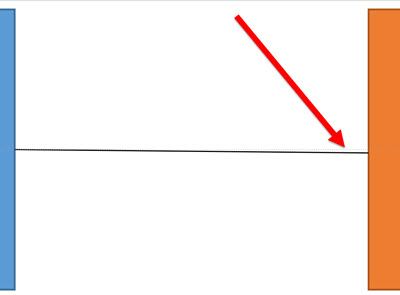
The snap-to-grid, Align to anchor point and random placement of PowerPoint lines can, at times, become frustrating. When reviewing a slide layout, I am often looking at lines and trying to determine if they are straight. For example, after looking at this simple layout, I question whether the line connecting the two boxes is straight or just an optical illusion.

Straight_1


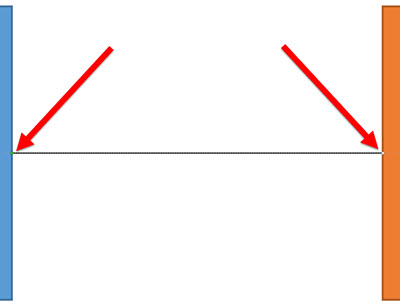
When we zoom in and add a guideline to see what is straight – the connecting line is very slightly off. Not a big deal when viewed as a small image here on the blog. But enlarge this diagram to fit a 40′ wide screen and this small inaccuracy is big!

Straight_2


One of my go to PowerPoint add-in sets is from ToolsToo.

Straight_5

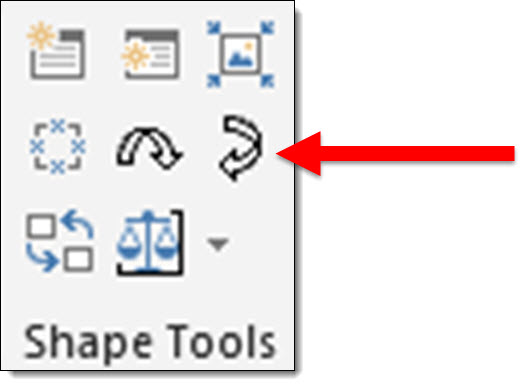
These two tools are in the SHAPE TOOLS section: MAKE LINE HORIZONTAL and MAKE LINE VERTICAL.

Straight_3


Two clicks and I know a line is straight. Select the line, click the horizontal or vertical button and no matter what the line is snapping to, it is set to a straight line on the 0 or 90 degree axis!

Straight_4


– Troy @ TLC


By |2016-08-10T09:34:49-07:00September 10th, 2014|Tutorial|

Using PowerPoint’s Shape Merge (3)

Part 3 of the Shape Merge real-world, presentation design examples is a Key shape.

BATTERY
Goal is to create a single PowerPoint shape of a classic battery that can be stylized in any way using Point’s features.

Shape(s) 1 – two rounded corner rectangles to create the battery shape.

Shape 2 – the power/lighting shape is a standard shape in PowerPoint. Rotate, size a position on battery shape (color does not matter – we are going to delete it in the next step).

Shape 3 – select the battery shape, then the lightning bolt shape, use the Shape Merge SUBTRACT. Note: PowerPoint does some interesting things, in this example, the final shape is created visually in the correct orientation, but is actually rotated 326′.

– Troy @ TLC

By |2016-08-10T09:39:02-07:00May 28th, 2014|Tutorial|

Using PowerPoint’s Shape Merge (2)

Part of the Shape Merge real-world, presentation design examples is a Key shape.

KEY
Goal is to create a single PowerPoint shape that can be stylized with different fill colors for an analogy slide of the 3 corporate program “keys.”

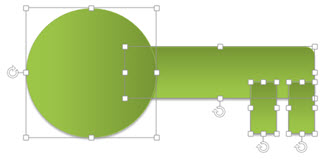
Shape(s) 1 – design the key using a circle and set of rectangles.

Select all shapes and use the UNION tool to create a single shape.

Create a new circle, size and position over the handle part of the key.

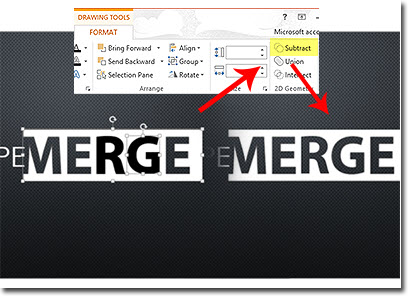
Select the key 1st, then the circle and use the SUBTRACT tool to create the final, single shape Key (shadow added, fill changed).

– Troy @ TLC
By |2016-08-10T09:39:19-07:00May 26th, 2014|Tutorial|

Using PowerPoint’s Shape Merge (1)

Christie was tasked with creating a 3-part blog series of creative, real-world, presentation design examples using PowerPoint’s Shape Merge tools (see this post on the Shape Merge Tools).

TARGET
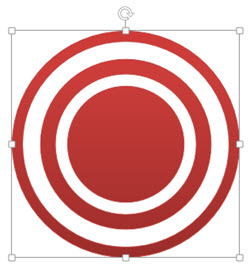
Goal is to create a single PowerPoint shape with the concentric circles of a classic bullseye target. Note: With the Shape Merge tools, the first selected shape will make a difference in which item will be removed.

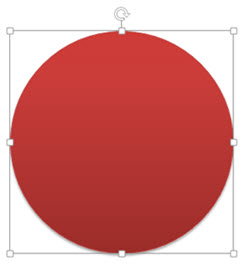
Shape 1

Shape styling – gradient fill:

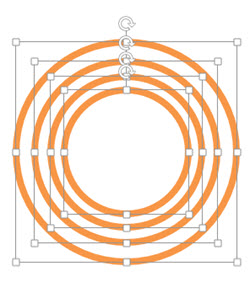
Shape(s) 2: series of 4 circles with thick outlines (color does not matter).

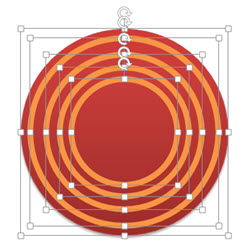
Move Shape 1 (red circle) under Shape 2 and align all:

Select shapes (this is important – select Red circle 1st) and the Shape Merge COMBINE tool:

Final touches – bevel, gradient fill, shadow or any other effect styling can be applied to this new SINGLE SHAPE (I added the gradient fill in the original shape, but added a drop shadow after):

– Troy @ TLC

By |2016-08-10T09:40:53-07:00May 23rd, 2014|Tutorial|

Shape Merge in PowerPoint

A very useful, and perhaps underutilized feature in PowerPoint is the Shape Merge. This may be due to the fact that pre-Office 2013, it was actually a very difficult to locate feature, remaining hidden to many users unaware of its existence.

Add the Shape Merge Tools to PowerPoint 2010
In PowerPoint 2010, you have to jump through a few hoops to make the feature accessible:

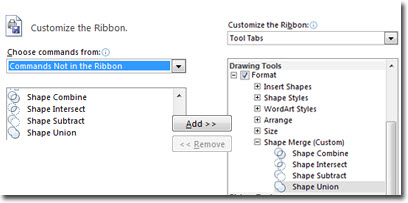
1. Right click on the ribbon and click customize.
2. In the right hand column, select Tools Tabs. Create a custom group in the “Drawing Tools” section titles “Shape Merge.”
3. In the left-hand column, select “Commands Not in the Ribbon.”
4. Scroll down until you see the Shape Tools: Combine, Intersect, Subtract, and Union. Click the add button between the two column to add them to the custom group we’ve just created.
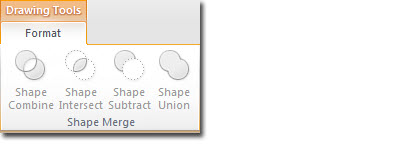
5. Now when working with shapes, you should have the options depicted below in your Drawing Tools ribbon.
6. Enjoy easily creating complex shapes!

The Shape Merge Tools are Already in PowerPoint 2013
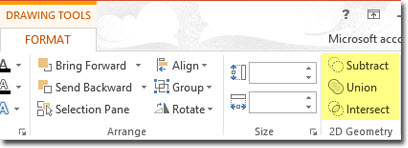
When working with shapes in PowerPoint 2013, you’ll find the Shape Merge tools are already available for use on the Drawing Tools ribbon.

Putting our New Tools to Work
Using these tools is fairly straight forward. You simple click on one shape, hold shift+click on a second shape. It’s worth noting that the first click is the primary shape, and the second click will be the subtraction shape.

– Troy @ TLC

By |2016-08-10T09:41:40-07:00May 19th, 2014|Personal|

Duarte Releases SlideDocs ‘Book’

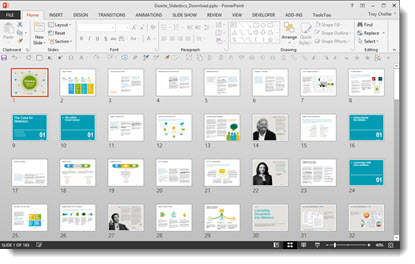
If you have used PowerPoint to create a print document that was never intended to be projected as a slide show, fear not, you are not alone. TLC Creative Services has been creating lots of projects over the past few years that we internally refer to as “PowerPoint Documents.” Nancy Duarte has release a new “book” all about using PowerPoint for non-slide show documents called “SlideDocs.”

The downloaded book is a giant example of how PowerPoint is used for document design, because it is a PowerPoint file.

The core message of SlideDocs, which I agree with, is there are a range of documents. On the left are formal print design documents. On the right are slide show presentations. In the middle are print documents that are designed in PowerPoint.

I recommend everyone, especially clients, read SlideDocs if nothing else for the overview of graphic design and layout principles in the middle section. Get more info and download the free SlideDocs book and templates here.

– Troy @ TLC
By |2016-08-10T09:47:41-07:00March 20th, 2014|PowerPoint, Resource/Misc|

Using Multiple Masters To Organize

Multiple masters are usually used in relation to different templates in a single file. At TLC, we use multiple master slides for design organization as much as different templates.

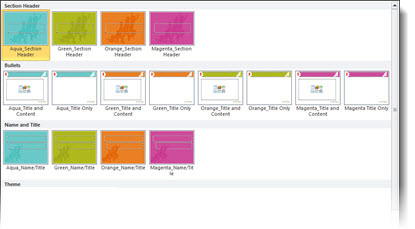
This is from a recent project that was all one template, but with 4 distinct color options. The client requested a simple structure, specifically not 4 duplicate sets of master slides. So we organized the Master Slides into 3 categories:
Top row = section divider slides in each color
Middle row = all of the content slide layouts in each color
Bottom row = title slides in each color

Just another way of providing solutions for clients using the features of PowerPoint’s master slides.

– Troy @ TLC

By |2016-08-10T09:47:58-07:00March 17th, 2014|PowerPoint, Tutorial|

Creating Quote Mark Graphics in PowerPoint 2013

PowerPoint 2010 introduced the very great “Merge Shape” tools (see this post for details). With this toolset, editable vector shapes can be can be created directly in PowerPoint – something I refer to as “Illustrator 2.0.” With PowerPoint 2013, it includes the ability to convert text to vector, which is what we will use to create the stylized quote mark graphics for a complete PowerPoint workflow.

quote mark graphics 1

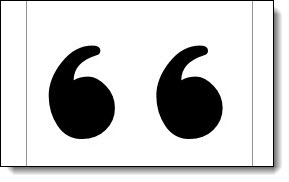
1. Add text in PowerPoint.

quote mark graphics 2

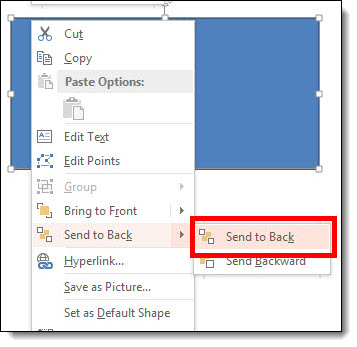
2. Add PPT shape, and send to back behind text.

quote mark graphics 3

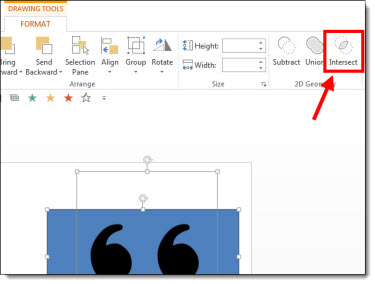
3. Select text and shape. On FORMAT ribbon >> MERGE SHAPES >> INTERSECT

quote mark graphics 4

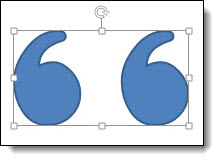
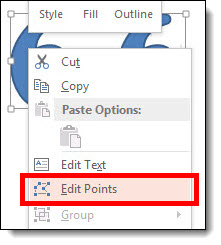
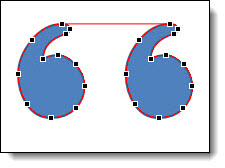
4. The text is no longer editable, as it is now shapes. Right click and select EDIT POINTS just like any shape in PPT.

quote mark graphics 5
quote mark graphics 6
quote mark graphics 7

5. Stylize with no fill, light grey outline, drop shadow effect described in this post.

– Troy @ TLC
By |2016-08-10T09:48:18-07:00March 14th, 2014|PowerPoint, Tutorial|
Go to Top