Tutorial

Fire & Ice Text (Gradients + Styling)

Continuing from the post with the Fire and Ice text using gradient fills, here styling effects applied for even more visually dynamic text.

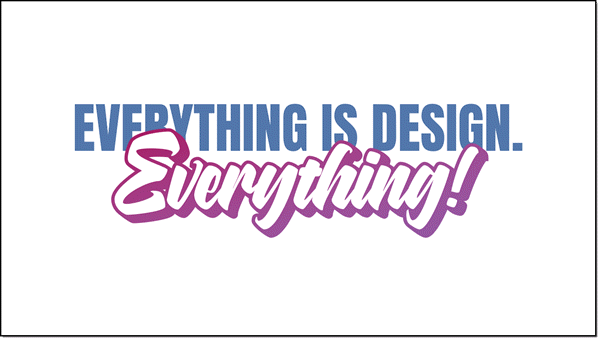
This variation adds shadow and bevel effects to the text. The text remains editable, and the styling effects can be applied to any other text with the Format Painter tool! 

Here is the styling effects applied:

  • Select the text.
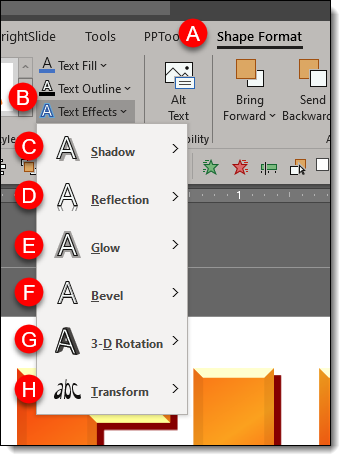
  • Go to SHAPE FORMAT (A) on the ribbon
  • Select TEXT EFFECTS (B)
  • The 6 customization options for text are: SHADOW (C), REFLECTION (D), GLOW (E), BEVEL (F), 3-D ROTATION (G), TRANSFORM (H)

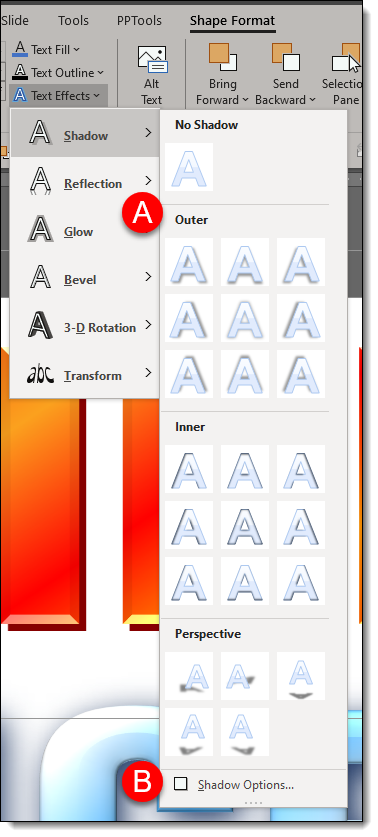
  • For all effects, PowerPoint has preset styling options (A) to quickly enhance your text.
  • Each effect also has an OPTIONS (B) button to bring up the FORMAT SHAPE panel to the right of the artboard so you can customize the styling effects.

The FIRE text custom shadow settings:

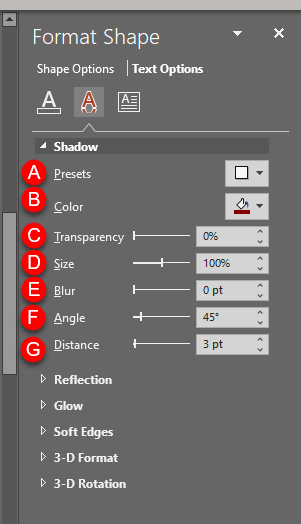
  • In the FORMA SHAPE pane, go to TEXT OPTIONS.
  • Expand SHADOW
  • (A) is the PRESETS (same options available direct from the ribbon)
  • (B) COLOR. For the Fire text I used a hard edge dark orange and for the ICE text a super soft (fuzzy) dark blue.
  • (C) TRANSPARENCY (not used on this text)
  • (D) SIZE. 100% for FIRE and 101% for ICE.
  • (E) BLUR. 0 for FIRE and 14 for ICE.
  • (F) ANGLE. The default 45 degrees for FIRE and 55 degrees ICE.
  • (G) DISTANCE. The default 3 points for both FIRE and ICE.

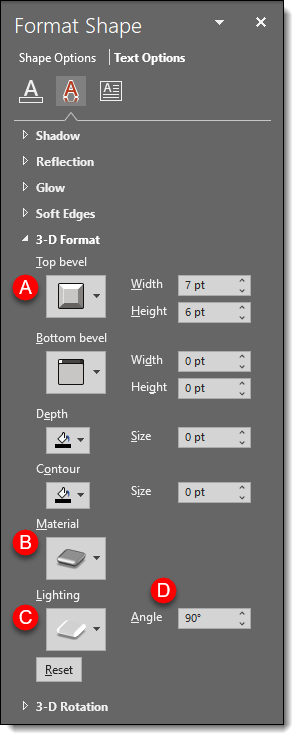
Next expand 3-D FORMAT

  • (A) TOP BEVEL: minimal for FIRE and large (softer) for ICE
  • (B) MATERIAL: FIRE = Dark Edge and ICE = Warm Matte
  • (C) LIGHTING: FIRE = Glow and ICE = the default 3 Point
  • (D) LIGHTING ANGLE: FIRE = 90° and ICE = 0°

Hopefully some text styling inspiration – all while keeping the text editable. Download the PowerPoint slide here.

Troy @ TLC
By |2020-01-04T17:18:40-08:00January 8th, 2020|Tutorial|

Fire & Ice Text (Gradient)

Text does not need to be a boring solid color! As example, here are the two words Amber started with for this mini tutorial series.

Editable PowerPoint text can be more than a solid color fill. Gradients take a bit of work but can be a great way to make text more visually interesting, and text is still editable even with gradients applied! And when text uses PowerPoint gradients, the gradients can be applied to other text with the Format Painter tool (copy the style from one text box to another).

Each word is a separate text box, and each has its own gradient fill styling. Here’s how the gradient was created:

  • Select the text
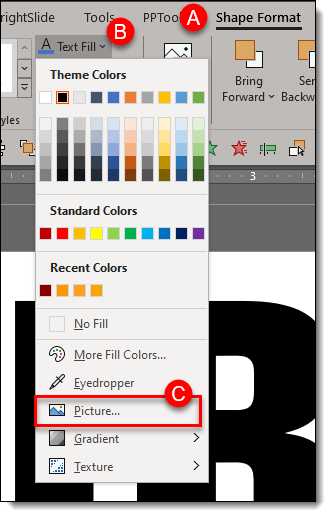
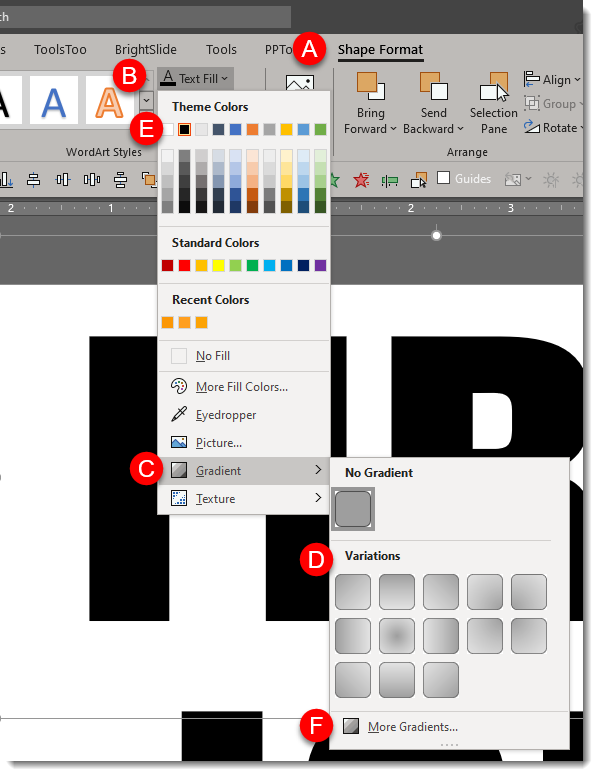
  • Under SHAPE FORMAT (A) on the ribbon, click the down carrot under TEXT FILL (B).
  • Mouse over GRADIENT (C) to show the gradient fly out menu and select the gradient you want (D).
  • These first options are created using the text fill color the text is currently set to, this example being black (E). To see more PowerPoint created variations, click the MORE GRADIENTS (F) at the bottom of the fly out menu.


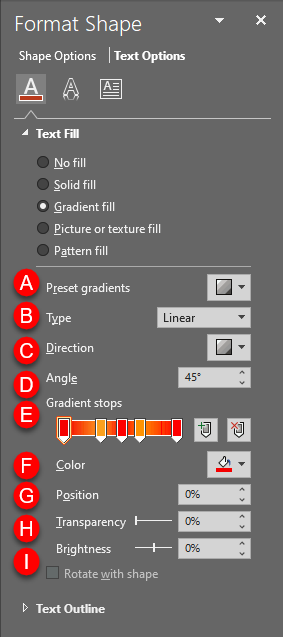
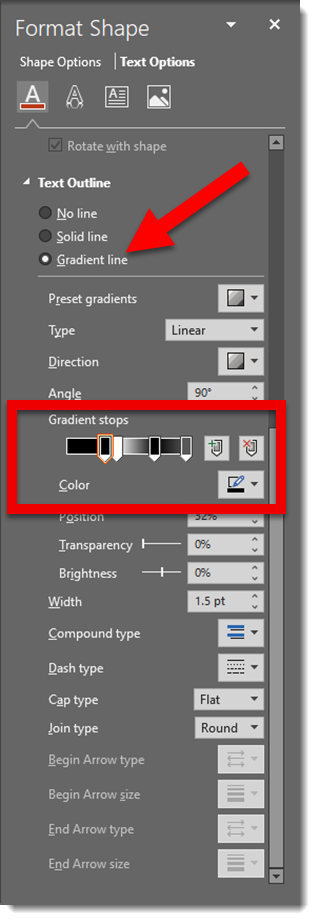
Click MORE GRADIENTS to see the FORMAT SHAPE pane. This is where we have more control to create custom gradients. The FIRE gradient is 5 gradient stops (eg. colors) set at an angle:

(A) PRESET GRADIENTS: These are gradients created using the 6 theme colors set in your template.

(B) TYPE: Change the type of gradient:
– LINEAR: horizontal, vertical, diagonal
– RADIAL: circular gradient starting from the center or from any of the 4 corners
– RECTANGULAR: rectangular gradient starting from the center or any of the 4 corners
– PATH: creates the gradient in the shape of the object it is filling

(C) DIRECTION: Change the direction of LINEAR or RADIAL gradients

(D) ANGLE: Change the angle of the direction of the gradient

(E) GRADIENT STOPS: set the color points of the gradient. You can ADD (click anywhere on the gradient) or SUBTRACT (click and drag the gradient stop off) points and set the color of each.

(F) COLOR: select the color for a gradient stop.

(G) POSITION: you can fine tune the position of a gradient stop.

(H) TRANSPARENCY: set the transparency of a gradient stop.

(I) BRIGHTNESS: set brightness of a gradient stop.


Download the FIRE & ICE gradient fill sample slide Here.

Troy @ TLC

By |2025-06-06T17:36:03-07:00January 6th, 2020|Tutorial|

2019 to 2020 Stylized Text

A popular visual for lots of presentations this time of the year is a visual that sets up a conversation about goals and expectations for the year ahead. Using just PowerPoint text and styling effects, here is a quick dynamic slide (editable slide download link at the end).

The goal of the slide is to show 2019 moving into 2020. The start of the slide is adding two text boxes:

Using just the outline of text is a way to create text that feels “designed”. For this slide I am using a bold outline for the 2019:

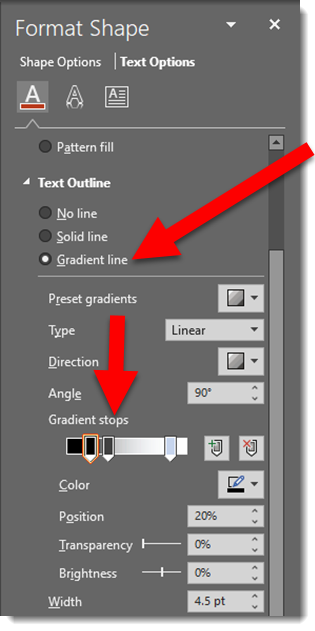
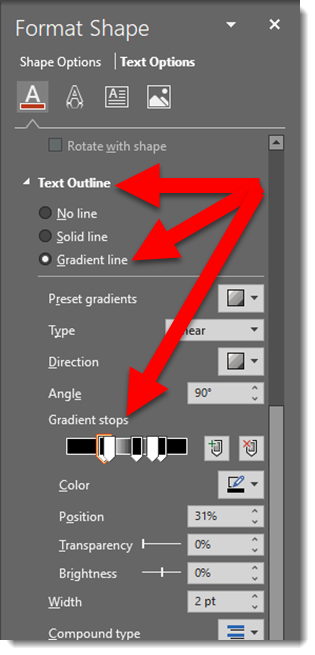
To create a visual of 2019 fading into 2020 the text has a custom gradient outline:

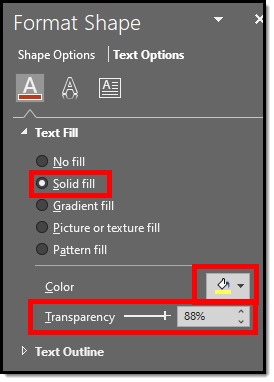
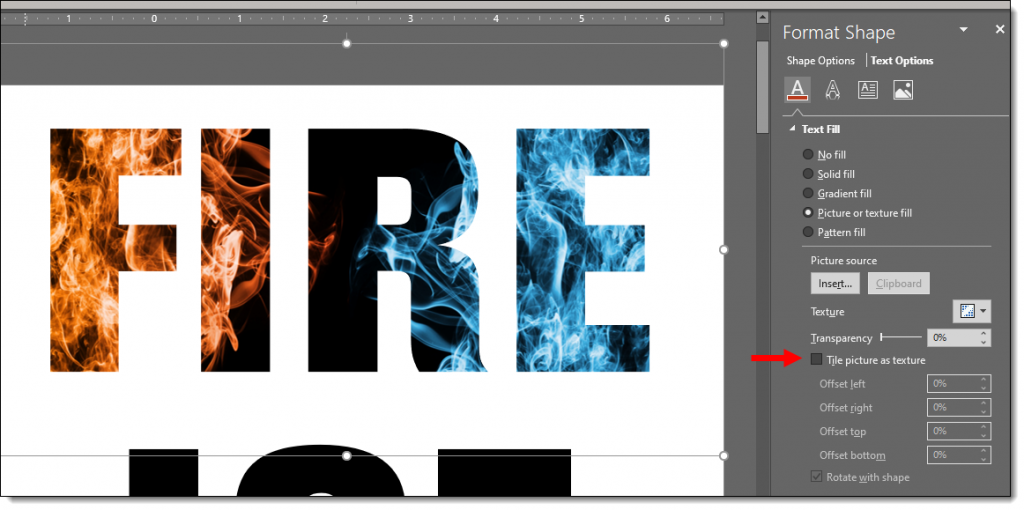
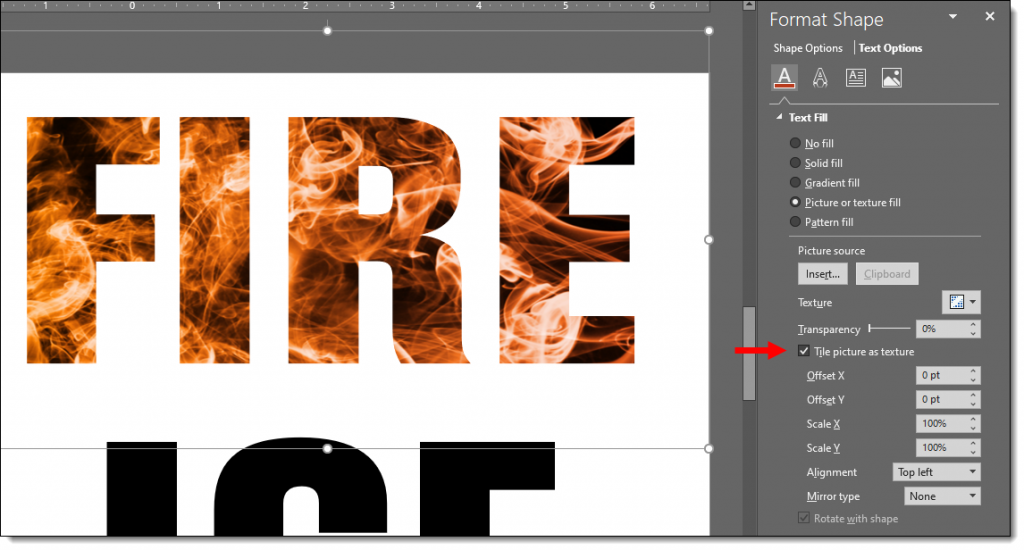
To make the 2020 literally dazzle and sparkle, I am using the same styling effect as the previous post – picture fill. Here is the image used and effects:

To enhance the 2020 text is further, a custom bold outline is applied:

And as a final touch, a graphic element is added to show the motion of 2019-to-2020. A PowerPoint arrow, sized wide and short with a gradient fill:

Download the PowerPoint slide HERE

Note: custom font used will default to available font when opened, but all effects remain intact.


Troy @ TLC

By |2020-01-04T09:29:55-08:00January 3rd, 2020|PowerPoint, Tutorial|

Happy New Year!! Let’s Talk About Stylizing Text in PowerPoint

Today is the first day of the new year, new decade, and new presentations! This month I am focusing on a dozen posts that have stylized text – all with native PowerPoint effects. For day 1 of 2020, I am turning a plain 2020 text into a stylized layout that visually shows the bright future ahead of us this year – and keeps the text editable!

Here is the base text; black text on a white background, but a fun font “American Capitan”.

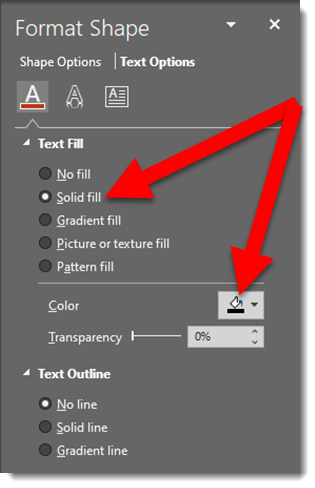
This is the text fill default; solid fill and black (or whatever the template has as the Dark 1 color)

Any photo can be used to fill the text. I have this inspirational photo of a sunrise to use

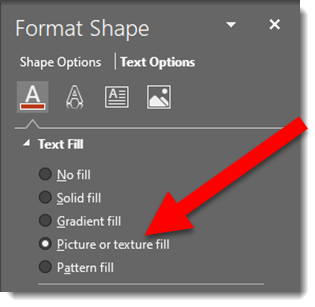
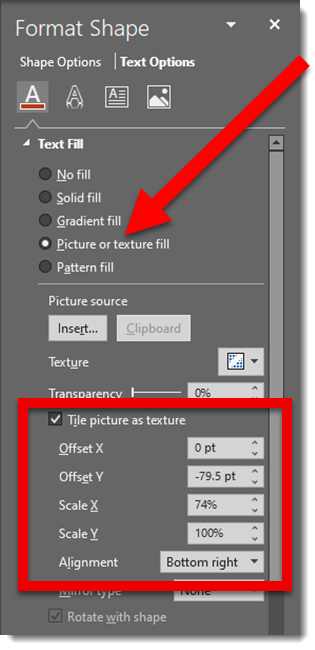
Select the text box, go to FORMAT SHAPE > TEXT OPTIONS > select PICTURE OR TEXTURE FILL > navigate to the sunrise photo and select it

The photo is not displaying the image as I want. The OFFSET and SCALE options move and size the image within the text

Now the “2020” image fill shows the bottom portion of the image and the sun itself positioned at the tip of the number 2 

Next is a stylized gradient outline

The final formatting is adding another image as the slide background and positioning the editable “2020” and applying a drop shadow

Troy @ TLC

By |2019-12-30T10:57:36-08:00January 1st, 2020|PowerPoint, Tutorial|

PowerPoint’s Arrange All

PowerPoint has an almost hidden feature, that has been there for quite awhile, and can be very useful when there are several presentations open – Arrange All.

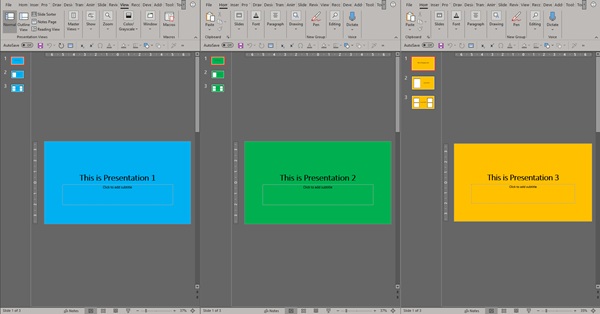
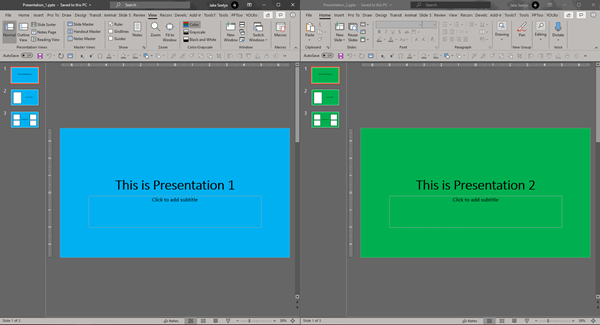
When working with multiple presentations in PowerPoint, there are times where you will have to switch back in forth between them. PowerPoint can make this easier and instantly layout all the presentations across the monitors like this:

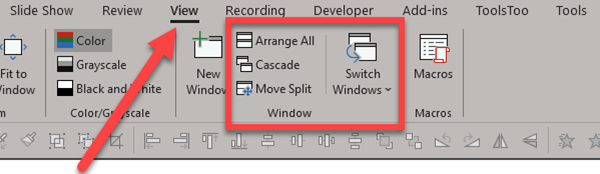
Go to the VIEW tab and the WINDOW section. There are a few options:

  • Arrange All
  • Cascade,
  • Move Split
  • Switch Windows

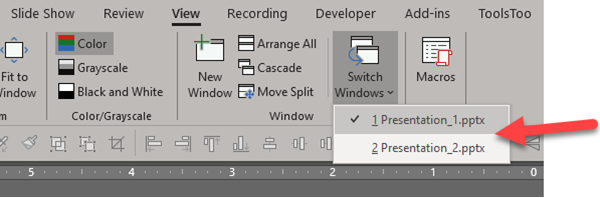
First, we will take a look at Switch Windows.

The SWITCH WINDOWS drop down menu shows a list of all currently open presentations. Select a presentation file name to bring that one to front.


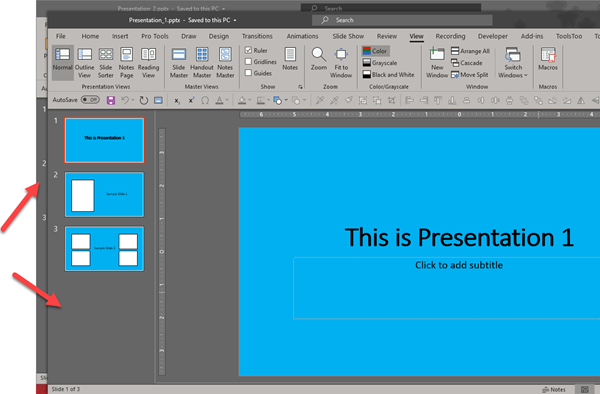
CASCADE resizes and repositions all currently open presentations onto a single montior, slightly offset so you can see their separate windows.

ARRANGE ALL is one of our favorite features. This will evening divide all currently open presentations across the screen. This is particularly helpful when working on one presentation while referencing the other(s).

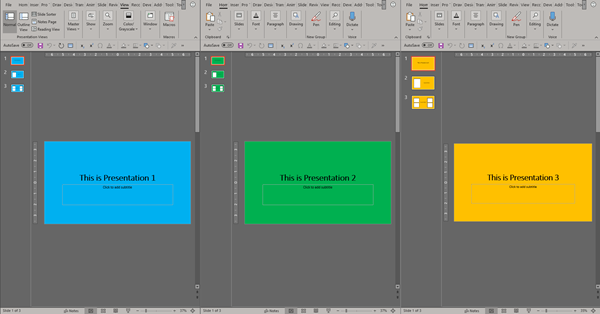
Here are 3 presentations instantly positioned on 1 screen. 

When working on multiple presentations simultaneously, things can get a bit hectic. This particular feature in PowerPoint makes life a little easier by making it simple to cycle to each presentation or by quickly displaying all presentations on screen.


Jake @ TLC

By |2019-10-06T10:41:07-07:00October 11th, 2019|Tutorial|

Sketched Outlines (Part 2)

I wanted to create a Part 2 to the PowerPoint Sketched Outline tool and share a more advanced shape consideration with using the Sketched outline styling. In this case, what happens when you use the Merge Shapes tools to create a new shape – and those shapes already have the Sketched outline styling applied?


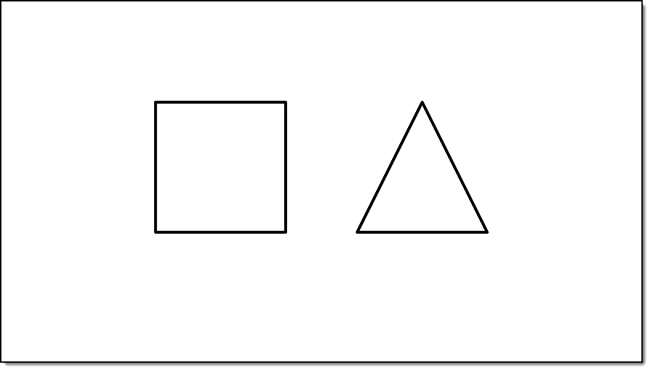
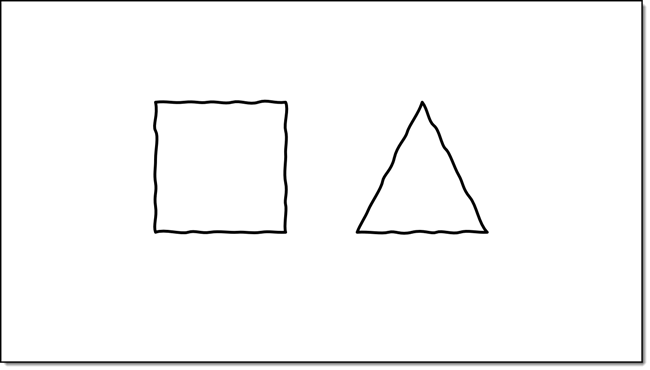
1. For this demo, I am inserting two 2 PowerPoint shapes

2. Apply a Sketch Styling to both shapes

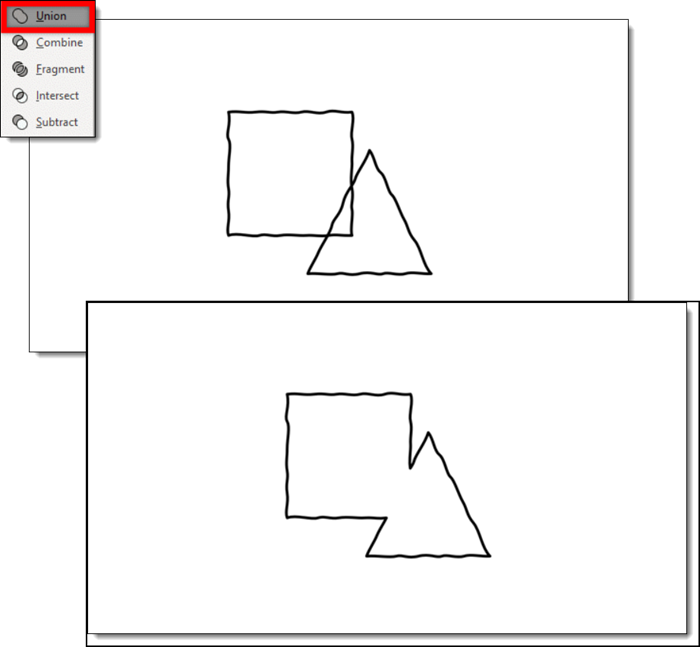
3. Then combine them by using the PowerPoint MERGE SHAEPES “Union”

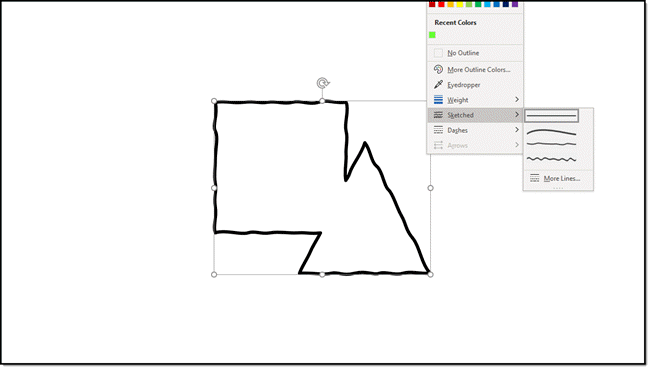
4. The new shape, which looks great, does have the Sketched outline permanently applied. Selecting the straight line optioncannot be selected to revert it back to smooth/straight lines.

5. The way to avoid this permanent styling is to pre-plan. Before merging the two shapes together change the outline to the smooth/straight outline.  Then re-apply the sketched outline styling to the new (merged) shape.

Troy @ TLC
By |2019-09-27T22:00:20-07:00October 7th, 2019|PowerPoint, Tutorial|

PowerPoint “Sketched” Shapes

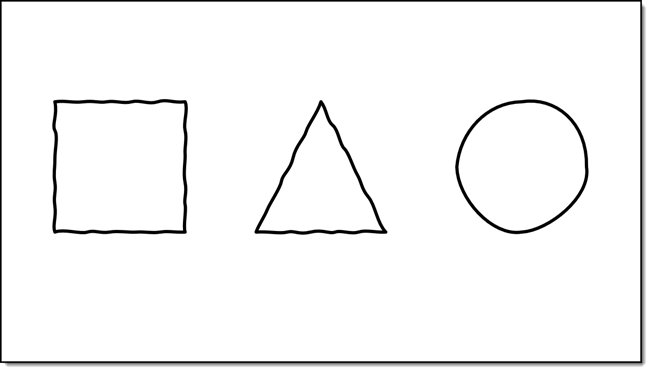
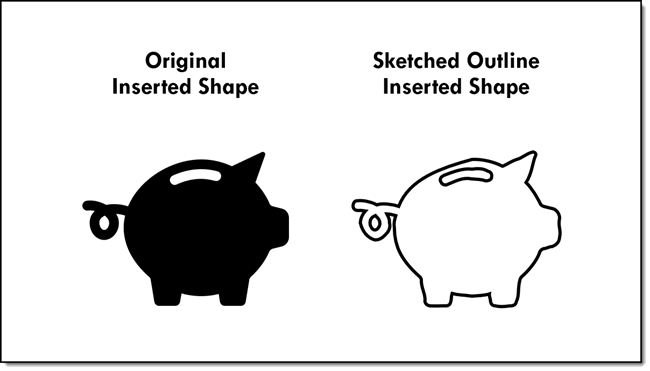
Outline Sketched is one of the newest design features in PowerPoint O365 version (on Windows, Mac, but on Online version yet). It applies a hand drawn, or “sketched” styling to shapes. As example:

The 1st step is to create any shape or insert a ppt object (read below for details)

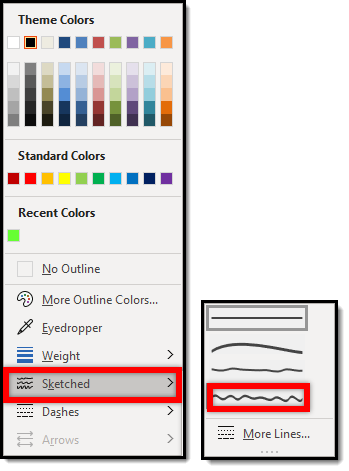
Select the object(s) and go to Shape Format > Shapes Styles tab > Shape Outline

In the Shape Outline drop down menu go to the new SKETCHED option that offers serveral preset “sketched” styles

Notes:
There are several ways to access the Shape Outline menu (at TLC Creative we have it on our QAT).
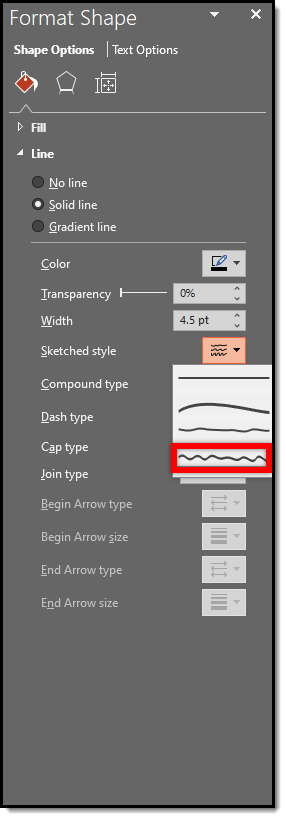
Also, the Sketched settings are available in the “Format Shape” pane


Applying a Sketched outline to the example objects does this:

  • The PowerPoint shapes remain completed editable!
  • Objects can be filled and with the ability to still apply a sketch outline.
  • Inserted .SVG graphics
    • The only way to apply this outline to an inserted .svg art is to ungroup the svg file within ppt. However, this will ultimately change the svg into an emf shape and might change the look of the svg, i.e. if the svg is inserted with a gradient style and the object is ungrouped the object might become distorted in color etc.
  • Inserted PowerPoint icons
    • The native icons are basically an internal library of .svg graphics. The sketched styling can be applied the same way it can be applied to .svg graphics described above
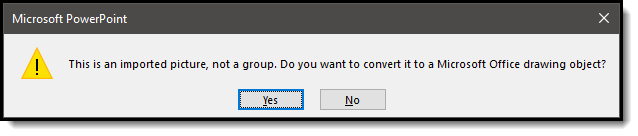
    • Ungroup the icon > click yes at the warning pop up, click yes > apply sketched outline styling
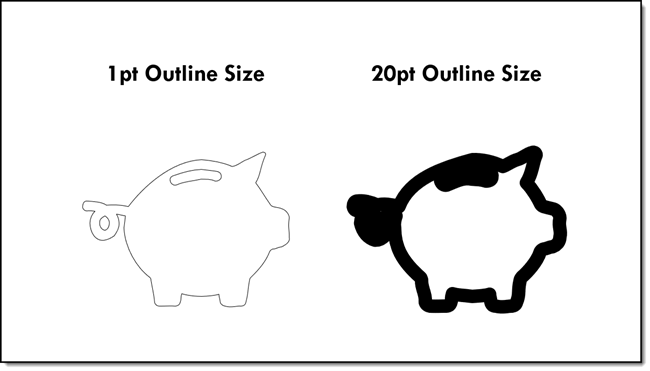
  • Outlines can vary in weight (thickness). Test different weights to find the one that best works with the graphic. As example, our sample PowerPoint icon looks very different with a a thin 1pt outline and a thick 20pt outline
    •  
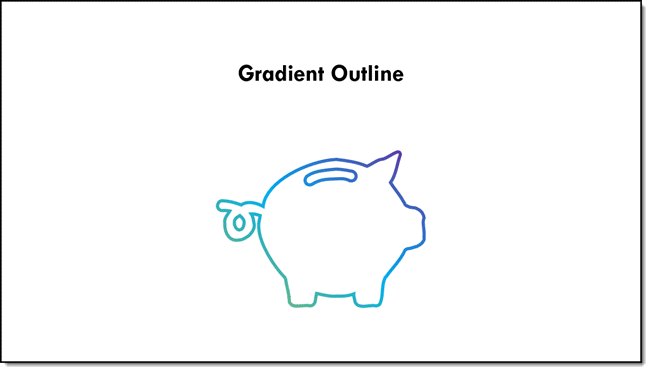
  • Sketched outlines can have all PowerPoint styling options applied; color, shadow, or  gradients
    •  

Troy @ TLC

By |2019-09-27T22:00:41-07:00October 3rd, 2019|PowerPoint, Tutorial|

The Magic Of F4

While doing some production design on a presentation, the client – who is very PowerPoint savvy – leaned over with wide eyes and said “how are you doing that!?”

What I was doing was making the very tedious process of applying custom paragraph spacing to various text boxes throughout a presentation. How, the power of the F4 key. F4 – first introduced to me I believe by the late (and very great and very much the queen of the color red accessories) Sonia Coleman. 

F4 is “repeat last command’. It is not new, but it is one of those small gems for production work that is not widely used.

In my case I had set a paragraph of text to have a custom SPACE BEFORE of 18 pt. The key was adding space before just the primary paragraphs, not the sub-bullet paragraphs. This means the setting cannot be applied to the entire text box, and the current Paragraph Styles functionality is not modal, so must be applied to each paragraph separately.

The tedious process of applying this even just  few paragraphs is a minute. Applying this setting to paragraphs throughout a presentation can be 5-10-30 minutes of many extra mouse clicks selecting the paragraph – opening the Paragraph Styles dialog – updating settings and repeating for every paragraph. BUT, do this to 1 paragraph, select the next paragraph and click F4. The last command is repeated, in this case, applying a custom paragraph style. Fly through the slides, selecting paragraphs and clicking F4 and be done with the formatting in a few minutes!

before and after example of where the above custom paragraph spacing was applied to specific paragraphs.

Troy @ TLC

By |2019-08-22T16:34:54-07:00August 23rd, 2019|Tutorial|

Forcing Morph To Move The Right Shape

This is Part 2 of this tutorial (see Part 1 here). This is the same 4 slide deck with the exact same Morph transitions applied:

The critical difference is I went in and named each of the 6 shapes in the Selection Pane. This is the new Morph Object Tagging feature – it allows us to force associations of objects across slides, which forces Morph to transform exactly the objects we choose.

The behind the scenes coding (as I understand it) is a really clever hack by the Microsoft team. Each object (photo, shape, vector graphic, text box) is assigned a unique ID number, something we as a user cannot control, and is separate from the Selection Pane naming. Each slide, even with the same objects, is reassigned ID numbers, so there is not a guarantee of association from slide to slide. The Morph Object Tagging steps in as the slide transition starts, reading the Selection Pane names for each object. Then reads the Selection Pane names of objects on the next slide. If the objects start with a double exclamation mark “!!” and have the same name, Morph overrides the PowerPoint ID number and associated those two objects – a fantastic hack for everyone to take advantage of! 

Slides 1-2; the logo and shapes go to the expected locations, with or without Morph Object Tags applied (see Part 1).

slides 2-3: All of the shapes rearranged themselves with Morph, again with or without Object Tags applied (which as a good surprise).

slides 3-4: without Object Tags, there was no motion and a legacy Fade Off/Fade On effect which really was not the desired motion. With Object Tags applied, the Morph transition works perfect!

[KGVID]https://thepowerpointblog.com/wp-content/uploads/2019/06/unnamed-file-5.mp4[/KGVID]

Troy @ TLC
By |2019-10-28T15:33:28-07:00June 12th, 2019|Tutorial|

Morph Does Not Move the Right Shape!

We love the Morph transition. Animation is so fast and so easy to setup! But there is no control over what morph does. Usually this is not a problem and the motion effect works well enough. But sometimes it really is not working and it is frustrating! This is a 2 part tutorial. Part 1, this post, walks through morph not working, and there is no fix without the new Object Tagging feature. Part 2, the next post, updates the exact same slides with Morph Object Tagging and what was not possible works as expected!

Here is the sample slide deck, 4 slides with PowerPoint shapes (okay, slide 1 is our logo). No animation is used on the slides, just Morph.

Object names: open the Selection Pane and we see the PowerPoint auto assigned names. Note: Morph really does not care what these names are as each object has a code ID number. But the Selection Pane naming plays an important role in some clever coding by the Microsoft team – explained in the next post.

Slide 1 to 2, the motion animation is because on slide 1 all the shapes are ready for Morph to use by being positioned off the visible area.

slides 2-3 work just fine. The goal is to move the shapes into numerical order, and Morph does a perfect job of keeping track of the shapes and moving their were we want (note: I actually had expected this to be a problem for Morph).

slides 3-4 is a disaster. Each of the shapes was first changed to a triangle using Change Shape, and then repositioned and resized. Morph does not keep shapes associated when Change Shape is applied, so we get a very boring fade off/fade on effect.

Here is everything in motion:

[KGVID]https://thepowerpointblog.com/wp-content/uploads/2019/06/unnamed-file-4.mp4[/KGVID]

Up next, the same slide deck and forcing Morph to do exactly what we want!

Troy @ TLC

By |2019-10-28T15:34:13-07:00June 10th, 2019|Tutorial|
Go to Top