powerpoint

Difference Between ‘Header/Footer’ and ‘Slide Number’ Buttons

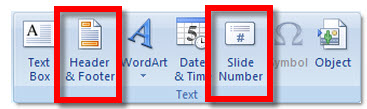
One of the great things about PowerPoint is there is almost always more than one way to do things. And almost always the multiple ways of doing things are found in different areas of the program. But one that can be confusing is the ‘Header/Footer’ and ‘Slide Number’ buttons.

I guess the confusion is that they open the exact same dialog box. They are located on the same tab. And located on the same section.

It does not matter which you use. As example, it’s okay to click the ‘Header/Footer’ button and turn on the page numbering. I believe it is just another example of statistics leading the development process. Statistics probably showed a lot of users (tested or observed) where unaware of how to setup page numbers. The obvious answer was to add an easy to identify button labeled ‘Page Number’ – problem solved.

– Troy @ TLC

By |2016-09-16T10:07:29-07:00July 3rd, 2009|Tutorial|

Anoto – A Pen For Presentations

At last years PPTLive conference I spent some time talking with the Anoto people about their new product and how it could be used for presenters. Well the product has launched and I look forward to talking more with them about presentation solutions.

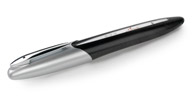
Anoto makes an ink pen that captures the writing and wirelessly (bluetooth) can make it show up onscreen.

For presentations, think of this as the ‘ink’ features on steriods. The idea is to print out your slides, then for each slide draw any notations on your printout and they show up onscreen – all without having to have a computer in front of you. You could be sitting with the audience with only a clipboard and your pen – as long as you are within range of the receiver.

The Boston Globe recently did a story on Anoto which has more information.

– Troy @ TLC

By |2016-09-16T10:07:57-07:00July 1st, 2009|Resource/Misc|

Communication Tower Slide

It is difficult to explain the creative process that goes into designing slides. Much is visual, subjective, and just design experience. But one thing that is easy to explain, or show, is the communication process. As example:

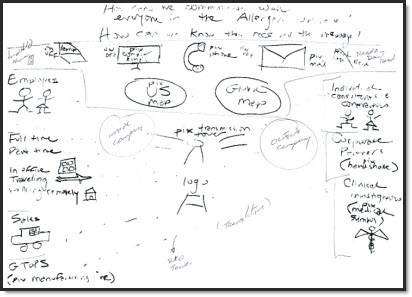
Here is what was faxed over (and this is enhanced in Photoshop to make it more legible!), plus a 5 minute call.

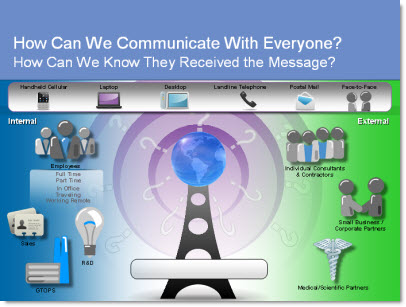
And here is what resulted.

This slide also animated in 3 clicks to setup the communication story and build the complexity of the situation.

– Troy @ TLC

By |2016-09-16T10:11:01-07:00June 17th, 2009|Portfolio|

Toy Story – The Template!

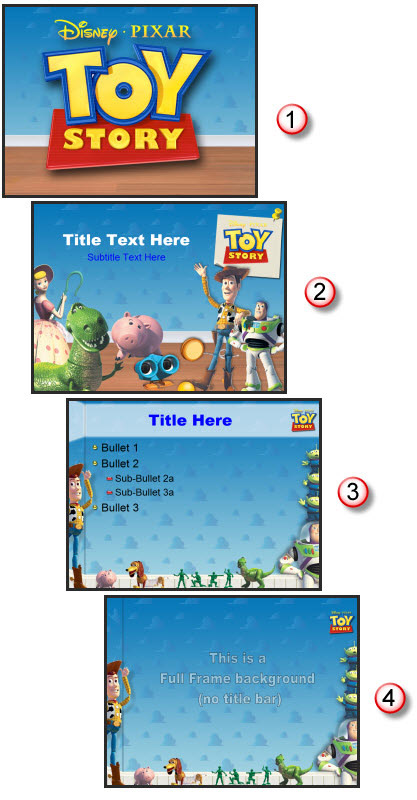
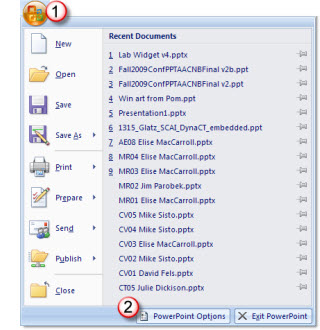
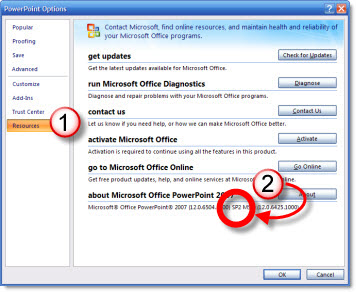
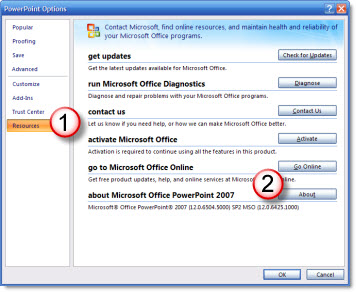
Sometimes work is just fun! Who could have a bad day when surrounded by Woody, Buzz, and the whole gang from Toy Story. Animated properties are great projects because they come with great visual assets that are all high quality and professionally developed. For this marketing presentation I developed the backgrounds from assets (Hint: the clouds are Andy’s wallpaper in his bedroom) and then had lots of fun playing with all the toys making them fit without hindering the content area.

The full template was developed with 4 master slides:
1. Theme graphic
2. Title slide
3. Content slide
4. Full Frame slide

– Troy @ TLC

By |2016-09-16T10:11:28-07:00June 15th, 2009|Portfolio, Templates/Assets|

What Service Pack 2 (SP2) Brings To PowerPoint

I have had a lot of email and talking with people/clients about the recently released Service Pack 2 for Office 2007. I believe it is critical for PowerPoint users as it fixes, and adds, a number of key design features.

I pulled this list from Microsoft’s (Knowledge Base) KB article 953195.. It covers all Office applications, but these are the PowerPoint specific items – which I have reworded a few to make them easier to understand.

……………………………………………………………

Better Edit Points: Freeform shapes have usable Edit Points, plus increased interoperability with Office 2003.

Ungroup SmartArt Objects: Officially it says “A new XML-based representation of each SmartArt graphic in a document is saved with the file to optimize interoperability.” Which I believe is referencing the HUGE improvement that you can now ungroup any smartart object!

Faster File Save: Smarter picture compression in PowerPoint’s XML file format (.PPTX) now saves up to 90% faster than before when the presentation contains a lot of pictures.

Steadier Zoom While Editing: “Some commands, such as deleting the selected object when zoomed in would cause the slide view to snap to the center of the slide. Now the zoomed-in slide view does not move on its own.” This means less scrolling around while zoomed in and editing!

Adjust Lines without Extending to Infinity: Officially stated as “Fixes several issues that involve the object model. These fixes let you better achieve parity with Office 2003 when the object model works with graphical objects.” Which for me means I can resize a line while constraining with the Shift key and actually resize it (not have it zoom off into infinity).

Text Overlaps: Some third-party printer drivers could provide bad information, causing PowerPoint to misalign text. It now detect this situation and uses alternate settings that preserve the proper text spacing.

Vista Preview: PowerPoint is now compatible with the Vista file preview commands.

Image Exports: Images exported from PowerPoint could be corrupt or cropped. This is now fixed and the setting produces a good bitmap.

Slide Thumbnail Highlighting: Colors and effects used to indicate when the mouse was over a slide thumbnail, and when the thumbnail was actually selected could occasionally become confused and might indicate a slide was selected when it was not. These are now clearly defined and update properly.

Saving to .PPT with Styled Title Text: Some of the new text formatting in PPT 2007 has to be represented as a picture when saved to the older .PPT format. Sometimes this would cause both a picture and styled text to be saved when it appeared in a title placeholder, giving the text a jumbled or blurred look. It now detects and displays one element.

Built-in Save As PDF/XPS: Users no longer have to download the add-in separately to have the PDF/XPS option in the Save As menu, it is built into SP2 for Word, Excel, and PowerPoint.

……………………………………………………………

– Troy @ TLC

By |2016-09-16T10:11:49-07:00June 13th, 2009|Resource/Misc|

Even Easier -How Do You Know If SP2 Is Installed?

This is a follow-up to Monday’s post, which is one of the comments submitted to that post (thanks Adam!). We can eliminate 1 step and get the answer to what Service Pack is installed even faster!

1. Office Button >> PowerPoint Options

2. Resources >> About

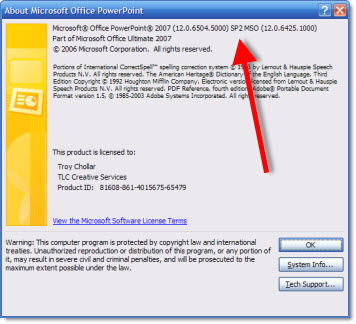
I overlooked it, but the answer is right here in the About window – even easier!

– Troy @ TLC

By |2016-09-16T10:14:30-07:00June 3rd, 2009|Tutorial|

How Do You Know If SP2 Is Installed?

Service Pack 2 (SP2) was released for MS Office just a short while ago. For PowerPoint it definitely fixes a number of design annoyances. But I am getting the question how to know if it is installed. Here is the process:

1. Office Button >> PowerPoint Options

2. Resources >> About

3. Top line, near end

– Troy @ TLC

By |2016-09-16T10:16:12-07:00June 1st, 2009|Tutorial|

PowerPoint Contest (by SlideBoom)

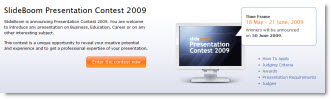
SlideBoom, the online presentation sharing site, has announced a new PowerPoint competition!

Here’s what they say:
This contest is a unique opportunity to reveal your creative potential and experience in creating PowerPoint presentation on Business,Education, Career or other interesting subject.

The top three winners will be awarded valuable prizes like SlideBoom Presentation Contest 2009 Winner Cup, a lifetime subscription for PRO account, advanced iSpring Presenter software and Gold Award badge.

Applicants are welcome to submit their works from 18 May to 21 June inclusive. Winners will be announced on 30 June 2009.

Learn more at the official contest page.

– Troy @ TLC

By |2016-09-16T10:18:55-07:00May 25th, 2009|PowerPoint, Resource/Misc|

Alternative to Bullets

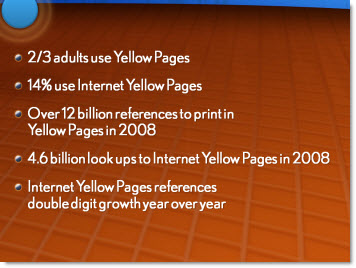
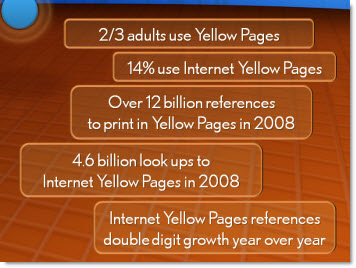
Here is an example from a recent project that shows an alternative to a list of bulleted text. The overall presentation we images and key words only. This part of the script was a quick recap of these sound bites – to quick for visuals, but a bulleted list was not a good option because it was just not dynamic enough.

Here would be the ‘standard’ slide:

Here was my layout:

– Troy @ TLC

By |2016-09-16T10:23:45-07:00May 11th, 2009|Portfolio|

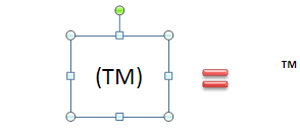
Superscript the Superscripted TM Symbol

When adding a copyright, registration, or trademark I usually want it to be there, but be small and non-distracting. Not certain why this trick only works on the trademark, but it does.

1. Add the TM symbol by typing “(TM)”

2. Highlight the symbol and click the superscipt button to make it even smaller!

– Troy @ TLC

By |2016-09-16T10:29:59-07:00April 20th, 2009|Tutorial|
Go to Top