powerpoint

Use PPT for Other Projects

I develop a lot of multimedia CDROM’s and these projects always begin with PowerPoint. After gathering details from client I create a mock-up of the various navigation points within the application. Then in PowerPoint make a flow diagram of what the user experience will be. This allows client to visually see my interpretation of their information before I dive into the actual programming.

– Troy @ TLC

By |2016-11-17T12:19:14-08:00November 24th, 2008|PowerPoint, Tutorial|

Save As PDF – From PPT 2007

I email a lot of PDF proofs of presentations for client review. They are smaller in file size and not editable. If you are using PPT07 creating a PDF is done through the SAVE AS dialog, not the PRINT dialog.

If you go to START >> SAVE AS and see this option: “Adobe PDF”

Then you have the full version of Adobe Acrobat with Distiller installed, or another Adobe PDF creation option installed.

But what you really want is this option: START >> SAVE AS >> PDF

This is Microsoft’s PDF print driver and it works incredibly fast, makes perfect PDFs of slides (including semi-transparent .png’s and autoshapes) and is my preferred method.

If you do not have this option don’t worry, it is not installed by default. Just head over to Microsoft’s website, go the Download Center, do a search for “Office PDF” and you will find these 2 links:

The PDF printer is free, and the XPS format is a Microsoft equivalent to PDF (not highly used yet), so you can choose to install it or the PDF only version.

– Troy @ TLC

By |2016-11-17T12:20:41-08:00November 14th, 2008|Tutorial|

Before Ungrouping Chart – Make a Hidden Backup

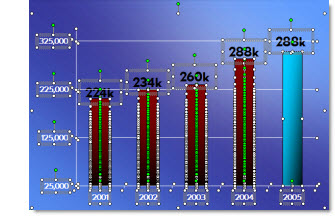
For many projects I find myself ungrouping charts for custom animation or any number of other reasons. But what often happens is there is need to adjust the chart… oops it is now 50+ individual text boxes and autoshapes.

My solution is before I break apart a chart is to create a duplicate it.

Then shrink the duplicate to a miniature size.

I then move the miniature version off the slide so it is not seen during a slide show (or I have also ‘hidden’ it under another graphic).

Now I can ungroup the chart on the slide and do whatever the special needs are – and still have a backup option should the data need to be adjusted.

– Troy @ TLC

By |2025-03-28T09:39:40-07:00November 3rd, 2008|Tutorial|

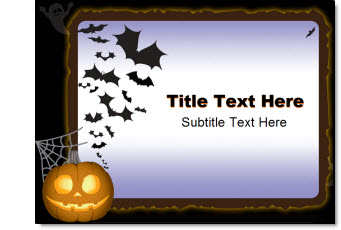
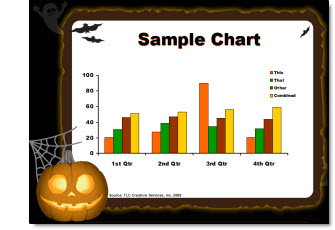
Free Halloween Template

This year my girls are enjoying the fun dressed as a Jester, Super Girl, and a Pirate Maiden. Hope you have lots of fun – especially if you have kids!

My treat to everyone is a custom PowerPoint template!

Artwork I developed this template from was purchased at Stockexpert.com.
To download the template (as a .ppt) click here (300k).

– Troy @ TLC

By |2016-11-17T12:23:57-08:00October 29th, 2008|Templates/Assets|

Insert Movie Player With Controls (PPT 2003)

You can insert a full instance of Windows Media Player on a slide so you have all of the playback controls for a movie. So you have a slide like this:

In PowerPoint 2003:
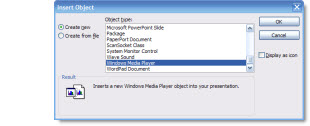
– Insert >> Object
– From the bottom of the list choose WINDOWS MEDIA PLAYER

The media player is now inserted on the slide.

– Troy @ TLC

By |2016-11-17T12:25:00-08:00October 24th, 2008|Tutorial|

I Create A Lot Images – But Not As Many As It Use To

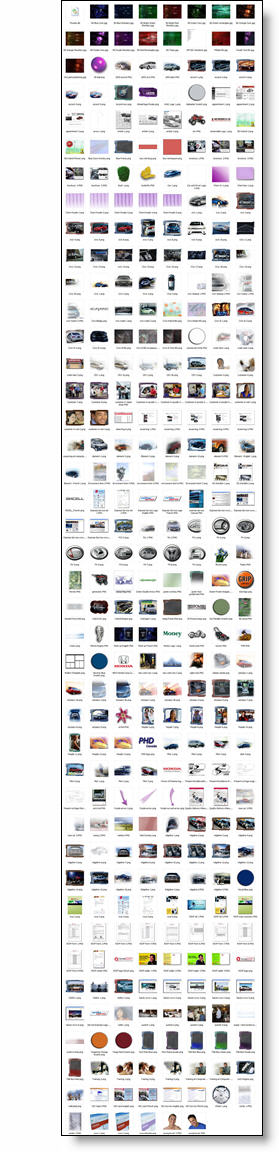
I had a conversation recently with someone that referenced a post I did back in June (It Takes A Lot Of Images). I showed this capture of my prepared images for 1 presentation:

There is a lot there, especially considering it was all for a 90 minute meeting. But my point is that if we go back to PPT 2000 the number of images would easily be twice as many. Back to PPT XP/2003 it would have at a minimum a 3rd more.

PPT XP/2003 with the semi-transparency features eliminated a large number of accent graphics that needed to be prepared in Photoshop and imported. Now with PPT 2007 I now do a lot of the image preparation (custom bevels, strokes, reflections, shadows, etc.) right in PowerPoint. So with each new version I accomplish more working directly in PPT, minimize the production time and have more material for tutorials and tips for ThePowerPointblog!

– Troy @ TLC

By |2016-11-17T12:26:31-08:00October 15th, 2008|Portfolio, Resource/Misc|

Why Not Use PPT 2007 Reflection?

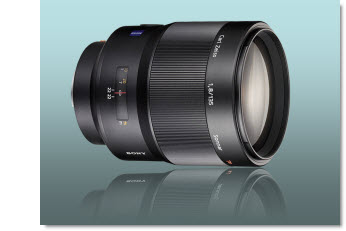
As a quick follow up to last week’s animation sample (and response to a number of emails), here is why I used Photoshop to create the reflection vs. using PPT2007’s new reflection feature.

First, I am a HUGE supporter of Microsoft’s investment adding better visual effects tools. Further, the reflection effect in PPT 2007 is great!

But it has a few limitations…

1. Animation – when you view the entrance animation, note that the reflection comes in just a bit behind the actual lens image. This visually adds depth and another level of animation. There is no way to animate on visual effects PPT creates.

2. It’s all about the angle – PPT 2007’s reflection tool really works best on elements that are flat, or horizontal. As example:
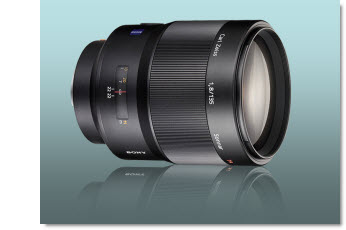

This is the Photoshop reflection inserted as a separate image. Note the reflection starts butted up to image, and can be easily adjusted. It also was manually adjusted to have a bit less of an angle to better match the original graphic (see sample below for more visual example).

This is the PPT2007 refection effect. In this case even with it on the closest setting, there is still a gap. The angle is also based on the rectangle of the placeholder, so the reflection angle is more distorted.

Okay, so this was a really close call if it would be worth going to the extra effort in Photoshop to create separate images. But here is a more pronounced example – and what if I need the reflection on the side of the image…
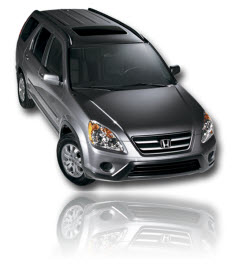
– Troy @ TLC

By |2016-11-17T12:27:03-08:00October 13th, 2008|PowerPoint, Tutorial|

Insert Slide in PPT 2007

QUESTION:
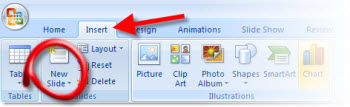
What is missing from the INSERT TAB in PowerPoint 2007?

ANSWER:
The INSERT SLIDE BUTTON.

WHERE DID IT GO?
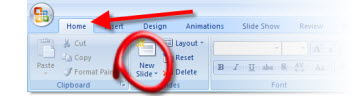
The User Interface team must have thought this was a common and valuable tool, so they placed it on the “Home”/Draw tab.

Although this works, it really does not make sense, as the insert tab is, well, to insert things.

SOLUTION:
Steve over at PPTools created a little, FREE, add-in that does this:

Now the home/draw tab AND the insert tab have the insert slide button!

You can read how to install and download the tiny add-in here.

– Troy @ TLC

By |2016-11-17T12:36:09-08:00September 19th, 2008|Tutorial|

Open PowerPoint in Safe Mode

This is one of those – I hope you don’t need to do this – actions. But recently one of the computers here suddenly decided it did not want to have fonts work (line spacing was all messed up). So after troubleshooting everyway possible, verifying files opened fine on other computers, etc. I had the faint memory of being able to start any office application in Safe Mode.

After a quick search on the PPTFAQ (thanks Steve!) I restarted PowerPoint in Safe Mode by holding down the CTRL key.

Not sure what the solution was (not opening with AutoCorrect or Recent Documents…. ?), but the file opened and displayed text as designed. Closed PowerPoint, launched again and all was fine from there.

So when all else fails, starting PowerPoint with no extended features using Safe Mode can be your best friend.

– Troy @ TLC

By |2016-11-17T12:37:52-08:00September 12th, 2008|Tutorial|

Two Versions Of PPT Installed? Launch ‘Wrong’ Version?

I run multiple versions of PowerPoint on my systems – namely PPT 2003 and PPT 2007 (although a few have all versions from 97 to 2007). If you run multiple versions, then the new set of security updates from Microsoft yesterday probably changed your default application.

I still have PPT 2003 set as my default version of PPT. But the latest security updates change the default application to PPT 2007. So now when I double-click on a presentation file it opens in PPT 2007.

The fix is fairly simple – just click here for a post I made all the way back in ’06.

– Troy @ TLC

By |2016-11-17T12:44:53-08:00August 15th, 2008|Tutorial|
Go to Top