powerpoint

Hansen Communication Template

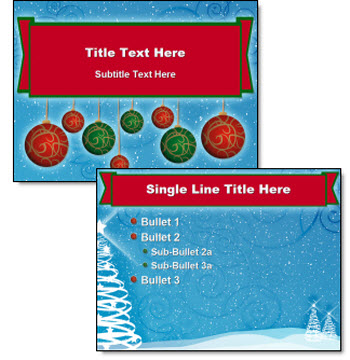
This is a really great PR oriented company that I am very happy to work with as a part of their extended team. They recently needed a fresh look for a number of internally created presentations so I developed this PowerPoint template.
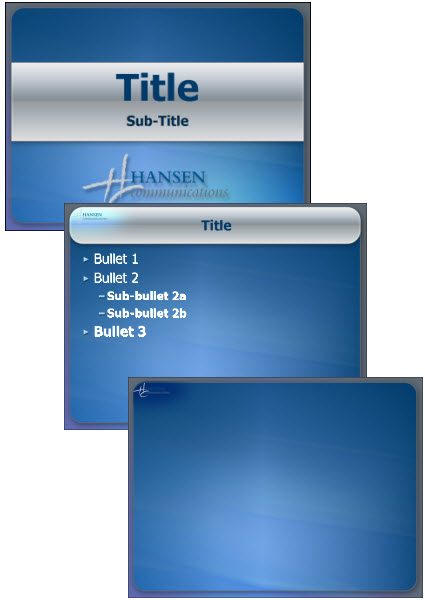
Note: The 3rd slide is what I call the “Full Frame” master slide. This is closely coordinated with the standard content master, but has no title bar area and is for slides that have large, full frame, images or charts.

– Troy @ TLC

By |2016-09-16T11:08:12-07:00February 4th, 2009|Portfolio, Templates/Assets|

Resize Preview To Fit-to-Screen: PPT vs. Photoshop

To quickly get the “big picture” you may need to see the whole slide or image. There are some great keyboard shortcuts to do this, but they are different in PPT 2003, PPT 2007 and Photoshop.

PowerPoint 2003:
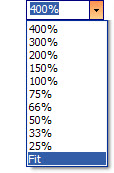
Option 1: Use the drop-down menu and choose FIT

Option 2: Install the PPTools free StarterSet and click the magnifying glass icon

PowerPoint 2007
Click the ‘Fit to Window’ button in the lower right corner

Photoshop:
CTRL + 0 (zero)

– Troy @ TLC

By |2016-09-16T11:09:46-07:00January 27th, 2009|Tutorial|

“Just Rename It To .PPSX”… (doesn’t work)

In the old days (PPT 95 through 2003), the only difference between a presentation and a show was the extension. So if you had a presentation and wanted it to open in slideshow view, just the file extension had to be renamed. But in the new world (now 2 years old) of PPT 2007 that does not work.

1. Here is our test file – a .pptx (PPT 2007 presentation)

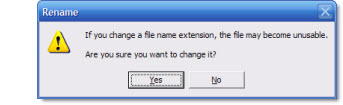
2. Manually change the file extension (.pptx), changing the “T” to an “S”, and Windows gives this confirmation dialog

3. The icon changes to the PowerPoint Show icon and the extension is .ppsx

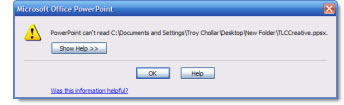
4. But when you try to open the file you get this error

5. Why? Because any Office 2007 file with an “x” in the file extension is really a .zip file with lots of individual files inside it. Changing the extension does not directly change the file any longer, so the quick fix of ‘just rename it’ no longer works…

– Troy @ TLC

By |2016-09-16T11:11:15-07:00January 19th, 2009|Tutorial|

YouTube Video In PowerPoint (part 2)

Here is my process for adding a YouTube (google, metacafe, soapbox, etc) video to a PowerPoint presentation:

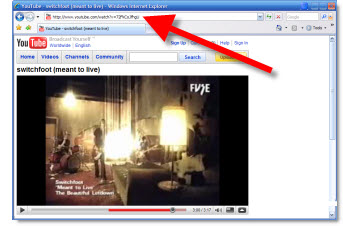
1. Find the movie online and copy the URL

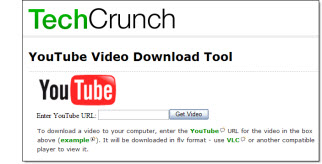
2. Go to www.techcrunch.com/get-youtube-movie

3. Paste in the YouTube URL

4. Follow instructions to download to your computer.
Note: the video is in .flv format, which need to be converted for use in PowerPoint

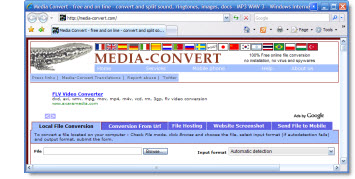
5. Go to www.media-convert.com

6. Be sure you are in the ‘Local File Conversion’ tab

7: Click the BROWSE button and find the video on your computer

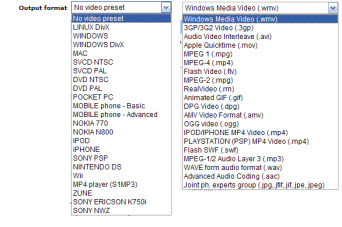
8: Convert the .FLV video to a PowerPoint friendly .WMV format.
Note: there are lots of options, but I recomend
– No Video Preset
– Windows Media Video (.wmv)

9: Click OK and following instructions to convert and have file emailed you.

10: Move newly created .wmv video to same folder as presenation and use PowerPoint’s INSERT >> MOVIE FROM FILE wizard

11: Done!

– Troy @ TLC

By |2016-11-17T12:12:13-08:00December 28th, 2008|Tutorial|

YouTube Video In PowerPoint (Part 1)

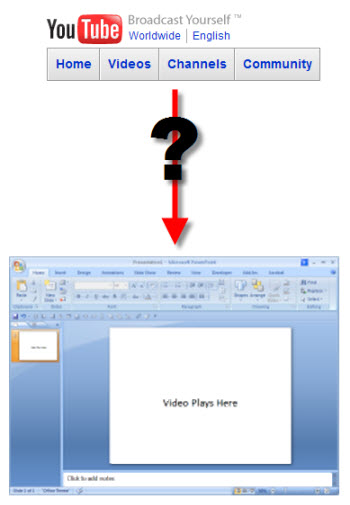
So you have found the perfect video for you analogy – on Youtube. The question I get a lot, is how to play that video in a presentation.

There are a few issues that make this a bit complex. In this post I’ll overview the issues and in the next post show my process for making it all work.

Issue 1:
– YouTube (Google, Soapbox, Metacafe, and almost all other online video sites) is an online video, not on your computer.

Issue 2:
– If you download the video, it is an .flv (Flash Video), which a format PowerPoint does not support.

Issue 3:
– Nearly all online video sites automatically run a compression filter to make the file size smaller (they are storing ALL of these videos on their servers, so the smaller the file the more they can store and the less bandwidth needed to playback). Highly compressed videos mean lower playback quality.

– Troy @ TLC
By |2016-11-17T12:12:45-08:00December 26th, 2008|Tutorial|

Free Christmas Template

Merry Christmas to everyone (a day early)!! As a small gift to everyone who visits ThePowerPointBlog.com here is a custom PowerPoint template for your use.

This is a full featured template with all master slide elements (text box position, text style – color – size, line spacing, slide transitions, default color scheme, etc.) pre-formatted. Template was setup in PPT 2003, the theme is ‘white christmas’ and it will hopefully find many wonderful uses. Click here to download.

Note: you can search ‘christmas’ to find templates from previous years too.

– Troy @ TLC
By |2016-11-17T12:13:07-08:00December 24th, 2008|Portfolio, Templates/Assets|

All 8 FREE PPT 2007 Effects “Templates”

In all Office Online has 8 incredible example templates – each with step-by-step instructions on how to recreate each effect!
– Static Text Effects
– Static Picture Effects
– Animated Text Effects
– Animated Picture Effects
– Combined Picture and Text Effects
– Animated Hierarchy and Process Graphics
– Backgrounds
– 3D Shapes and Objects

Click here to access them all (note: downloads from Microsofts Office Online site must be done with Internet Explorer). All are the work of fellow PPT MVP Julie Terberg of Terberg Design.

(Note: I am grabbing this image from Ric B’s PPT Team Blog)

– Troy @ TLC

By |2016-11-17T12:13:33-08:00December 22nd, 2008|Resource/Misc, Software/Add-Ins|

PPT 2007 “Picture Effects” Template Deck

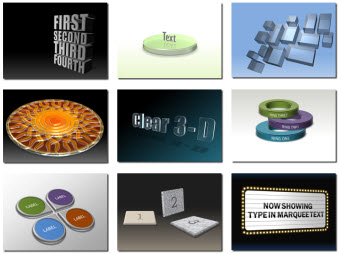
Click here to go to the Office Online page with the download link for this great, and free, PPT 2007 presentation that has 15 picture effects. All effects are created entirely in PPT 2007 and the speaker notes have detailed step-by-step instructions on how to recreate the effects in your presentaitons.

Here are a few samples of the picture effects in this deck:

– Troy @ TLC

By |2016-11-17T12:15:24-08:00December 16th, 2008|Resource/Misc, Software/Add-Ins|

Macro Settings In PPT ’07 vs PPT ’03

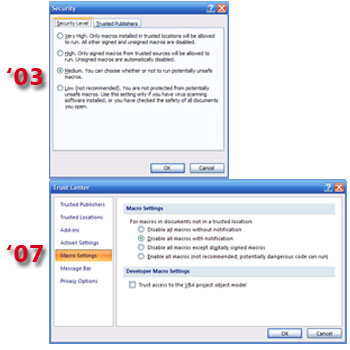
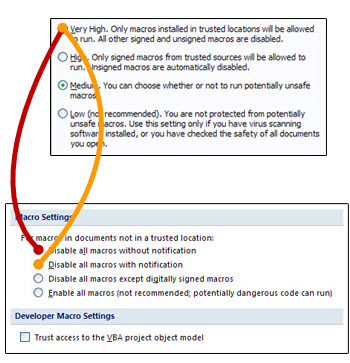
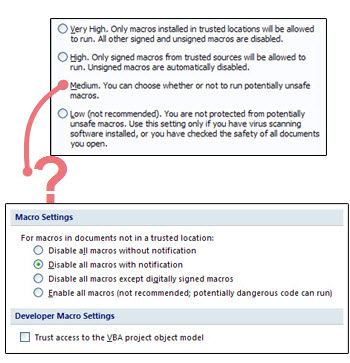
The previous post showed how to find the security level settings in PPT 2007. Not to make things difficult, but all of the descriptions and names have changed.

In addition to the name changes, some are virtually the same and some don’t quite match up.

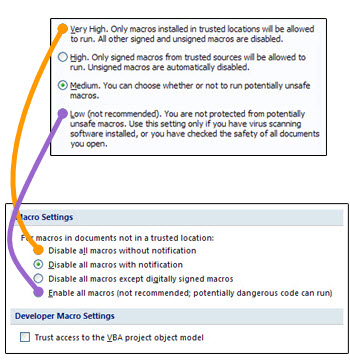
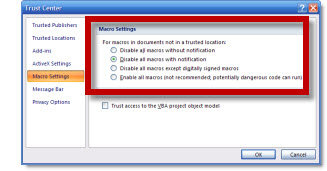
The HIGH and LOW settings from PPT 2003 have PPT 2007 settings that match up and accomplish the same thing:

The VERY HIGH PPT 2003 setting has been split into 2 settings in PPT 2007:

Finally the MEDIUM setting from PPT 2003 really has no equivalent in PPT 2007… And because here on ThePowerPointBlog and in PPT training programs I recommend changing the Macro Security to Medium, what do I recomend now?

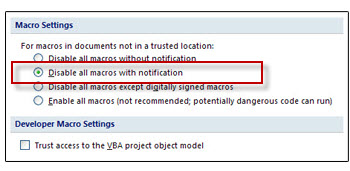
I have setup all of the TLC computers and recommend (though it is not based on the same knowledge, understanding and confidence of Medium in PPT 2003) to use the 2nd setting – Disable All Macros With Notification.

– Troy @ TLC

By |2016-11-17T12:16:42-08:00December 7th, 2008|Tutorial|

Where are ‘Macro Security Settings’ in PPT 2007?

When installing add-ins in PowerPoint, the macro security settings need to be lowered from the default setting of HIGH to MEDIUM or LOW. But how do you do this in PowerPoint 2007?

First the names have changed and second the where you find them is a bit difficult if you are not familiar with the new Ribbon layout.

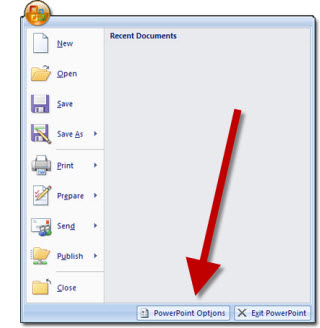
1. Click the circle Office button in the upper left corner.
2. Click on POWERPOINT OPTIONS.

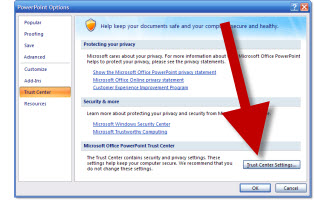
3. Go to TRUST CENTER in the left column.
4. Click on TRUST CENTER SETTINGS.

5. Adjust to needed setting, click OK and exit PowerPoint to save setting.

– Troy @ TLC

By |2016-11-17T12:17:07-08:00December 5th, 2008|Tutorial|
Go to Top