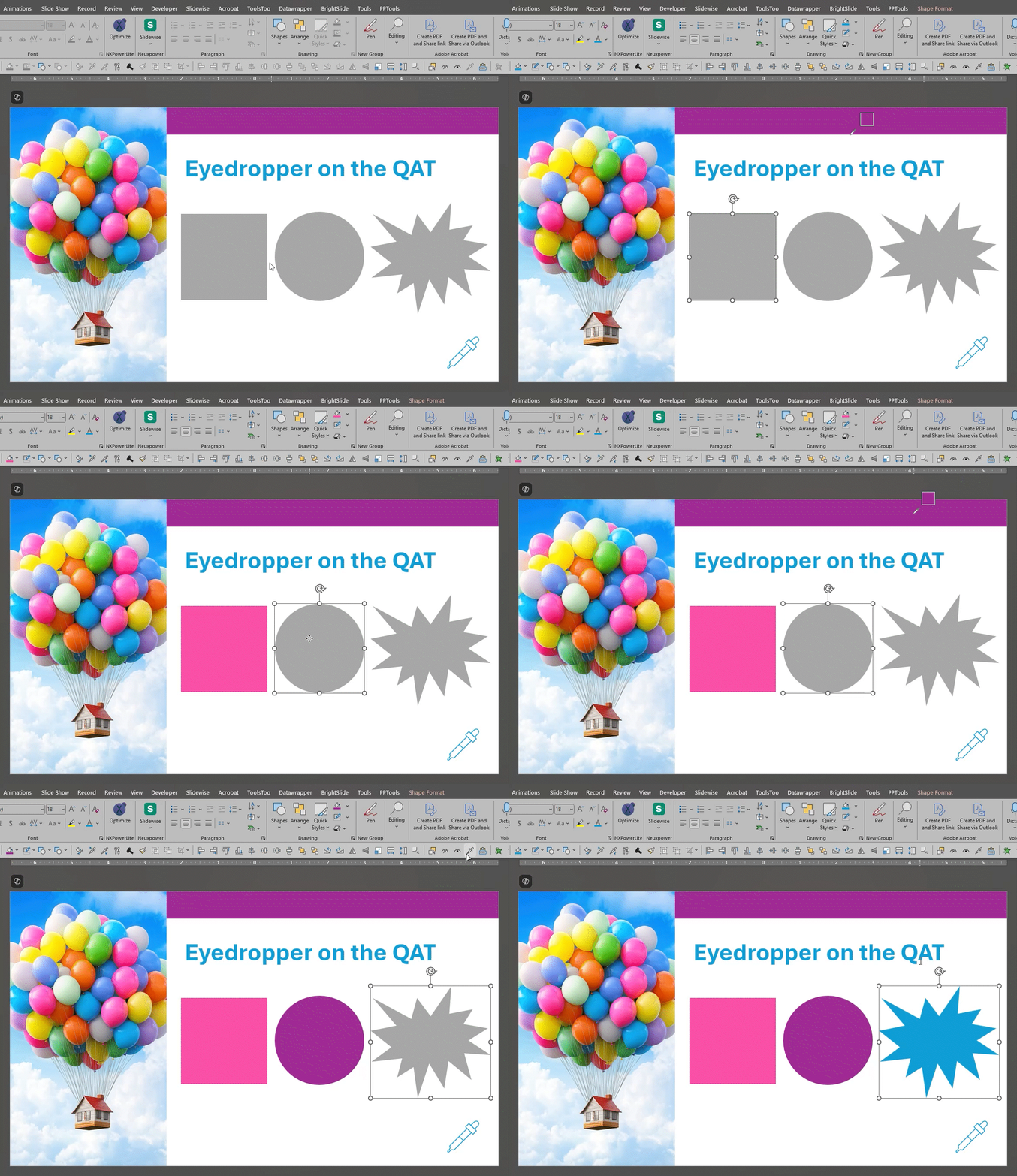
PowerPoint

Do This, Not This: Put PowerPoint Text In The Shape

One of the biggest things that irks us at TLC Creative is stacking text boxes on top of shapes in PowerPoint. It might seem like a quick fix, but it’s just lazy formatting. Don’t do this – please! It almost always can be avoided because it almost always leads to formatting headaches down the road. 

What is “stacked text”? It’s placing a text box on top of a PowerPoint shape. This creates two objects on the slide that need to be moved and aligned together instead of just one object. 

This often happens because someone is not familiar with how to control a shape’s text. Knowing how to edit text inside a shape is ultimately going to make future slide edits happier, vs becoming a slow and time-sucking process. 

Another reason not to stack is that text boxes placed on top of a shape are often not horizontally aligned with the shape. As an example, a text box stacked on top of a shape with the text left aligned is not truly centered by default – the text box must be manually moved to center the text on the shape – ugh! Even if you center the text in the text box, you still have to select both objects and center them to one another. The better solution is to set your text inside the shape and simply center the text – yay!  

When it comes to animation, it might seem easier with two objects, but it’s still two objects. Don’t do this! You can get the same effect with one object. PowerPoint actually allows you to animate text within a shape independently. This means you can get the same effects without the hassle of animating multiple objects. 

Selecting objects can also be difficult when using two elements. When the overlapping textbox is bigger than the shape behind, it’s a little tricky trying to select that back object. You will need to select both, then Shift deselect the top text box in order to modify the back underlying shape (you can also use the selection pane).  

Accessibility is another good reason not to stack a text box on top of a shape. The Office PowerPoint accessibility tools do not work very well with layered content, as these tools have several limitations in identifying stacked objects. As an example, white text on top of a light baby blue shape isn’t seen by the accessibility checker as a flawed low contrast item. PowerPoint looks at a text box with no fill color and sees it essentially in black-and-white and ignores the layered element underneath. This can lead to content being missed by users relying on screen readers. 

In conclusion, managing text within a shape is simply way more efficient. You have a single object to select and work with while designing, your animation and selection panes are less cluttered, line wrapping adjusts automatically when the shape or text size changes, and the list goes on. All of this makes it easier to keep a clean and responsive layout, plus it’s also more accessible. 

-Tips and a big ask, from the TLC Creative Design Team 

By |2025-07-18T12:29:20-07:00July 21st, 2025|PowerPoint, Tutorial|

Why You Can’t Start a Bullet List at Zero (and What You Can Do)

If you’ve ever tried to create a numbered list in PowerPoint and wanted to start it at “0”, you’ve likely run into a small (and slightly frustrating) limitation: PowerPoint lets you change the starting number of a numbered list—but only if that number is 1 or higher. Starting at “0”? That’s not allowed!

How to Change the Starting Number in PowerPoint 

1. Highlight the numbered list

2. Right-click and choose “Bullets and Numbering”

3. In the Numbered tab, change the “Start at” value

4. Enter any whole number except “0”

Yep, if you try to enter “0,” the field will snap back to “1”

But Larger Numbers Are Allowed

Side note: a numbered list can start at any number (larger than 0) and will continue the auto numbering from there. For example, PowerPoint makes it easy to update this number list to start at the number 8. 

1. Right-click and choose “Bullets and Numbering”

2. Go to the Numbered tab

3. Change the “Start at” value from “1” to “8”

4. Click OK

Why No Zero?

PowerPoint follows the more traditional formatting logic found in word processing and presentation tools, where lists begin with “1” by default. Unlike coding languages or spreadsheets that often treat “0” as a valid starting index, PowerPoint assumes that users are building lists meant for human consumption, where “1” is the standard starting point. This is disappointing because we have slides that start with “0” occasionally. 

A Workaround, if You Really Want to Start With a Zero

If starting your list with “0” is needed (such as when showing steps in a programming sequence or a timeline), here’s a simple workaround. This workaround does not use PowerPoint’s auto numbering, but it will look exactly the same. 

Manually add bullet/number spacing: 

1. Go to the “Home” tab, then the “Paragraph” section, click on the “Line Spacing” icon, then go to the “Line Spacing Options”… at the bottom of the menu open the “Paragraph” dialog 

2. On the “Indents and Spacing” tab, go to the “Indentation” area 

3. Change the “Before Text” to “0.38”  

4. Change the “Special” section to be “Hanging” and by “0.38” 

5. Click OK 

These settings will mimic the spacing and alignment of a bullet/number list.  

Now start the first line by typing “0”, then hit tab and continue (manually) numbering the full list. The result is a numbered list starting at “0”! 

Depending on the font used and the text size, you may need to adjust the “Before Text” and “Special” settings to space the numbers and text appropriately – just make sure the numbers used in these 2 settings are the same. 

Final Thoughts

While this method does not produce a true numbered list, it does visually replicate one, allowing you to start at “0” without disrupting the layout. It’s a small quirk, but it’s good to know these limitations when you’re trying to get your slides just right. PowerPoint’s list formatting features are powerful, but sometimes a manual tweak is the key to getting the result you need. 

-The TLC Creative Design Team 

By |2025-07-10T05:47:00-07:00July 14th, 2025|PowerPoint, Tutorial|

A Look Back to Stylizing Text with a “Fire & Ice” Gradient Fill

Back in 2020, we wrote this post about gradient text. We picked this topic today because PowerPoint users are still sticking to basic solid colors in their text! So, if you weren’t hanging out with us here at the blog in 2020, allow us to add another design tool to your toolbox. 

Looking at this tutorial five years later, we see that it’s still just as relevant today. PowerPoint’s gradient fill process is exactly the same (not necessarily great, but consistent), and it can be used to create great visual styling and visually dynamic designs – all directly within PowerPoint.  

Creating a Gradient Text Fill 

We used a simple two-word phrase as our example. We transformed this: 

Into this: 

Here’s how we did it: 

  • Select the text 
  • Go to (A) SHAPE FORMAT > (B) TEXT FILL > (C) GRADIENT > (D) VARIATIONS > pick a preset gradient style, or  
  • If you want more control and options, click (F) MORE GRADIENTS to open the Format Shape pane 

Customizing Your Gradient 

Now, let’s refine the gradient in the Format Shape pane where we get creative control of the gradient styling: 

A. Preset Gradients: Ready-made styles based on your theme colors 

B. Type: Let’s you choose from a number of gradients: 

  • Linear (meaning the gradient is horizontal, vertical, or diagonal) 
  • Radial (a circular gradient starting from the center, or from any of the 4 corners) 
  • Rectangular (similar to the circular gradient, but rectangular) 
  • Path (a gradient in the shape of the object it is filling) 

C. Direction: Adjust what direction the colors blend 

D. Angle: Adjust the angle at which the colors are blended 

E. Gradient Stops: Add, remove, and customize colors along the gradient – you can also add or remove gradient stops (points along the line) to really make it your own 

F. Color: Select the color for your gradient stop 

G. Position: Change the position of the gradient stop 

H. Transparency: Alter the opacity of the gradient 

I. Brightness: Fine-tune the brightness of the gradient  

For our example, the fire gradient effect is a 5-color stop gradient (E), each with the default Transparency (0%, or solid), default brightness (0%, or the color as selected), but a custom angle of 45 degrees (D). This all combines to create a dramatic, glowing look. 

Want to see it in action? Download the FIRE & ICE gradient fill sample slide here! 

-The TLC Creative Design Team 

By |2025-06-09T14:38:24-07:00July 11th, 2025|PowerPoint|

A Look Back to Celebrating the U.S. 4th of July with a Free PowerPoint template!

Fourteen years ago, we created this custom 4th of July-themed PowerPoint template and made it available for anyone to use (for personal use), free! Now, a decade and a half later, we still think it’s a great design to use!

This full-featured PowerPoint template is perfect for PowerPoint presentations and holiday event notices. Whether you’re prepping slides for a festive gathering, a company event, or just want to add some flair to your next presentation, this FREE template has you covered! 

What’s included in this template: 

  • 16:9 aspect ratio 
  • Uses Microsoft Cloud fonts 
  • 1 Master Slide with theme, title, and content layouts (along with all standard Microsoft  layouts)

Download the template here and get a head start on next year’s 4th of July! Speaking of, Happy 4th of July from the team at TLC Creative Services!  

– Troy @ TLC 

By |2025-06-13T13:22:49-07:00July 4th, 2025|PowerPoint|

Yes, You Can Loop a PowerPoint Animation Sequence with Audio!

PowerPoint’s animation features are built for linear presentations, and that includes not being able to loop animation sequences. Meanwhile, video and interactive apps make the ability to loop a sequence of animated elements easy. Of course, within PowerPoint, we can make individual animations repeat a set number of times or loop until the end of a slide, but this does not lend itself to making a sequence of animated elements loop.  

That said, there’s a clever workaround that allows a PowerPoint animation sequence to be looped. The hack involves using a silent audio track! 

The issue is that PowerPoint does not have a way to restart an animation sequence. But an audio file, set to loop, with a clever use of trigger animations based on bookmarks set on the audio track is the hack. It’s a bit of work to set up this hack, but it allows you to achieve what PowerPoint is missing! 

Here’s a breakdown of the process:  

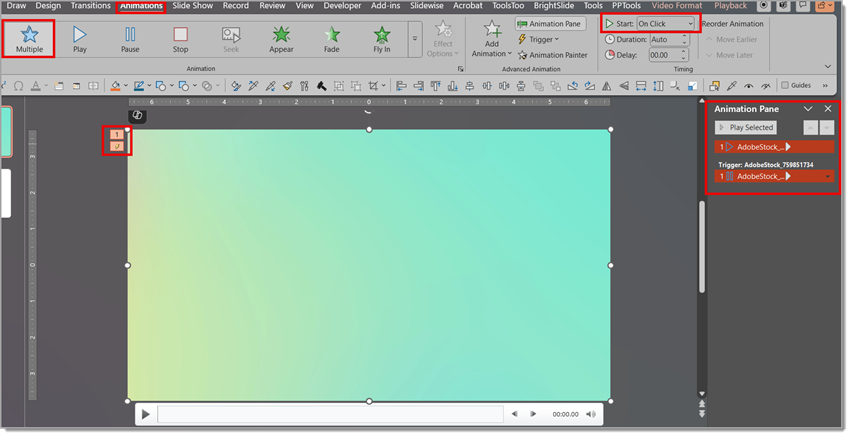
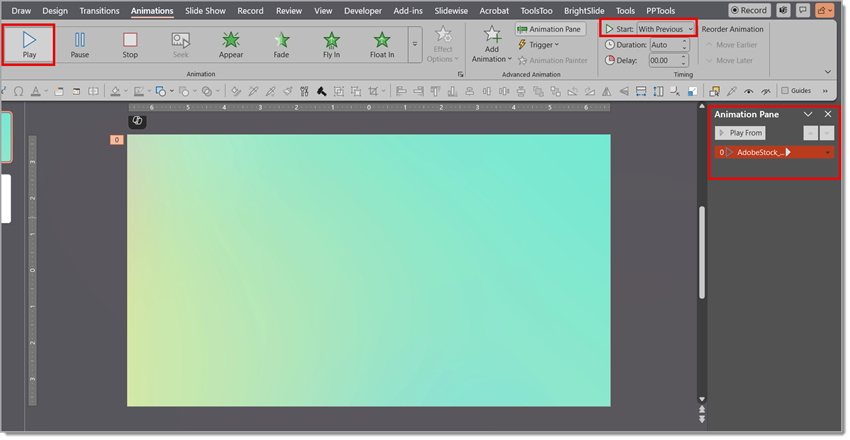
Create your animation sequence: add animations to all the elements along with animation timings (eg. to create pauses), using any combination of “With Previous” and “After Previous” animations, and animation duration settings for each animation. The key is to this hack is starting the animation sequence with an “On Click” animation. Multiple animation sequences can be set up on the same slide, each just needs to start with an “On Click” animation.  Here is our example slide with 3, “On-Click” animations and several “With Previous” animations.

The TLC Creative team uses a generic, blank audio file we created outside of PowerPoint, but let’s go through an “all PowerPoint” workflow to create an audio file to use to trigger the animation sequence. Go to Insert >> Audio >> Record Audio.  

Click record (red dot) and remain silent, recording the length you want the looping animation to be (note: the audio length needs to be a little longer in duration than the animation loop timing). Click the square to stop.

The recorded audio is automatically added to the slide. Set the audio to “Loop until Stopped” in the Playback tab. Also select Start: “Automatically”, Volume: “Mute”, and “Hide During Show” (or move off the slide so the speaker icon is not seen).  

Now we will add bookmarks. These bookmarks are added to the audio file (this works with a video file as well if needed) and are the key feature in making an animation sequence loop. 

1. Select the audio (the audio icon on your slide).   

2. Go to the “Playback” tab. 

3. Click “Add Bookmark” – you will see a yellow circle appear on the audio playback timeline. As you add additional bookmarks, previously added bookmarks will turn white. 

You want to add the bookmark(s) based on when each animation sequence needs to start.  

TIP: Once you add a bookmark, you cannot move it. So, plan ahead, then simply pause the audio at the points you want to add a bookmark and click “Add Bookmark.” And if you go back to edit your bookmarks and don’t see them, simply click anywhere in the audio timeline bar itself. 

Because our sample slide has 3 animation sequences, we added 3 bookmarks to the audio timeline. 

TIP: Remember to MUTE the audio in the audio settings (we are using the audio file as an animation timer, not to be heard). 

To join your bookmarks to the animation sequences, use Animation Triggers:

1. Open the Animation Pane

2. Confirm the audio clip is at the top of the animation sequence (eg. the first animation on the slide) 

3. FOR EACH “On Click” animation sequence, right-click on the “On Click” animation and select “Timing”

4. In the popup menu, go to the “Timing” tab 

5. Click the “Triggers” button to expand and see the options (1) 

6. Choose “Start effect on play of” (2) 

7. In the drop-down select the audio file and corresponding bookmark (3)

NOTE: This post isn’t about trigger animations. But, when you add a trigger animation, that element will move to the end of the sequence in the animation pane (it’s a pain!). You will need to manually move the additional parts of the animation sequences to align behind their corresponding triggers.  

TIP: Add triggers one by one and in order, moving the additional animation elements to follow each trigger as you go. 

Once you are happy with the timing and everything is animating in sequence, be sure to play the slide in show mode to verify a clean repeat. If there is too much time between the end of the last animation and the restart of the first animation, you can trim the end of the audio file to adjust. 

For our example slide, this process was repeated 3 times to set the 3 trigger animations. The slide animation is now a single loop of the 3 animation sequences, animating in time with the audio file…and because the audio file is set to loop until the end of the slide, the 3 animation sequences will continue to animate in a loop until you move on to the next slide.

Done! As the audio file “plays” (remember, there is no audio heard from the audio file, it is being used as our animation sequence timer) the bookmarks trigger the start of each animation sequence. And because PowerPoint can loop a single element (the audio file), the slide animation sequences will trigger exactly as needed, indefinitely! 

To test the looping animation, run the slideshow and verify that the animation sequence loops as expected with the audio. 

Here is the animation sequence without using the audio trigger hack. It won’t loop: 

Here is the animation sequence using the audio trigger hack. The animation sequences now loop: 

Yes, this can be a tedious process. However, by setting up an animation sequence, adding a muted audio file set to loop, adding bookmarks to the audio, and then setting triggers to start the animations, dynamic looping animation sequences can be added to slides! 

-Amber and the TLC Creative Design team 

By |2025-06-04T17:34:25-07:00June 30th, 2025|PowerPoint|

A Look Back to a Phone Chat Conversation Animation – and How We Designed it Today

This animation is from 2014, 2 years before PowerPoint introduced Morph.

Because this was created before Morph, by necessity we needed to create a more complex animation setup using on-slide animations with motion paths. Ultimately, the PowerPoint results were great, especially as this animation was seen by event attendees on a nice big 45’ wide screen!

Today, we decided to recreate the same animation visual using Morph. Here is the recreated slide deck – it’s the same 20 slides (in half the design time)!

But now there are zero PowerPoint animations on each slide.

After the layout and design phase, we let the Morph transition take care of the rest to create this animation!

-The TLC Creative design team
By |2025-06-03T08:41:41-07:00June 27th, 2025|PowerPoint|

The Global Pingu Slide

Every once in while, TLC Creative gets to work on some really cool (pun intended) PowerPoint presentations. We recently teamed up with a client to help them make a big, bold statement about the rapidly growing global fanbase of a certain penguin. 

Who is this cute penguin, you ask? He is a stop-motion show with a huge cult following. His cute, quirky charm has fans from all over the world saying “Noot! Noot!” Originally intended for children aged 3-6, this show has also attracted parents and caregivers from all over the world who often watch the show along with their kids. The show is simple, funny, and relatable to any age, which helped the global fanbase explode. 

Our job was to create a unique and creative Microsoft PowerPoint slide segment that emphasizes this penguin’s popularity around the world. Once we brainstormed our idea, we had to find the right look by going through a ton of client-supplied art assets (one of the more fun aspects of our job for sure), locating a suitable background image of the show’s setting, and just the right image of our little black-and-white hero. 

Note: for our post here and to respect confidentiality, we changed out some of the art due to proprietary rights. However, we made the swap quickly with this AI-generated image from Adobe Firefly:

Next, we added a claymation-style globe and some “pop” icons, and our penguin character was ready to be placed all over the planet.  

For the animation, we kept it simple. Just zooms, appears, and disappears. Once the animation was dialed in on the first penguin character, we used the PowerPoint Animation Painter tool (a huge time saver) to duplicate the animation sequence to the other character images.  

Finally, the timing of each penguin pop was adjusted in the Animation Panel, and a single audio clip was added and timed to play again and again, every time our penguin appeared. It was a little trial-and-error, but the result was totally worth it. 

In the end, we were able to create something super fun that did more than just look good. The result was a quick, eye-catching moment to clearly communicate that fans all over the world love this little black-and-white guy. And at TLC Creative, we think he’s going places for sure. Noot! Noot! 

-Mike and the TLC Creative Design team 

By |2025-06-25T12:58:59-07:00June 25th, 2025|PowerPoint|

Morph .SVG vs. Morph PPT Shapes

At TLC, we love to morph! This transition is one of the most powerful features in PowerPoint and is an amazing tool for setting up the visual part of a story. Morph gives us the ability to seamlessly animate shapes and objects from one form to another. Morph can be used on photos, text and shapes, and objects, however, this blog post focuses on shapes. Specifically, an internal question we have asked ourselves: which is better for PowerPoint Morph, SVG or PowerPoint Shapes? 

PowerPoint has the ability for presentation designers to use both built-in PowerPoint shapes and imported .SVG objects (Scalable Vector Graphics) to create these animations.  

Let’s take a look. 

Note: these slide examples are from an ultrawide project, so the slides are not the default 16×9 aspect ratio. They are 3840 x 1080px (vs. the common 1920 x 1080px). As example: 

Let’s first look at the quality of PowerPoint shapes, that shape shift from a star to a heart, using a Morph transition: 

Notice how the star does a true shape shift to a heart – this looks good! 

But, here is an example of the same Morph using imported .SVG vector art (shape color fills changed for easy comparison).  

Did you see it? The SVG objects can’t quite do a true shape shifting morph. The shapes change, but it is more of a fade – this is good, but not great.  

So our internal design team asked the question: what happens if the .SVG art is ungrouped to become a PowerPoint shape? We took the .SVG art from the previous example and converted it to a PowerPoint shape by: selecting the star > right click > choose Convert to Shape.
PowerPoint now sees the star as a PowerPoint object, not imported art. For this demonstration the color of the converted star was changed to blue to clearly differentiate.  

Here is the same animation with the imported .SVG graphic converted to a PowerPoint shape. 

And we’re back! Once converted to a shape, PowerPoint now recognizes it differently and goes back to a true shape shift. 

Although SVG and PowerPoint shapes are both vector objects, when using morph, there are very slight differences. While the basic movements and sizing of PowerPoint and SVG vector shapes are the same during a morph, SVG objects might not perform as desired when changing from shape to shape. 

-The TLC Creative Design Team 

By |2025-07-03T08:30:22-07:00June 23rd, 2025|PowerPoint|

A Look Back to Animating a Panoramic Photo in PowerPoint from January 2011

Back in 2011, we had a great post here on The PowerPoint Blog with a very cool trick: animate a super-wide panoramic image across a regular slide to create a smooth, cinematic movement. Fast-forward to today, and it’s still a great effect to add energy to your slides—especially with so many widescreen displays and virtual presentations in play.

What makes it timeless? It’s simple, visual, and super effective. No fancy software needed—just PowerPoint and a smart animation. The PowerPoint features have improved over the years, but this technique still delivers a modern, professional feel.

Read through the January 11, 2011 post for  great example and tutorial of animating a super wide panoramic image with a combination of slide transitions and motion paths. The same thing can accomplished in PowerPoint today! But today, we would create this animation a bit different, and a bit faster. Let’s show how we can do this as only 2 slides with image cropping (not available in 20111), and a morph transition (also not available in 2011) to accomplish the same visual. Here’s how:

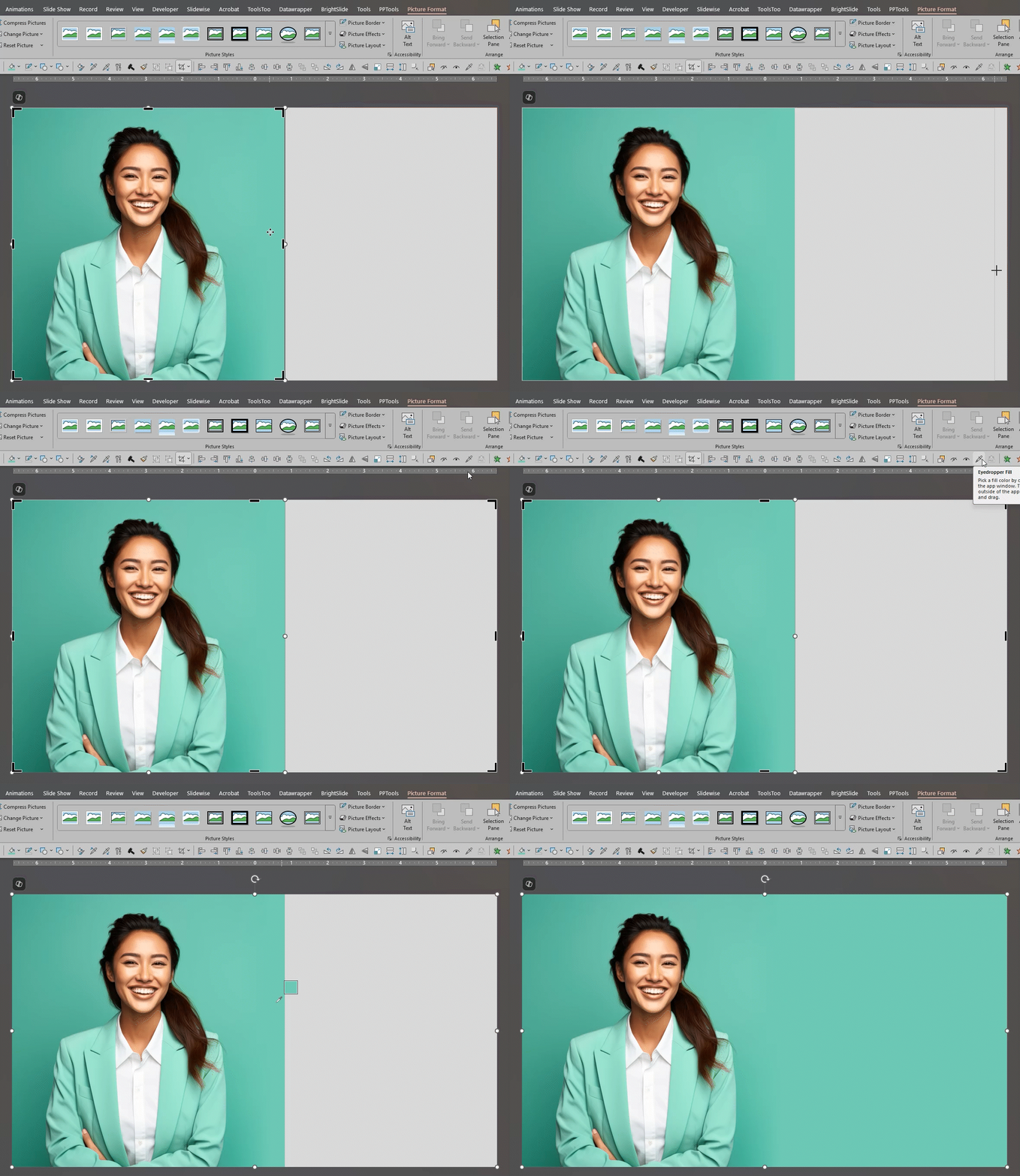
1. Here is our panoramic image for this tutorial

2. Add image to slide #1 and align to left of slide

3. Crop to slide size

4. Duplicate slide and adjust crop by moving image so right edge is now displayed

5. Add Morph transition


6. Adjust duration (we are going to make it 10 seconds because our image is extra wide)

7. Done!

This is from our Look Back series rediscovering previous blog posts with relevant PowerPoint Tips, Tricks and Examples. The original January 11, 2011 blog post can be found here.

By |2025-05-21T07:27:30-07:00June 20th, 2025|PowerPoint, Tutorial|

How to Have Multiple Presenters Run Slides in a Teams Meeting

During a Teams meeting, multiple presenters can run and share control of the same PowerPoint presentation! This can be a very handy feature especially when multiple people are presenting the same deck. There are some guidelines to be aware of, so let’s get started. 

There are three ways to open a PowerPoint presentation from Teams: Open in Teams, Open in Browser, and Open in Desktop App. For this post, we’re focusing solely on using the “Open in Teams” option (this also works in “Open in Desktop” but controlling the presentation could be tricky).

Opening the presentation in Teams keeps the presentation within the Teams app, making it easier to manage control when multiple presenters are involved and is the best choice when different team members are presenting different sections of a PowerPoint deck. One person runs the slides, and each presenter can take control when it’s their turn to speak, ensuring a smoother flow without having to share and unshare.  
Here’s how to do it: 

1. Schedule the Meeting: Go to your Teams calendar and create a new meeting (either by clicking the day/time you want within the calendar or simply clicking the new event button in the upper right-hand corner of your calendar tab) and invite all participants. Note: you can also do this through your Outlook calendar, but for our demonstration here we’re going to stay within the Teams environment. 

2. Add Co-Organizers: 

  • Open the meeting options in Teams 
  • Click on Meeting Options > Roles 
  • Add co-organizers using the dropdown menu 
  • Note: You cannot add a participant as a co-organizer until after they have accepted the meeting invite 

3. Choose who can present: 

  • Go to Meeting Options > Roles 
  • Choose who can present – options include Everyone, People in my org and guests, Specific people, and Only organizers and co-organizers 
  • If selecting Specific People, add the names of the presenters 
  • Note: during our testing, we ran into some snags when selecting and trying to add Specific People. We found “Only organizers and co-organizers” worked well consistently. 

4. Allow Control Sharing: 

  • Expand Meetings and select Meeting Policies. 

  • In most cases, click Global (Org-wide default), and scroll down to Content Sharing, then toggle Participants can give or request control to On 

During the Meeting: 

1. Share your Screen with the presentation open in show mode.
Note: the “Present in Teams” option for sharing does not allow you to pass control of a presentation during a meeting (hoping Microsoft will add this feature). 

2. Make Someone a Presenter: 

  • Open the participant list by selecting People in the meeting controls. 
  • Hover over a participant’s name and click More Options > Make a Presenter. 


3. Share or Request Control: 

  • When a presenter is already sharing, they can click Give Control to pass control to another participant. 

  • Attendees can also click Request Control to ask for control of the presentation.  

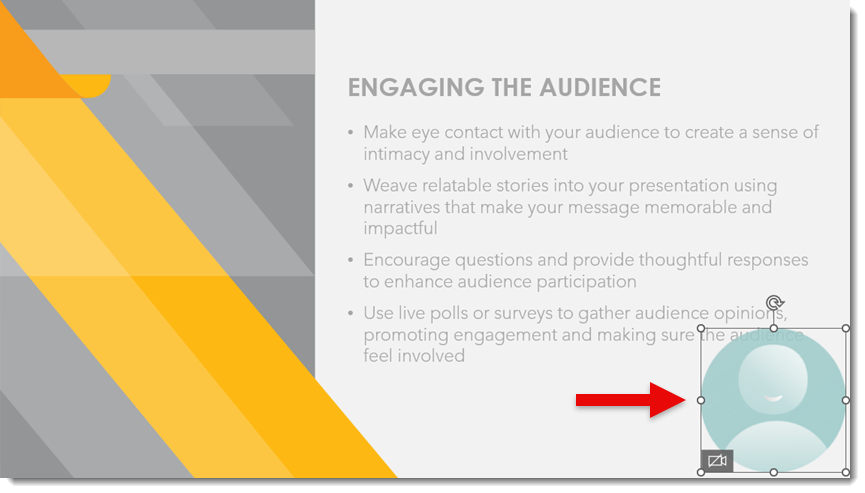
Once attendees (or co-organizers) have control of the presentation, everyone will see a small bubble with the presenter’s Teams profile photo or initials next to the cursor. 

To advance the slides (or go back) the presenter simply needs to click on the right or left side of the slide in their Teams meeting window or use the right and left arrow keys or space bar. 

Important Notes: 

  • In recurring meetings, changes to Meeting Options will apply to all future occurrences. 
  • Updates made to roles during a meeting only apply to that specific meeting instance. 
  • If a participant exits and rejoins, they will retain their assigned role unless it’s changed. 
  • By default, meeting participants can give control of their shared screen to another participant. 

We believe the setup outlined here will help ensure your presentation runs smoothly, whether you’re the only one presenting or sharing control with others. Following these steps makes it easy to manage multiple presenters and maintain flow throughout the meeting. Have a great meeting! 

-The TLC Creative team 

By |2025-06-26T07:45:31-07:00June 16th, 2025|PowerPoint, Tutorial|
Go to Top