powerpoint

MORPH Now Available in PowerPoint 2016!

Office 365 subscription users have a new feature in PowerPoint called Morph, which was automatically added* (and you may not even know it is there). There is a long list of animation requests, but this feature is a slide transition that creates animation visuals, all without looking at the animation tab. Here is an example animation that took less than 3 minutes to create.

Morph Demo:

[KGVID]https://thepowerpointblog.com/wp-content/uploads/2016/02/unnamed-file-2.mp4[/KGVID]

The process is easy. If you have used Mac Keynote’s Magic Move, the concept is similar – but PowerPoint’s Morph has a few distinctions. Slide setup is easy. For this sample, I added an arrow to the first slide, duplicated that slide and moved the arrow to a new position. Then, I duplicated that slide and re-positioned the arrow, flipped it, and recolored it. Finally, I duplicated the slide 1 last time and added in a collection of additional arrows. No animation.
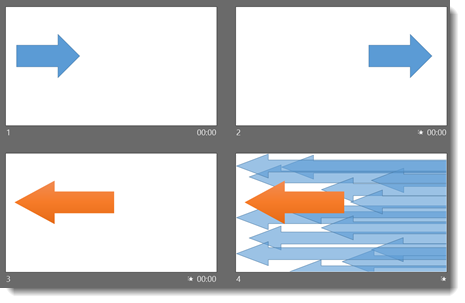
Morph 1

After designing the 4 slides, it just needed to have a few slide transitions. To find Morph, go to the slide transition tab and look for the new transition option.
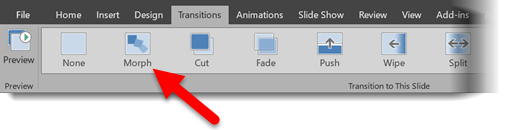
Morph 2

(1.) Slide 1 = Fade slide transition

(2.) Slide 2 = Morph slide transition

(3.) Slide 3 = Morph slide transition

(4.) Slide 4 = Wipe from Right slide transition

Again, all of this motion is achieved with no animation!
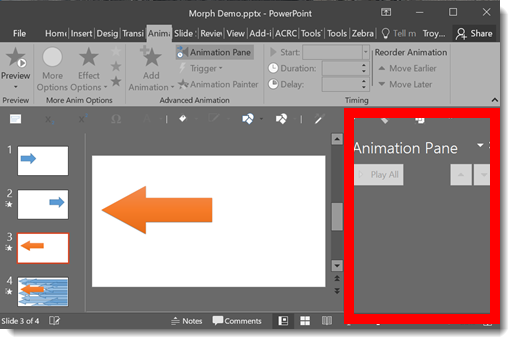
Morph 3

Download this Sample Animation.

*Morph is available as of this post to Office 365 subscription users that has opted in for the Insiders Program (basically Microsoft’s Beta release program).

-Troy @ TLC
By |2019-10-31T22:16:49-07:00February 3rd, 2016|PowerPoint|

UltraWide Projections

Corporate meetings have continued to expand the use of super wide screens and projections.

TLC Creative Services has worked on several design templates for events throughout the year where the standard 16×9 PowerPoint leads the design. Once the design is approved, we move into creating the UltraWide template using PowerPoint. The layout of Ultrawide projections can be 40ft high to 250ft wide!

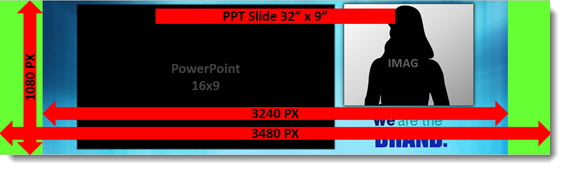
These events are a group effort; we work closely with the AV production team to know the technical specs before developing the UltraWide template. For this particular show, we had two widths built in, the active pixel (visible to audience) and full pixel width (for the slide/computer sizing). We also had IMAG (Image Magnification) or live camera of the presenter. PowerPoint doesn’t control IMAG, but it is important to plan the design to visually fit.

Ultrawide projections 1

Here’s a video to show an example.

[KGVID]https://thepowerpointblog.com/wp-content/uploads/2016/01/unnamed-file-2.mp4[/KGVID]

-Troy @ TLC

By |2019-10-31T22:18:00-07:00January 28th, 2016|PowerPoint|

Presentations that Curve

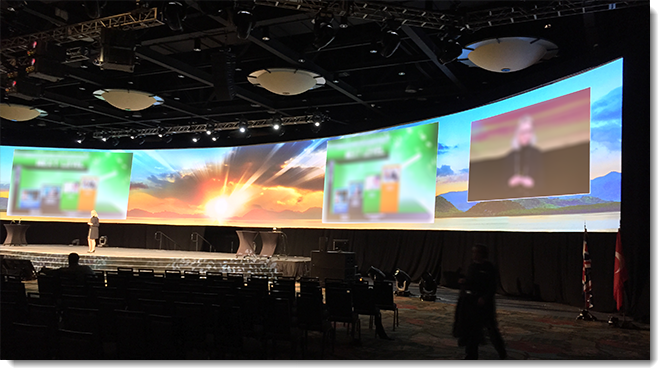
PowerPoint does not have anything to do with the physical curve of the presentation. Instead, the curve is done by all the great AV crews that we have the opportunity to work with. The 16×9 presentations are nicely designed, but have no special setup.

new-curve-img2

The Ultrawide background is a custom PowerPoint template setup to match the projection pixel count with images and content strategically designed so as not to interfere with standard 16×9 slides and IMAG areas. TLC Creative Services plans with production companies in advance to ensure all layers are coordinated. These are the presentation design projects that our team really enjoys!

new-curve-img

– Troy @ TLC

By |2016-08-10T08:44:35-07:00January 20th, 2016|Portfolio, PowerPoint|

A Really Wide PowerPoint Presentation

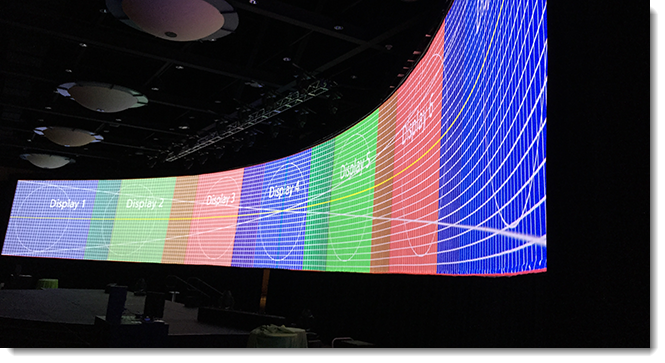
TLC Creative Services really likes making visually dynamic presentations, especially when they don’t fit the standard PowerPoint specifications. For an awards show, we were tasked with designing the projected 250 ft. wide backdrop and the “standard” 16×9 awards presentation. Working with the staging company, we developed this custom 10,750px x 1080px PowerPoint template. Then onsite, we made adjustments to ensure each screen was pixel accurate.

CC15_Ultrawide Screen Layout_v3

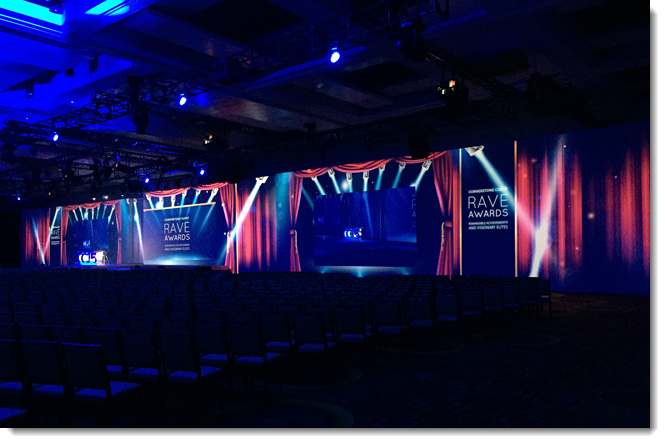
Onsite, TLC Creative’s graphics transformed the white screens into a fantastic awards show setting – the result of many projectors, some overlapping, some butt-aligned, and walls at different depths. Something more than “just PowerPoint” by the design team at TLC!

IMG_1287

– Troy @ TLC

By |2016-08-10T08:47:40-07:00January 6th, 2016|PowerPoint|

Happy New Year 2016 Powerpoint Template

HAPPY NEW YEAR 2016 from TLC Creative.

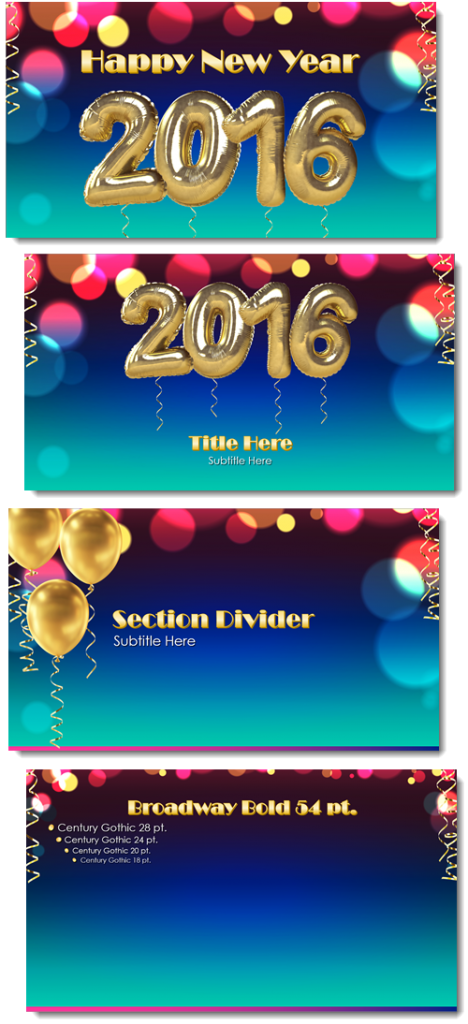
Here is a full featured Happy New Year 2016 PowerPoint template. Credit to TLC staff designer Amber for the design and festive animation. This template is free for all to download and use! Enjoy! Download Here ↓(7.89MB)

New Year 2016 PowerPoint template

See a short video of the PowerPoint template.

[KGVID]https://thepowerpointblog.com/wp-content/uploads/2015/12/unnamed-file-1.mp4[/KGVID]

– Troy @ TLC

By |2019-10-31T22:18:37-07:00December 29th, 2015|Templates/Assets|

PowerPoint 2016 and the QAT (it doesn’t fit!)

I have been moving TLC Creative Services to Windows 10 and Office 2016 in small groups. The new OS and updated version of Office are stable and provide a great work environment (with a lot of customization of settings to be what I want!). One item I have not been able to figure out a solution for is how PowerPoint 2016 displays the QAT.

Here is my QAT with Office 2013 (captured last month) with PowerPoint full screen on a 1920×1080 resolution. There are 37 quick access buttons to make my design time more efficient. Note: The last button is close to the middle of the PowerPoint ribbon.

2016_QAT_3

Now here is the exact same QAT, on the exact same resolution monitor and full screen app. The only change is a move to PowerPoint 2016. Note: The last button on my QAT is not visible, the QAT buttons are incredibly spread apart and now span the entire ribbon width – and the last few buttons do not even fit, they are cut off!

2016_QAT_1

I do not have a solution (yet). I did think of the Touch Mode that adjusts the interface, but it does not affect the QAT, just the ribbon buttons. I will report back if (when) I find a QAT display solution.

– Troy @ TLC

By |2016-08-10T08:51:16-07:00October 16th, 2015|PowerPoint, Resource/Misc|

The PowerPoint QAT – A Designer’s Best Tool

The Quick Access Toolbar (QAT) is one of the best options for making your design work faster, if setup properly. The PowerPoint QAT is basically a collection of the top used “buttons” always accessible without having to change tabs on the ribbon.

PowerPoint QAT 3

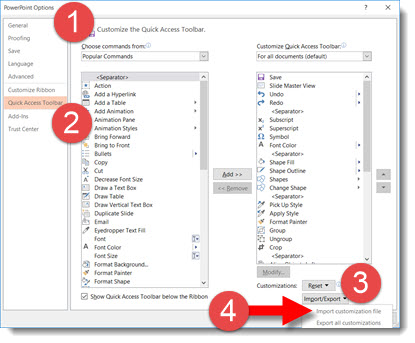
Setting up the QAT is fairly easy, but tedious. But Microsoft has made it very easy to leverage someone else’s effort. In this case, my effort, think of it as my gift to everyone that reads this post, and instantly setup your QAT with 37 buttons to speed up design.

Download the QAT file HERE (unzip and “PowerPoint Customizations.exportedUI”).

In PowerPoint, go to FILE > OPTIONS > QUICK ACCESS TOOLBAR > IMPORT/EXPORT > IMPORT > select the downloaded file > say YES to the dialog > done.

PowerPoint QAT 2

– Troy @ TLC


By |2016-08-10T08:54:31-07:00September 28th, 2015|PowerPoint, Resource/Misc, Software/Add-Ins|

PowerPoint 2016 For Windows Available Today!

The cadence for updates at Microsoft is definitely much faster – today Office 2016 (for Windows, not to be confused with Office 2016 for Mac which was released earlier this year) is available.

Office16_banner

How Often Is Microsoft Releasing Updates:

  • From the information I have seen, Microsoft is releasing (for Office 365 subscription use) updates now 3 releases per year: February, June, October
  • In addition, there are monthly minor updates, which are mostly security updates and feature fixes/updates
  • The Sept 22 release, which is a new version release, is actually the October cycle release (I guess we can look at it as being released early!)

What is New in PowerPoint 2016:

  • To be honest – not much, at least from a design and feature perspective. So far to me, this release is about adding new back-end features and functionality. Check out this list from the Microsoft site that highlights the big Office initiatives, here.
  • For PowerPoint design specifically, I like the improved Dark theme, the new chart styles are welcome and the ability to export a presentation at full 1080p is great! End of list for me…

– Troy @ TLC

By |2016-08-10T08:56:42-07:00September 22nd, 2015|PowerPoint|

Windows 10 Desktop & Mobile, PowerPoint Desktop, Universal & Web Explained

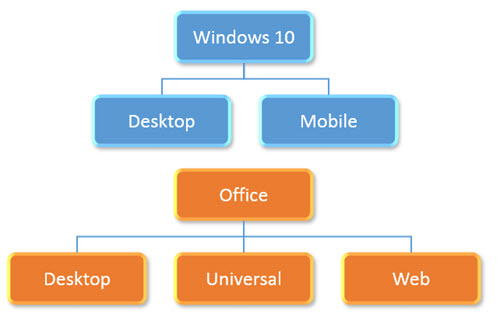
Many thanks to Peter at Microsoft for helping clear up the confusion I was having on what the various editions of Windows and Office options and versions are now apart of the ecosystem. Here is my recap:

Win10-Office-Explained

Windows 10:

– Windows 10 is available in 2 editions; Desktop and Mobile (and really several other versions for Hololens, IoT devices, etc. – but we are only concerned with the 2 that can run Office apps).

– Windows 10 desktop is for Intel-based computers and can run Office Win32 apps and the new Universal apps.

– Windows 10 Mobile is for ARM-based mobile devices (phones and tablets) and can only run Universal apps.

Office Desktop:

– Desktop apps are the traditional “full” application and only run on full power (Intel) computer devices.

– Desktop apps are available in 32-bit and 64-bit versions.

– Desktop apps can install 3rd party add-ins.

– Desktop apps can run in a window of any size (or multiple side-by-side).

– Desktop apps are named just the app name; PowerPoint, Word, Excel, etc.

Office Universal:

– Universal apps are a new build option.

– Universal apps can be installed on both the Windows 10 Desktop and Windows Mobile operating systems.

– Universal apps are available through the Windows Store, as individual apps (there is no single install that includes all Office apps).

– Universal apps run in full screen mode only (eg. the application fills the entire screen, so no task bar or other apps until it is minimized or closed).

– Universal apps (this is a confusing point) are named different depending on where they are installed:

  • On Windows 10 Desktop, they have “mobile” in the app name; PowerPoint Mobile, Word Mobile, Excel Mobile, etc.
  • On Windows 10 Mobile they have just the app name; PowerPoint, Word, Excel, etc.

Office Web:

– Web apps are separate from Desktop and Universal apps.

– Web apps do not require installation, which allows them to work on both desktop and mobile devices.

– Web apps use HTML/CSS/JavaScript browser-based coding hosted on Microsoft servers.


The main recap is that today there are a lot more options available than in the past. The good news is, virtually every computing device and platform is covered for Office/PowerPoint. The bad news is that every option has slightly different capabilities and limitations. Things are filled with different frustrations today, and tomorrow we will have different frustrations – but solving those frustrations for our wonderful clients is what keeps us busy!

– Troy @ TLC

By |2016-08-10T08:58:55-07:00August 31st, 2015|Resource/Misc|

PowerPoint 2016 (for Windows)

office2016

Microsoft has a lot of new versions of apps released or in beta. The new Office 2016 (for Windows, not to be confused with the recently released Mac version) is getting close. The PowerPoint team at Microsoft has put together a blog post that lists off most of the updates to the 2016 version.

Take a look at what is coming our soon here.

– Troy @ TLC

By |2016-08-10T08:59:38-07:00August 26th, 2015|Resource/Misc|
Go to Top