powerpoint

Want A Perfect PowerPoint Circle, Square, Triangle?

Perfect shape 1

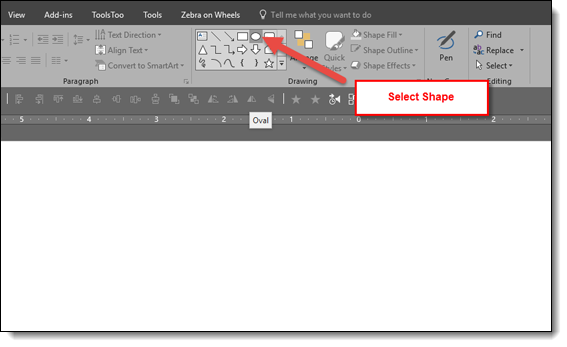
Sometimes just knowing a hack can save a lot of time. So this is one of those tips included in our TLC Creative PowerPoint training programs where someone always exclaims “Really!!” The tip is how to immediately add a perfect shape (same on all sides), ie. a circle, square or triangle. The solution is so simple, there is nothing complex to forget. Ready,

Click the desired shape in the shapes gallery

Perfect shape 2

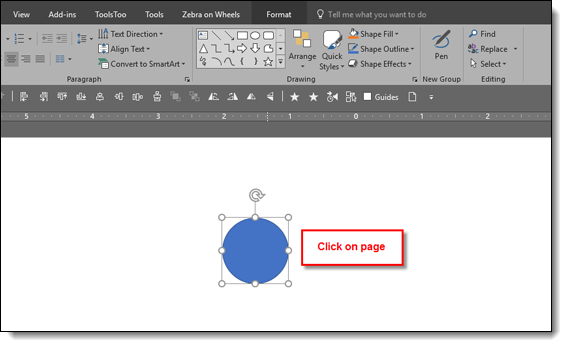
Click on the slide. Note: just a simple click, no click and drag, no modifier keys, nothing, just click on the slide.

Perfect shape 3

Done! A perfect, equal sided, square, circle, triangle, etc. is added to the slide


And the shortcut to the shortcut!

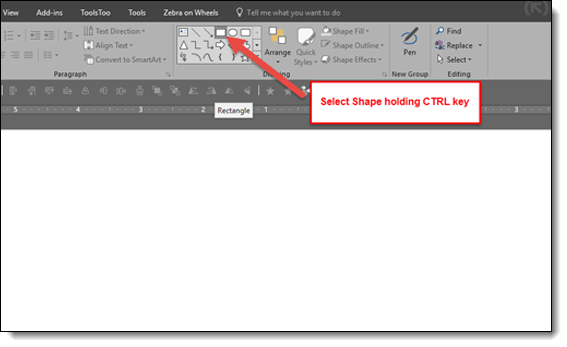
Hold down the CTRL key and click on desired shape in the shapes gallery

Perfect shape 5

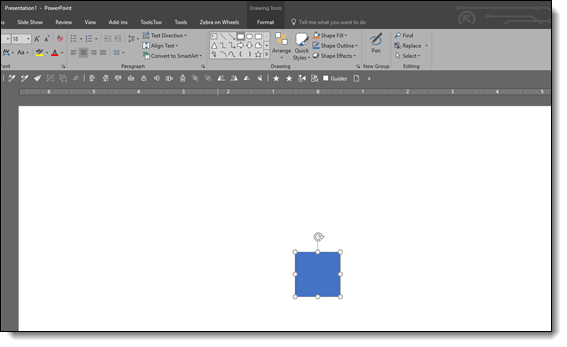
Perfect symmetrical shape is automatically added to the slide!

Perfect shape 6

Troy @ TLC

By |2017-10-20T07:34:14-07:00December 12th, 2017|PowerPoint, Resource/Misc|

Using PowerPoint Creatively

Some amazing results can be achieved by using PowerPoint creatively. This slide developed by the TLC Creative Services design team is a great example.

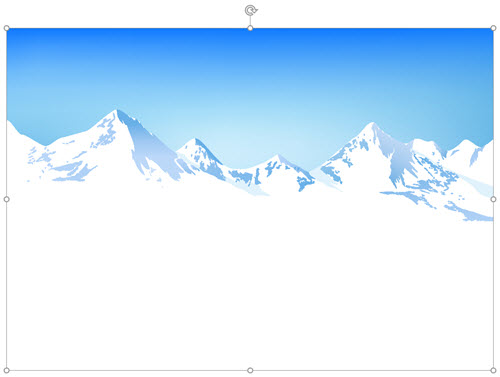
To develop this slide, we started with this mountain range image.

Using PowerPoint Creatively 1

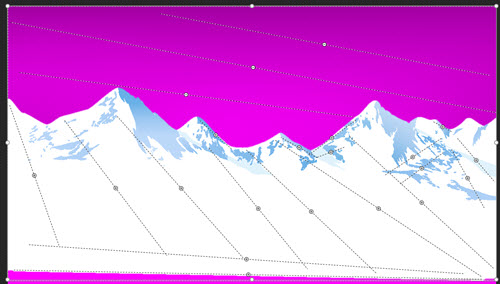
Then, we used PowerPoint’s Remove Background feature to eliminate the sky area.

Using PowerPoint Creatively 2

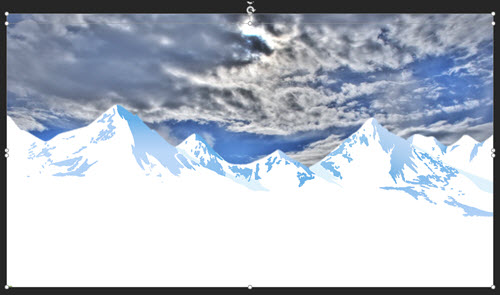
Then we searched VideoBlocks for a timelapse clouds video and selected this video.

By positioning the video behind the mountain range image, we did not worry about the green grass and horizon (they are still there in the above slide, but hidden by the mountain).

Using PowerPoint Creatively 3

Last step was adding the stylized text. Complete!

Troy @ TLC

By |2025-01-02T13:23:05-08:00November 28th, 2017|Portfolio|

PowerPoint Illustration – Thanksgiving Cornucopia!

Amber, on the TLC Creative design team, loves Adobe Illustrator and PowerPoint. We challenged her to build a full vector illustration in PowerPoint. The result is an amazing Thanksgiving cornucopia!

  • 478 slides
  • Everything about the cornucopia (took me 3 times to get that spelled correct!) developed inside PowerPoint
  • Exported as a video with no transition and .01 second timing to create the stop motion animation effect

Thanksgiving Cornucopia


Have a wonderful Thanksgiving with friends and family!

Troy @ TLC


By |2025-05-28T16:09:59-07:00November 23rd, 2017|Portfolio, PowerPoint|

Animated Timelines Using Pan and Wipe Transitions

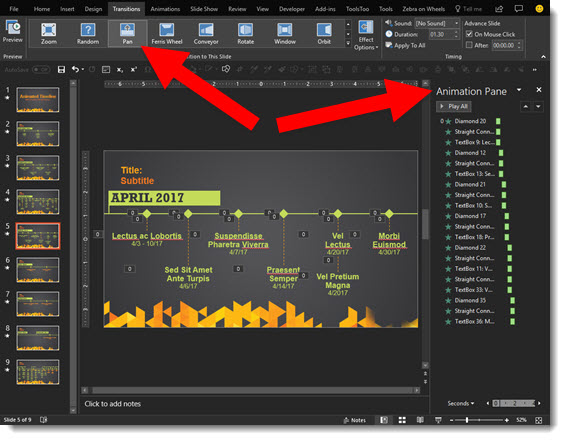
Continuing from the last post, here is the same timeline, more traditional transitions and on-slide animations. See below for examples of animated timelines using pan and wipe transitions.

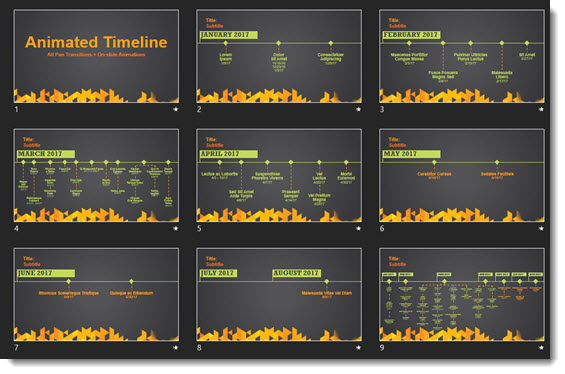
Like the previous timelines, both of these effects use the same 9 slides (with slide #1 being the info/title slide).

Animated Timelines Using Pan and Wipe

Unlike the Morph transition timelines, both of these effects have no content off slide, but do have a number of animations on each slide.

Animated Timelines Using Pan and Wipe

Pan From Left Transition (+ on-slide animations)

[KGVID]https://thepowerpointblog.com/wp-content/uploads/2017/11/unnamed-file-3.mp4[/KGVID]

Wipe From Left Transition (+ on-slide animations)

[KGVID]https://thepowerpointblog.com/wp-content/uploads/2017/11/unnamed-file-4.mp4[/KGVID]

Troy @ TLC

By |2019-10-28T10:06:52-07:00November 16th, 2017|Portfolio|

Animated Timelines Using Morph

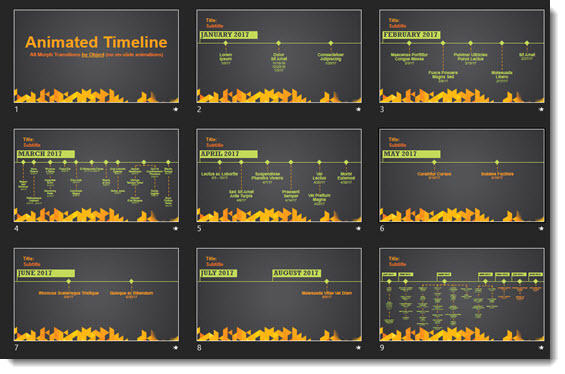
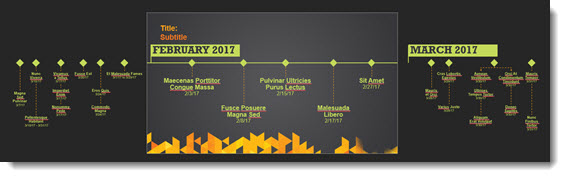
This is a demo of using the Morph transition to achieve a great visually animated style. This is also a real client project, with all details cleansed for public viewing. We used 2 different Morph transition options to achieve different visual effects so we could show the same timeline twice during the meeting with different animation styles (Full disclosure: Each Morph option needed different slide layouts for the effect to work, which is detailed below). The key to these animated timelines is there are NO animations used anywhere on the slides, all motion is achieved solely with PowerPoint’s Morph transition effect.

Option 1: Morph by Character

[KGVID]https://thepowerpointblog.com/wp-content/uploads/2017/11/unnamed-file.mp4[/KGVID]

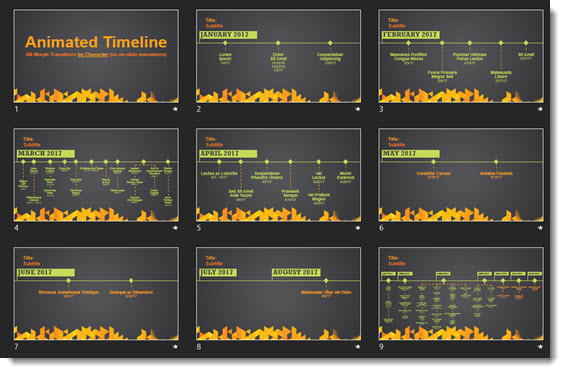
The slide deck is 9 slides (slide #1 being the info/title slate).

Animated Timelines

To achieve the motion effects, the transition for each slide is Morph > By Character and 1 element off-slide (that animates into place on the next slide)

Animated Timelines

Option 2: Morph by Object

[KGVID]https://thepowerpointblog.com/wp-content/uploads/2017/11/unnamed-file-1.mp4[/KGVID]

The slide deck is also 9 slides (slide #1 being the info/title slate).

Animated Timelines

But the off-slide content (that animates into place on the next slide) planning and layout is more extensive for this visual effect.

Animated Timelines

Troy @ TLC


By |2019-10-28T09:51:46-07:00November 14th, 2017|Portfolio|

Informational Slides – 2 Timeline Layout Options

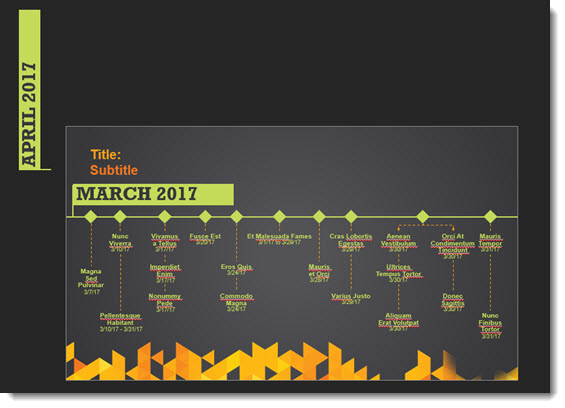
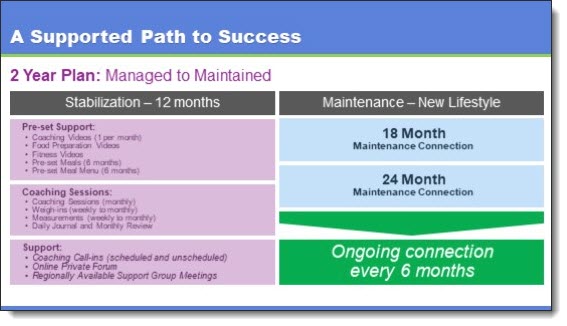
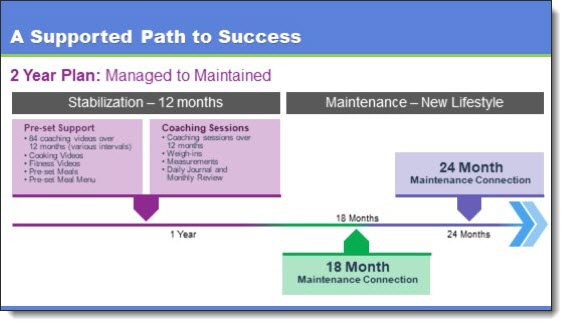
For this project, we developed wonderful, stylized, information slides – over 150 in the final Sales Deck. For this blog post, I am pulling one example of 2 timeline layout options where our design team provided slides showing different ways to layout the provided content.

Timeline Layout Options 

Timeline Layout Options

In this case, we did not completely understand the intent of the slide so developed the timeline with two different layout styles, each supporting a different visual message. Our client provided input on the intent, we modified one option and moved on to the next layout question.

Troy @ TLC

By |2017-10-10T12:59:23-07:00November 9th, 2017|Portfolio|

The Presentation Podcast Episode #41 Released Today!

A new episode of The Presentation Podcast with Troy, Nolan, and Sandy is available today! Check out the latest episode, #41 -“Presenter Notes.” 

Presenter Notes: what are they, are they needed, what is the best way to create them, where is the best place to create them? So many questions for such a useful presentation tool. Yes, there are less helpful ways of creating, formatting and using Presenter Notes. No, there is no perfect way to create, format or use Presenter Notes. Troy, Nolan and Sandy share their notes about using Presenter Notes.

By |2017-11-07T12:31:52-08:00November 7th, 2017|Resource/Misc|

A 3-Scene PowerPoint Halloween Movie

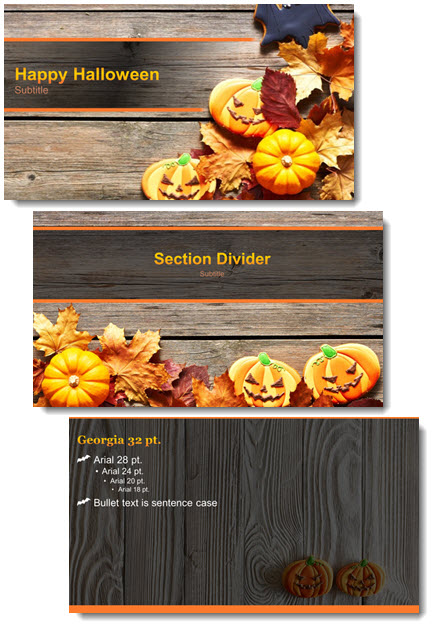
Wanda on the TLC Creative design team created this amazing PowerPoint Halloween Movie. Just like a movie plot, it has 3 scenes. Each is a slide, and each seamlessly transitions from one to another (watch the video, there is no clear distinction of when the action transitions from one slide to another!).

PowerPoint Halloween Movie

If you are at the office, caution – fun Halloween themed soundtrack accompanies the animation fun!

[youtube src=”https://www.youtube.com/embed/fxV-LajWQlw”]

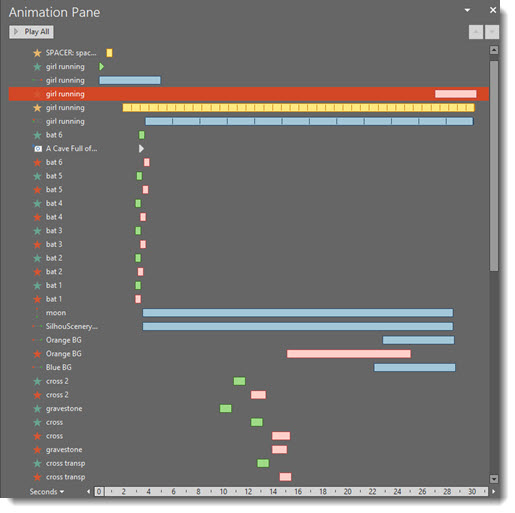
Each slide has a very long animation pane. This is the top part of the slide 1 animation:

PowerPoint Halloween Movie

Troy @ TLC

By |2017-10-26T14:10:12-07:00October 31st, 2017|Portfolio, PowerPoint|

WeCompress – NXPowerlite’s Online Version

The guys at Neuxpower recently invited us to beta test a new online compression tool called WeCompress. We found using this online tool is simple, easy and provides impressive results on par with the desktop version of NXPowerlite (review of NXPowerlite here). And the good news is, wecompress is now publicly available for use!

Overall we found WeCompress an impressive online tool – and it is FREE to use! While our tests below show it is not as robust as the NXPowerlite desktop app, it provides a great option for everyone trapped in a corporate world of “we do not allow add-ins or utility apps to be installed.” 

Our first test was optimizing this high-res .jpg image. WeCompress reduced the file size by 4MB and maintained image quality (for use on a 1920×1080 monitor).


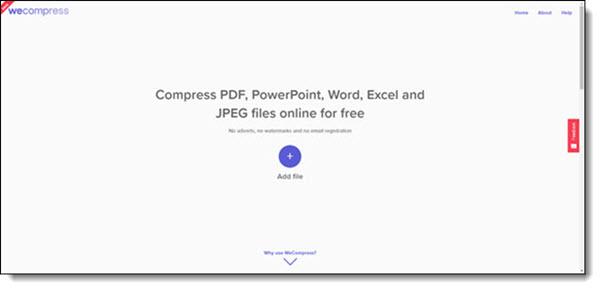
To use, go to WeCompress and just drag and drop your file to get started.
The upload and download time is dependent on your internet connection, but the actual compression/processing time was on par with the desktop NXPowerlite processing (eg. fast).
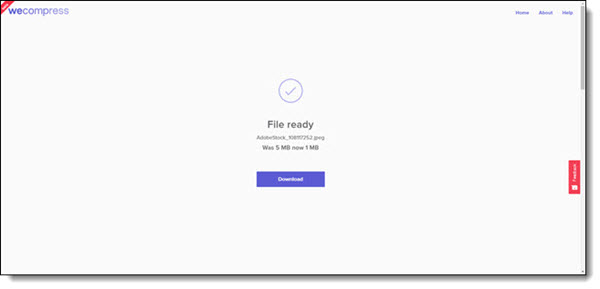
WeCompress has a clean online app design and it’s easy to use. But it does lack a few things in comparison to the desktop NXPowerlite app. The biggest difference is the ability to customize settings. For example, TLC Creative’s standard compression is custom settings optimized for 1920×1080 HD display. Other areas custom compression settings are important to us are when working on 4-6-8K output files (although the desktop version is currently limited to a 3480x2160px resolution base).

For comparison, here is our 10 slide sample deck which we optimized with WeCompress, NXPowerlite’s default compression setting, and our “TLC” custom NXPowerlite compression settings.
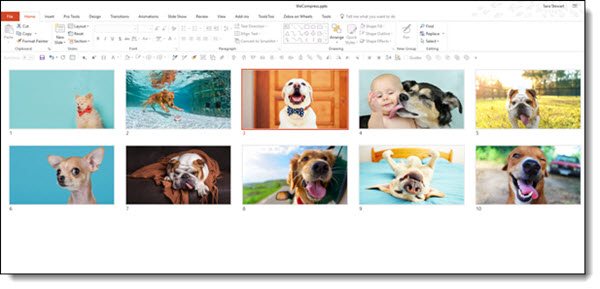
The original file, with purposefully oversize images, is 14.9 MB.

Running the file through WeCompress adjusted the file to a helpful 642 KB (and maintained good image quality, but a bit lower than we really want).

NXPowerlite (Windows v7.1.5) using its default PRINT compression gave us a 4.68 MB file (and image quality we approved of).

Optimizing with our “TLC” custom compression setting (1920×1080, JPG quality 9) gave us a 3.39 MB file (and image quality we approved of).

We then tested with another test file. We optimized a 10 slide PowerPoint file with close up, detailed high res images. Using NXPowerlite with our TLC HD compression settings, the file went from 16.8MB to 3.76MB, with image detail quality that met our standards.  

Uploading the same file to WeCompress reduced the file a lot – down to 674 KB! But image quality was below our standards (Note: compressing same file with NXPowerlite’s SCREEN default was comparable, creating a 1.15 MB file – a default setting we never use).
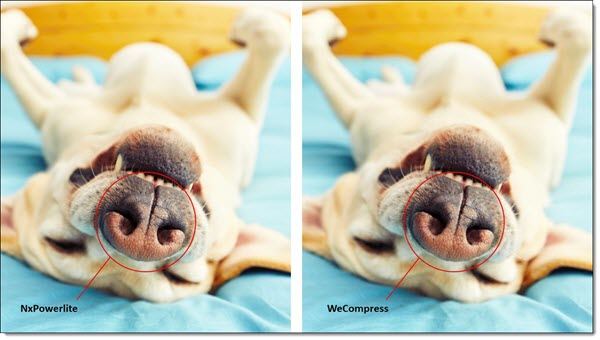
Aside from WeCompress’ limitations, the two tools have similar compression speeds and results. But WeCompress is FREE and does not require any install permissions. Neuxpower’s NXPowerlite has been the TLC Creative Services go-to compression solution for several years and we definitely recommend booking their new WeCompress online option to add to your toolbox.

Troy @ TLC

By |2017-10-13T11:46:21-07:00October 26th, 2017|Software/Add-Ins|
Go to Top