powerpoint

Video Across Slides (Sort Of)

Unbeknownst to the world, Microsoft somehow enabled video to play across slides again! This is something I have been requesting since the release of PowerPoint 2010, when video-across-slides stopped working. But don’t get too excited, there are limitations in using it today.

First the technical note: I am using Office 365, PowerPoint 2016 on Windows 10. This is untested on legacy versions or the Mac version.

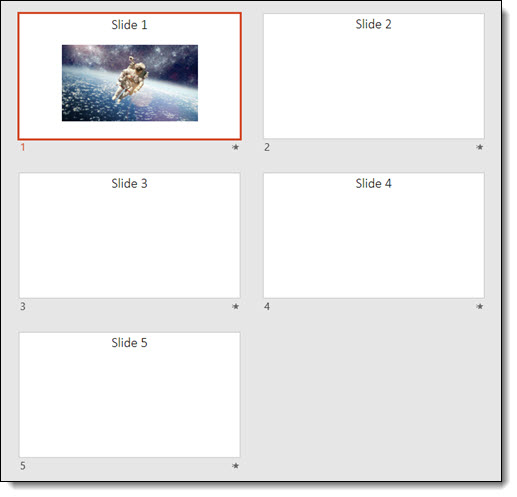
Here is my sample slide deck; 5 slides with a video on slide 1 and indicator text on balance of slides.
Video Across Slides

When things are setup correct, yes we can play video across slides (yay!) as this video of the sample slides in slideshow demonstrate:

Side note: the above video was a Camtasia screen recording, because I discovered that using the Export As Video option does not show the video across slides (which makes sense with the below explanation of why I believe this is working)

Backstory:

  • Back in PowerPoint 2003, a video could be set to continue playing across slides and it would!
  • The reason was more of a limitation of PowerPoint that users were able to exploit and make a good thing. Back in PowerPoint 2003  video was not embedded and ran as a separate video player layer on top of PowerPoint. The good news was PowerPoint could keep the external video player going across multiple slides. The bad news was among other things, no PowerPoint content could be on top of the video while it was playing, because it was on top of the slides when playing.
  • Fast forward to PowerPoint 2010 and videos became embedded and content could be on top of videos! The downside was the embedded video removed the hand off to an external video player on top of the slides (but the improvements in reliable playback and styling effects were far superior options to have available!)
  • Today, video across slides works again. Here is my theory:
    • When the play across multiple slides option is selected for a video, the video uses a legacy video player and reverts back to the PowerPoint 2003 model of being a layer on top of PowerPoint. So yes, you can play a video across slides, but the video has a lot of styling limitations.

How to Set a Video to Play Across Slides:

  • Add video to slide (can be an embedded video, no legacy settings needed)
  • My example video was set to play the video automatically
    Video Across Slides
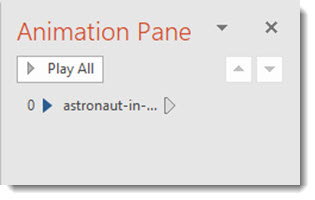
  • Open the Animation Pane
  • Right-click the video animation
  • Select EFFECT OPTIONS
  • Go to the EFFECT tab
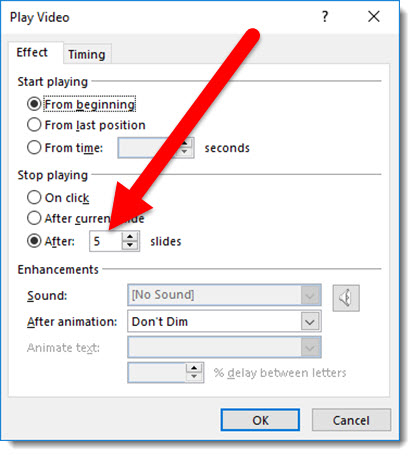
  • Look in the STOP PLAYING section
  • Change the AFTER dialog to any number of slides needed (maximum 999 slides)
  • Click OKAY
    Video Across Slides

Limitations of Applying Styling Options to Videos That Use The Play Across Slides Option:

My Advice:

  • Don’t count on this working in the future. It was broken for years and suddenly started working (thanks to Taylor Croonquist for mentioning it!). It could easily stop working with another update (and the ultimate update would be to enable video to play-across-slides AND maintain the embedded video player for z-order control and styling effects!!).
  • But don’t hesitate to use it if needed. I was recently used a 60 second countdown video to play across a series of slides and all worked perfect (but the request was a circle shaped clock, which I could not do because of the above noted styling limitations). I tested on my show computers and was confident all would work for the meeting. If the same client asks for the same effect next year, I cannot promise it will work until we are close to the meeting date and I can test and confirm it is still a supported feature (eg. I am not sending out Sales Team decks using this feature, because it would be bad for things to stop working in the future).

Troy @ TLC
By |2025-05-12T10:16:54-07:00October 19th, 2017|Resource/Misc, Software/Add-Ins|

2017 Annoying PowerPoint Presentation Survey Results

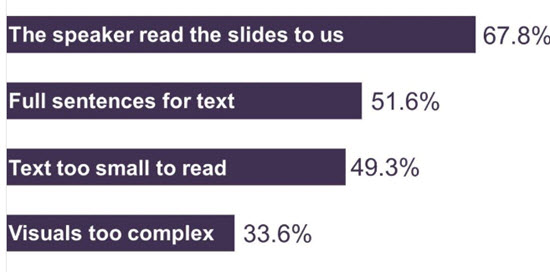
Almost 500 people participated in this year’s “Annoying PowerPoint Presentation Survey.” Dave Paradi of Think-Outside-The-Slide has been sending out this survey for several years. The primary theme and message from the 2017 survey: “Audiences feel that too many presenters don’t care enough about their audience to spend the time necessary to create and deliver a good presentation.” Take a look at a quick summary of the results below. 

Annoying PowerPoint Presentation Survey 2017

Thank you for the amazing effort and sharing the results every year, Dave! The full survey results are available here.

Troy @ TLC


By |2017-10-10T12:33:41-07:00October 12th, 2017|Resource/Misc|

Presentation Summit Recap

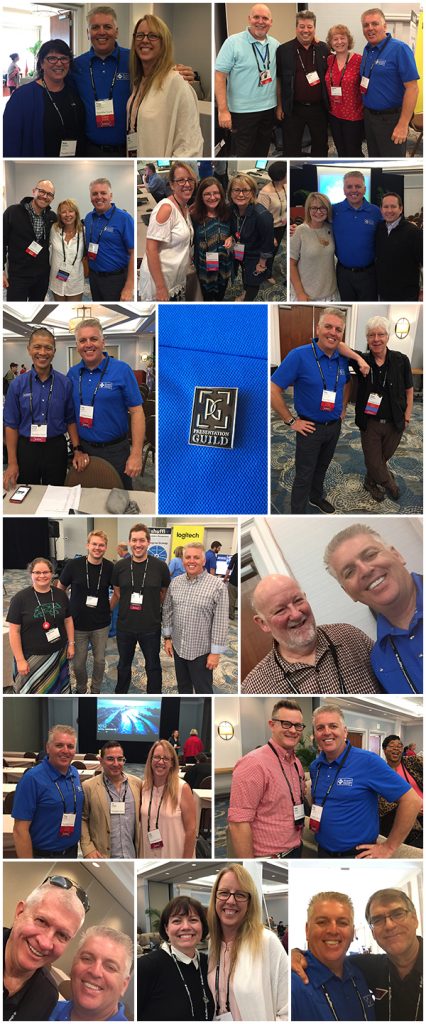
Lori and I (Troy) attended the 2017 Presentation Summit, hosted in Florida last week. Yes, we attended, no presenting this year, which was a fantastic treat as I was able to spend all of my time talking with so many great people (vs. planning, rehearsing, and being committed to presenting). 

Next year will be close to the TLC Creative Services studio in San Diego, CA September 23-26, 2017. I highly recommend the conference for the great session topics, but almost more important is the networking with presentation industry talent, host of presentation industry vendors, AND direct access to the team of PMs and Devs from the Microsoft PowerPoint team that attend each year.

And at the summit this year we recorded a great group conversation for The Presentation Podcast that released earlier this week. Episode 39 – The Presenters Gather at The 2017 Presentation Summit Conference!

-Troy @ TLC 

By |2017-10-03T00:00:29-07:00October 5th, 2017|Resource/Misc, The PowerPoint® Blog|

Alternatives to PowerPoint

In the most recent episode of The Presentation Podcast, episode 38 “Alternatives to PowerPoint,” my co-hosts and I talked through presentation software options other than PowerPoint. On a related note, I spent this week at The Presentation Summit conference in Florida. The conference is focused on the presentation industry as a whole, not specific software, and there are some interesting parallels from what I saw at the conference and the podcast discussion.

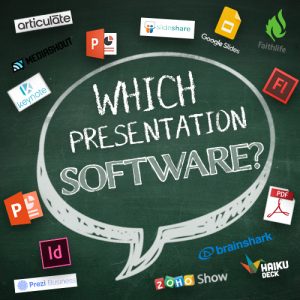
Presentation Software

Throughout the podcast, Nolan Haims, Sandra Johnson and I (Troy Chollar) discuss a lot of apps and when other software can be a good option. PowerPoint is the software we reference as the benchmark. Ironically, at The Presentation Summit this week, Microsoft was the only presentation software represented (they came with a team of 6 Project Managers and Developers – which is a fantastic opportunity for anyone in the presentation industry to have direct access and conversation with the people responsible for PowerPoint!). The product expo had many great companies represented: slide management, hardware, add-in coders, AR and VR (amazing stuff!), and more. But Keynote, Prezi (who have been at the conference in the past), Haiku Deck, Adobe, Google, and other presentation creation apps did not have a presence.

Another interesting parallel that I noted was that for a conference full of professional presentation designers, there was continuous excitement over discovering new features and ways to use PowerPoint. That excitement of discovery ties in directly with a new LinkedIn an article that I posted, “The ‘New’ PowerPoint” about how people do not realize features that have changed and been added, literally making PowerPoint a new software app compared to previous versions.

The key takeaway is: yes, there are other presentation software options available. However, those other options do not have a large user base or large profile at presentation industry events. Microsoft’s PowerPoint continues to be the industry standard for presentation software – and there are plenty of new features to make it better than the “old” PowerPoint.

– Troy @ TLC


By |2017-09-27T15:09:38-07:00September 28th, 2017|Software/Add-Ins|

PowerPoint Tips, Tricks, and Hacks from 29 Experts

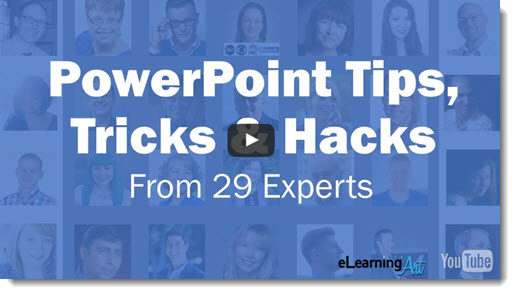
Bryan Jones of eLearningArt just published a new online article (also downloadable as an ebook) that I one of the many wonderful contributions. “I asked the world’s leading PowerPoint experts the following question: What’s your single best PowerPoint tip, trick, or hack? …You’ll see responses from some amazing PowerPoint gurus…”

See #16 for Lori’s tip, TLC Creative Services co-founder, “Convert text to an image if the custom font might not be installed.”

And #18 for my tip “Leverage ‘Presenter View’ and ‘sections’ when there are multiple presenters”

Read through all the tips here.

Troy @ TLC

By |2017-09-06T21:51:54-07:00August 18th, 2017|Resource/Misc|

NXPowerlite Asking Users for Feedback

Currently the dev team at Neuxpower are soliciting user input as they prepare the specs for v8. I sent in my suggestions a few weeks ago and had a great note from them about a number of my thoughts are already in the specs, and  few that will be included (yay!). Everyone that is familiar with NXPowerlite should take advantage of this open request for feedback!

Click here for the Neuxpower NXPowerlite survey.

Troy @ TLC


By |2017-08-01T10:50:16-07:00August 2nd, 2017|Software/Add-Ins, The PowerPoint® Blog|

Educating Our Design Clients

Earlier this week we released a podcast entitled “How To Be A Good Design Client“. If you have not been a part of the conversation, I recommend it (of course I am one of the hosts, so I am obligated to recommend it!). The conversation was easy for us as a group of independent designers. I believe similar conversations happen with on-staff design teams in the corporate, education and internal team arenas.

But this specific episode is not a conversation just for us, the designers. In listening to the podcast I would hope it is forwarded to Creative Directors, Executives and bosses so they can hear the conversation they are not often invited to be a part of, but where their need to know and understand how the presentation design process can be expedited or hindered with their teams actions (or lack of action). Because we get to do as much educating others on the process and reasons for design decisions as we do the actual design.

Troy @ TLC

By |2017-06-20T15:35:21-07:00June 23rd, 2017|Resource/Misc, The PowerPoint® Blog|

Ultrawide General Session #2 (Portfolio)

“Ultrawide” presentations are any aspect ratio wider than the standard 16×9. For this project, the specs were a 2 projector blend (with 240 pixel edge blending) for the General Session.

Ultrawide General Session

2 screens wide, designed as a single ultrawide template, with 6 background variations (different for each presenter/division). 


Note: Portfolio example only, template and presentation files not available for download.

Troy @ TLC

By |2017-04-03T09:05:05-07:00April 12th, 2017|Portfolio|

Ultrawide General Session (Portfolio)

Ultrawide General Session shows tend to involve more planning and design considerations for things like 16×9 PIPs (for video and standard widescreen presentations). Presentations that use the full canvas also have many design considerations to look great for the audience. Here is one look of a ultrawide presentation template that TLC Creative developed for a recent show.

Ultrawide General Session

3 screens wide, designed as a single ultrawide template with design consideration for outside 4×3 IMAG PIPs (live camera of the presenter). 


Note: Portfolio example only, template and presentation files not available for download.

Troy @ TLC

By |2017-04-03T09:01:16-07:00April 10th, 2017|Portfolio|

Ultrawide 5 Projector (10K) Awards Show (Portfolio)

Yet another example from one of TLC Creative’s recent show projects – an ultrawide 5 projector awards show presentation template.

ultrawide 5 projector awards show

The meeting provided us with a fantastic 5 screen wide canvas, all designed as a single ultrawide presentation.


Note: Portfolio example only, template and presentation files not available for download.

Troy @ TLC

By |2017-04-03T09:04:39-07:00April 7th, 2017|Portfolio|
Go to Top