Tutorial

Happy New Year with PowerPoint Video Fill!

Wouldn’t be amazing if a shape or vector art could have a video fill it, like the previous posts showcased the Picture Fill? Although the capability of inserting a video into a custom shape isn’t possible just yet, there is a work around!

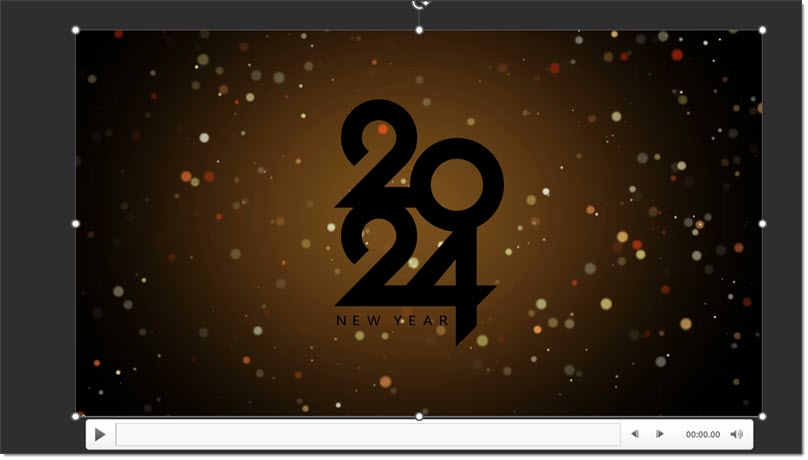
  • Start with inserting the video file in the slide.
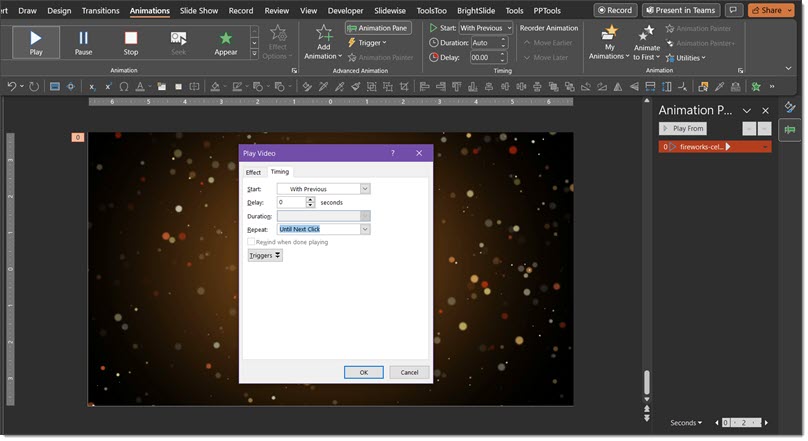
  • Select the video > in the animation pane select “play” and start “with previous”. Double click on the layer in the animation pane to open the  video dialog box with more options.
  • Under the “Timing” tab > “Repeat” > select “Until Next Click”. This will allow the video the loop play until the next click to end the slide.
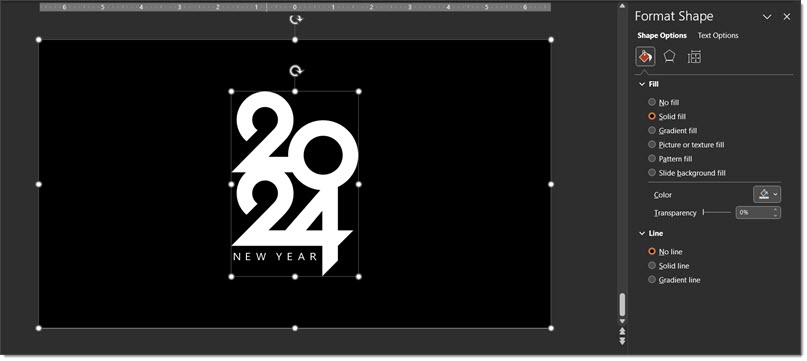
  • Next is to create a rectangle shape that is the same size as the video. In layer order, video (bottom), rectangle (middle), 2024 graphic (top).
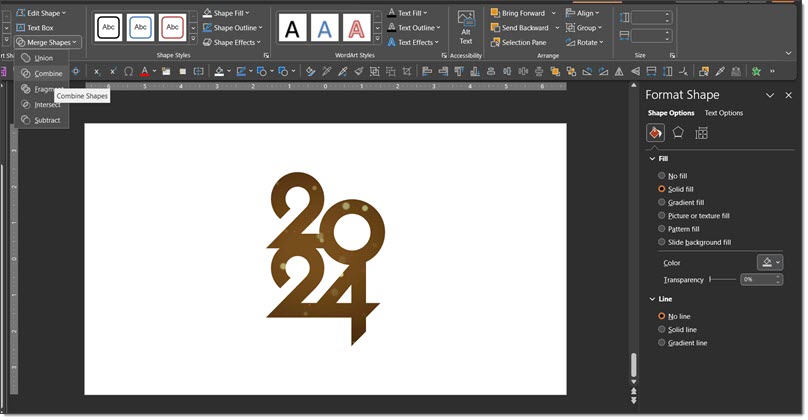
  • Selecting the 2024 graphic first then the rectangle. Shape Format tab, “Merge Shapes” then select combine. This will cut the 2024 graphic out of the rectangle, making the video visible underneath.
  • Adjust the color of the rectangle as needed.
  • Now there are 2 layers and the video file underneath is still accessible.
  • And here is the final slide with a “video fill” image. Download the editable slide here.

Troy @ TLC, with Christie on the TLC Creative presentation design team

By |2023-12-21T16:06:20-08:00December 28th, 2023|PowerPoint, Tutorial|

Happy New Year – Using PowerPoint Picture Fill

This is the last week of 2023 and we used the rapidly approaching start to 2024 as inspiration for another how-to on using PowerPoint’s Picture Fill feature.

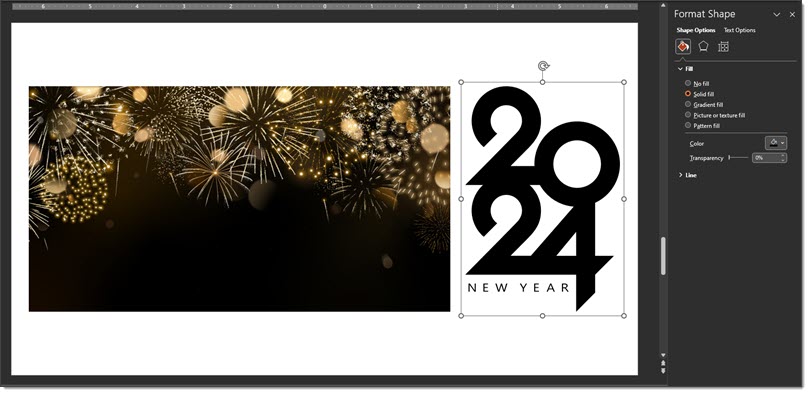
  • The key to getting a seamless image inserted to the shape is choosing artwork that is connected or merged into one shape. (the smaller NEW YEAR text will not be affected)
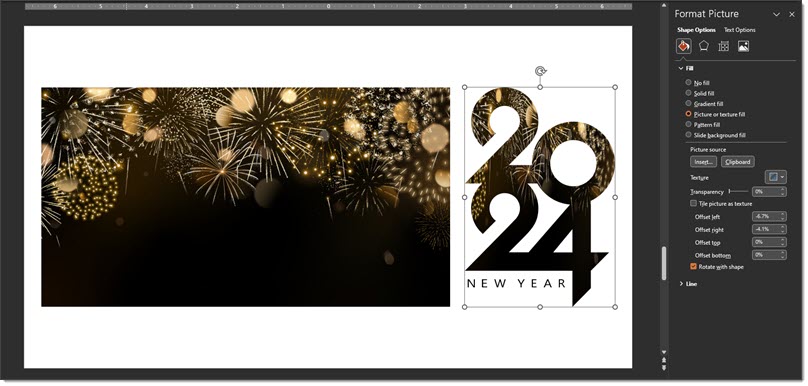
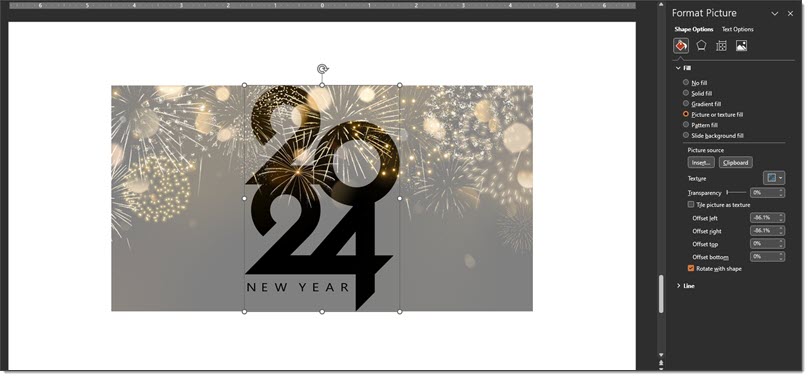
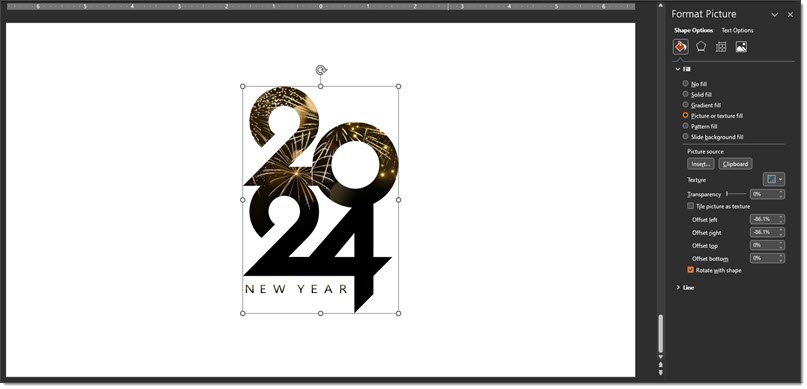
  • To make a stylized image, replacing the black with something more dynamic is to select the 2024 shape > use the INSERT or CLIPBOARD buttons > fill the shape with the image.
  • The inserted art will be default “squish” to the size of the art. Click the CROP tool > adjust the width of the fill image in your and adjust the position of what part is displayed in the shape.
  • And the final slide, which can be downloaded here.

Troy @ TLC, and Christie on the TLC Creative design team for the slides and screen capture!

By |2023-12-20T14:17:16-08:00December 26th, 2023|PowerPoint, Tutorial|

Use Picture Fill for Vector Art in PowerPoint

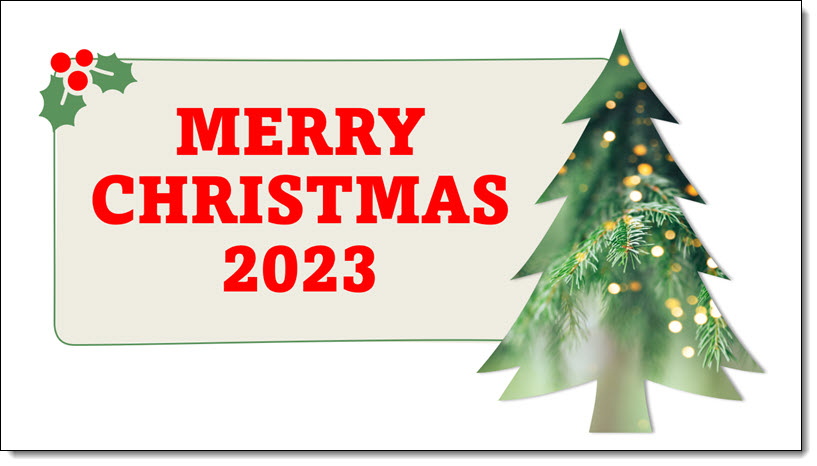
One of the hidden design features within PowerPoint is the PICTURE FILL option. I use this in combination with PowerPoint shapes and inserted vector art to create custom art elements for slides. Because it is Christmas time, my example is a Christmas Tree slide.

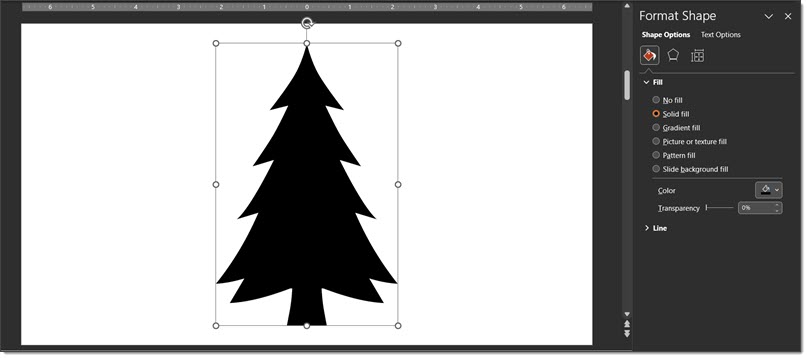
  • Add the Christmas Tree “icon”/vector art (I recommend .svg file format) to the slide
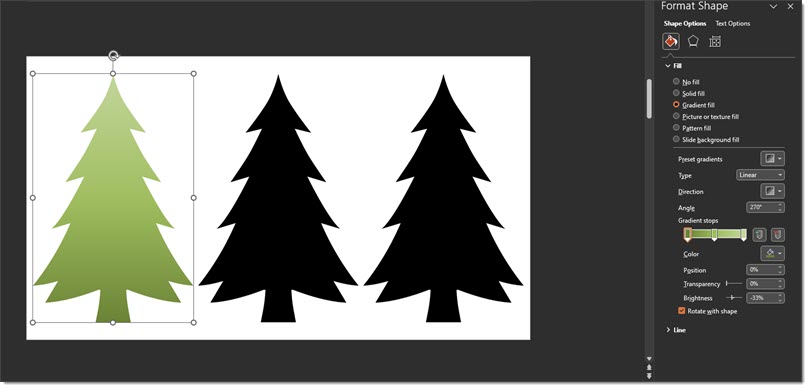
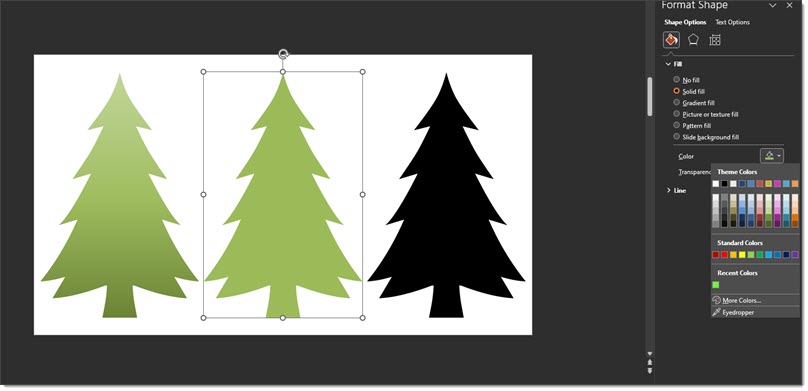
  • Vector art can have different effects added; color fill, gradient fill, pattern fill (ugg – do not use any PowerPoint provided pattern!). For example, 1st is a gradient fill that can be adjusted to any color, direction etc.
  • Or here, the second tree is updated from the black art to a solid green fill.
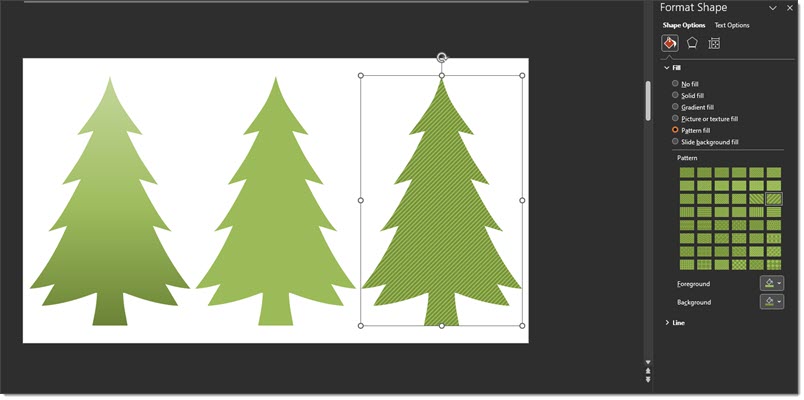
  • Or, here is an example with the third tree using a PowerPoint pattern fill. Note: on pattern fills, the lines and background colors can all be customized to make them less horrible…
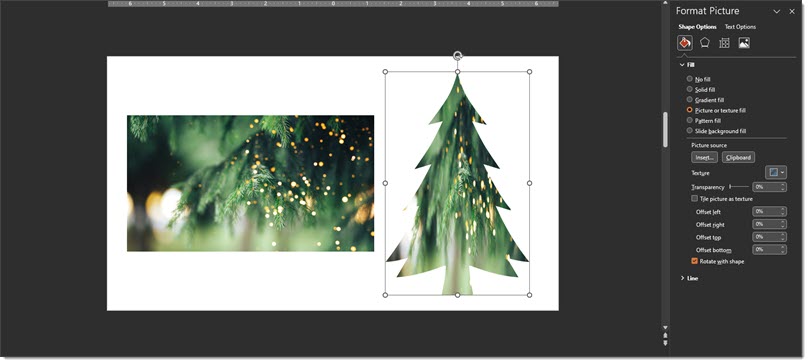
  • But the real trick is using the PICTURE OR TEXTURE FILL option! Select the tree shape > open the FORMAT SHAPE dialog > select  PICTURE OR TEXTURE FILL > locate the image to use

    TIP: you can also paste an image in by using the CLIPBOARD button – if you have the image you want inserted already copied.
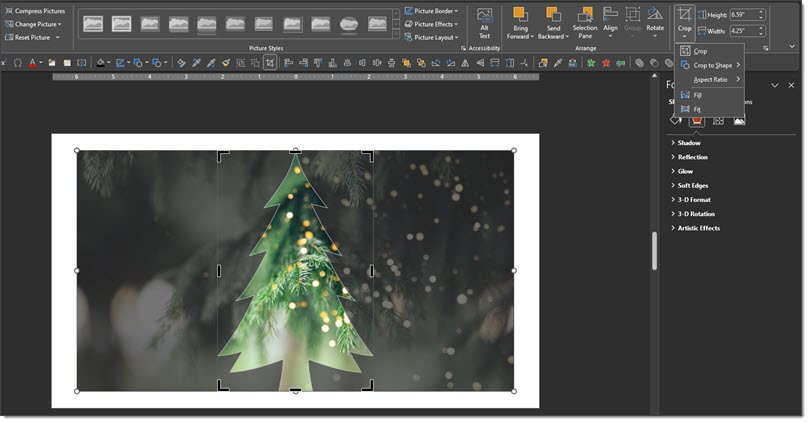
  • Important: The inserted image is distorted to the size of the tree. The solution is the CROP tool. Select the tree > click the crop tool > adjust the width of the fill image with its size/shape points. I made the fill shape much wider and positioned to show some of the real tree branches in the fill image.
  • And here is the final slide, which can be downloaded here.

Troy @ TLC (with special thanks to Christie on the TLC Creative team for the screen captures!)

By |2023-12-21T13:31:59-08:00December 21st, 2023|PowerPoint, Tutorial|

Help! Template Placeholder Text Not Displaying

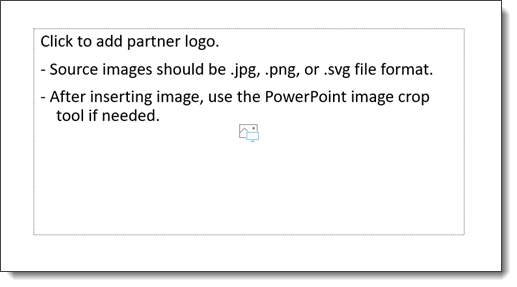
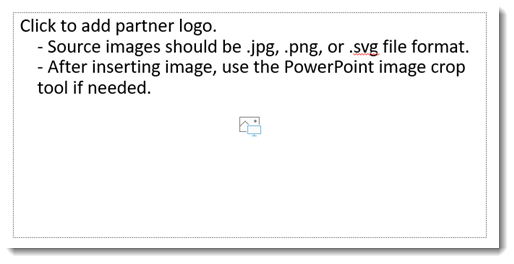
This is a continuation from the last post, about PowerPoint Placeholders – the master layout preset text and media placeholders that show up as a dotted outline on slides. And I included an example of a media placeholder with instructional placeholder text.

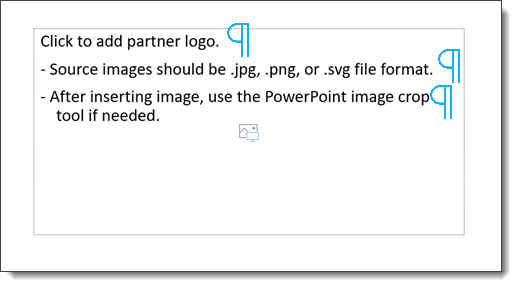
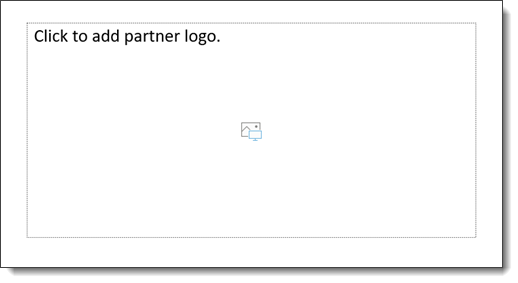
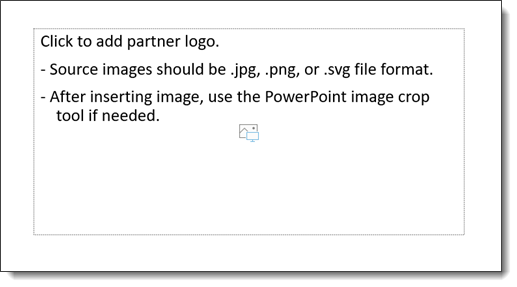
I received an email saying only part of the descriptive placeholder text was displaying. There is a reason, and we need to do a bit of  a text formatting hack to make the above placeholder look like this on inserted slides.

It is typography “hard returns” vs “soft returns”. Placeholders only display the 1st paragraph. Additional paragraphs are there, and seen on the Master Slide, but only the 1st paragraph is seen on inserted slides.

For quick reference:

  • A “Hard Return” is a line break that starts a new paragraph. In typography, the icon for a hard return is:

  • A “Soft Return” is a line break without starting a new paragraph. In typography, the icon for a soft return is:

With PowerPoint placeholders, if the text uses hard returns for each line:

At the slide level, only the first paragraph is going to display

The text formatting hack is to use soft returns to create line breaks, but keep all of the text within the 1st paragraph.

Now PowerPoint sees all of the text, even thou it looks like 3 line breaks, it is 1 paragraph and on slides everyone sees all of the helpful placeholder text!

Troy @ TLC
By |2023-10-04T19:47:13-07:00October 10th, 2023|Tutorial|

Template Placeholder Text – Customize it!

I am working on a fairly robust PowerPoint template design, and one of the template build steps has become a good conversation with the client – the Placeholder Text.

Placeholder text is the “description” text in slide placeholders. Placeholders are visually distinguished by having a dotted outline (vs. solid outline). The dotted outline indicates it will not display when presented or printed.

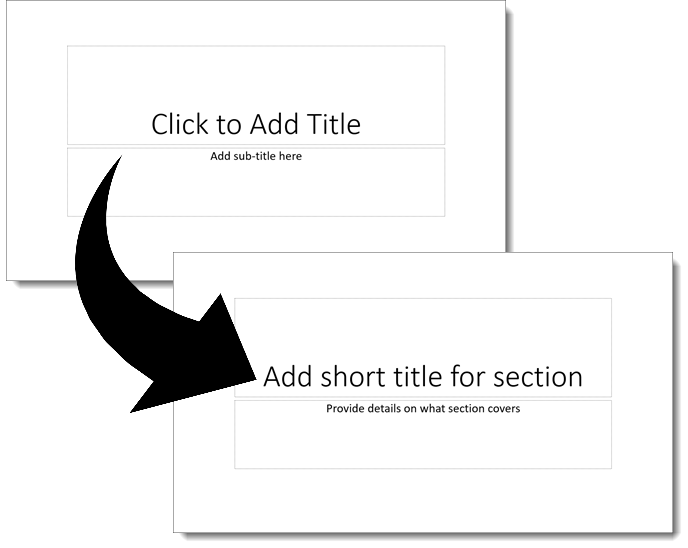
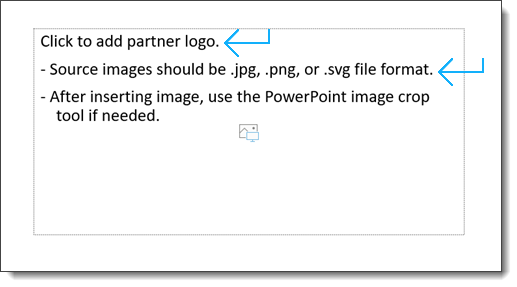
The great thing is, the placeholder text can be updated on each layout. As example, the default “Click to Add Title” can be made more descriptive to lead the team into what content is expected in that text box, on that layout. I updated the title slide text placeholders here to literally instruct anyone using the template that the title is a SHORT set of words – not a full sentence.

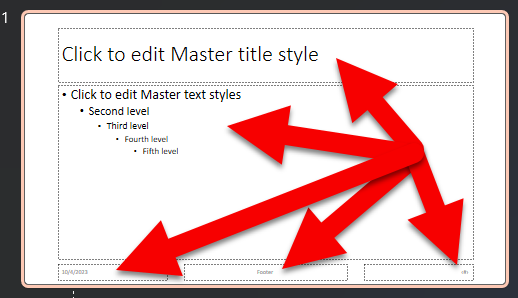
The Master Slide, and each Slide Layout have placeholders, with description text. Customize them to help end users know what is expected.

For this template project, there are image placeholders for partner logos. The client had a good question, which went into a more detailed conversation about what a good logo is. So, we updated the placeholder text to provide technical guidance.

PowerPoint has hundreds of backend options that can be preset – making placeholders helpful is just one of them our design team at TLC Creative Services customizes.

Troy @ TLC
By |2023-10-04T19:47:30-07:00October 5th, 2023|Tutorial|

Make PowerPoint Rounded Corners the Same!

Rounded corners are a subtle design accent that is easy to apply to shapes, photos, even videos. But why is there no way to make the corner radius the same across multiple objects on a slide!

Fortunately, the capability is within PowerPoint, just not exposed on the Ribbon or any of the object formatting dialogs. The ToolsToo add-in suite has added the functionality to easily select multiple rounded corner objects and make the corner radius the same on all (yay 3rd party add-ins!).

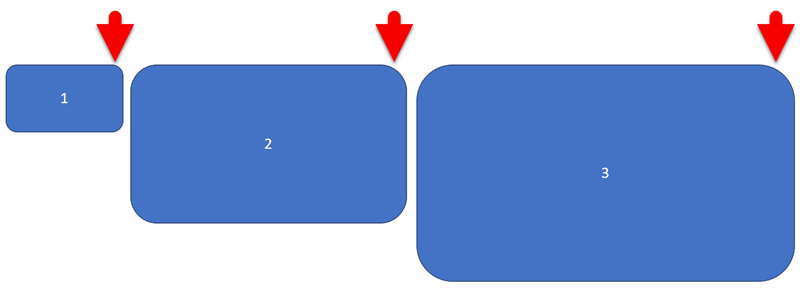
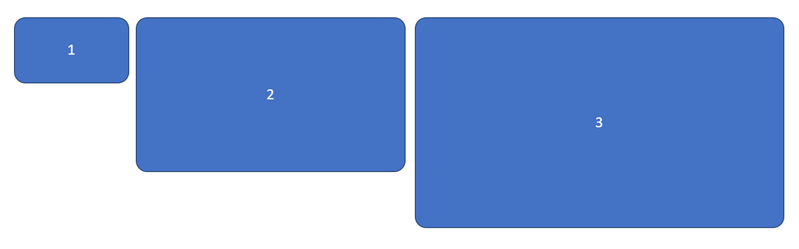
Here is my example slide with 3 rounded corner rectangles. Because the rectangles are different sizes, and the corner radius scales with the shape (where is the “locked corner radius” option Microsoft!) the corner radius is different on each of the rectangles.

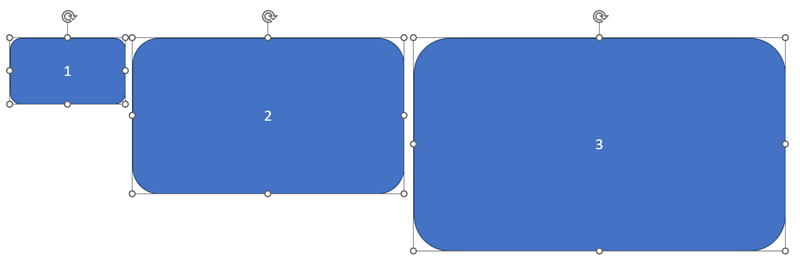
I have selected all 3 shapes, selecting box #1 first, because this is the reference object and all objects will match its corner radius.

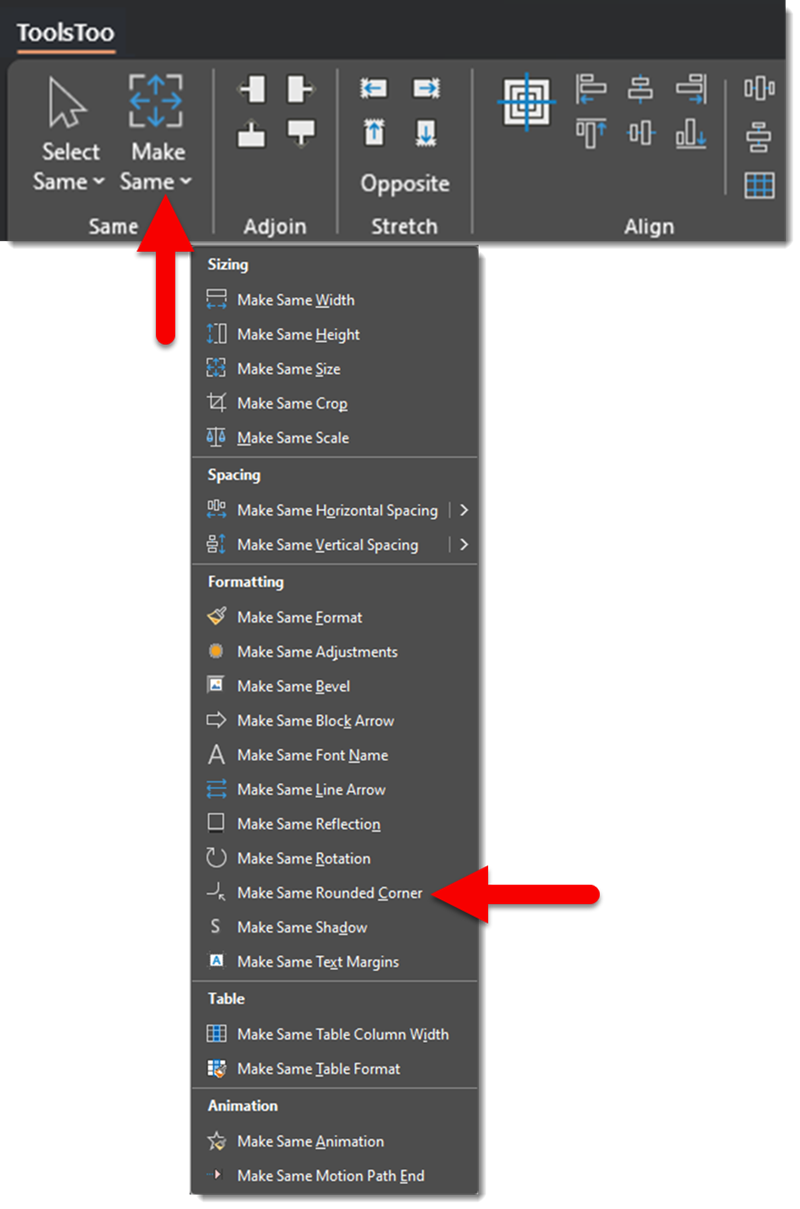
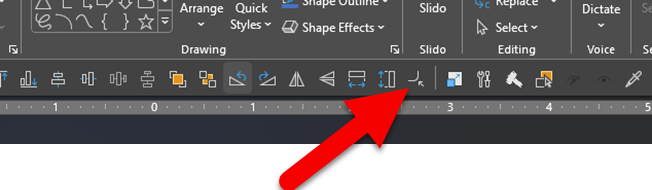
Go to the ToolsToo ribbon > Make Same > Make Same Rounded Corner

Done! All 3 rectangles now have the exact same corner radius (yay!).

TIP: because I use this tool often, and I have added it to my QAT so it is now an instantly available 1-click formatting thing.

Troy @ TLC
By |2023-08-18T09:40:42-07:00September 7th, 2023|Tutorial|

Circles and Text (that does not fit)

I really (really) do not like it when a separate text box is placed on top of a circle, because “the text would not fit”. In transparency, this may be exactly what I dealt with while formatting a presentation – and I am solving the problem by showing how to “make the text fit” in a circle.

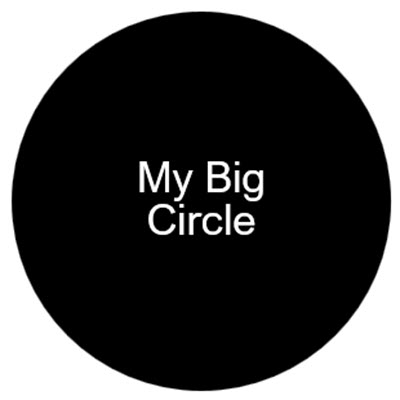
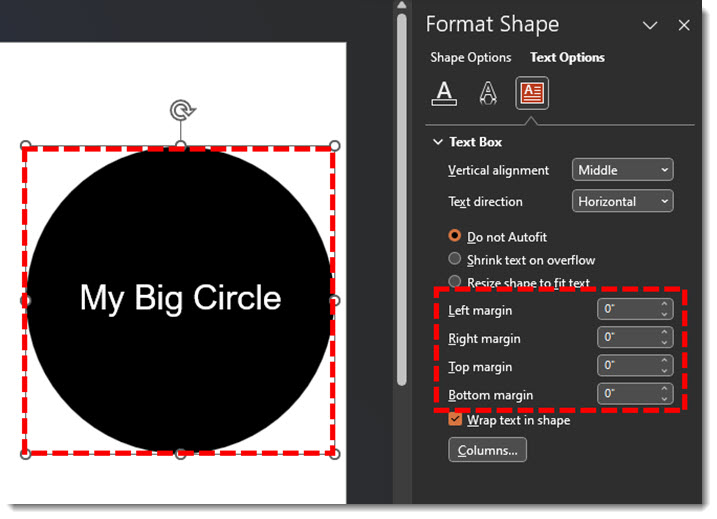
Here is the common situation. The circle is where it is needed, and the size needed. The text is added to the circle object, but it does not fit and wraps to two lines.

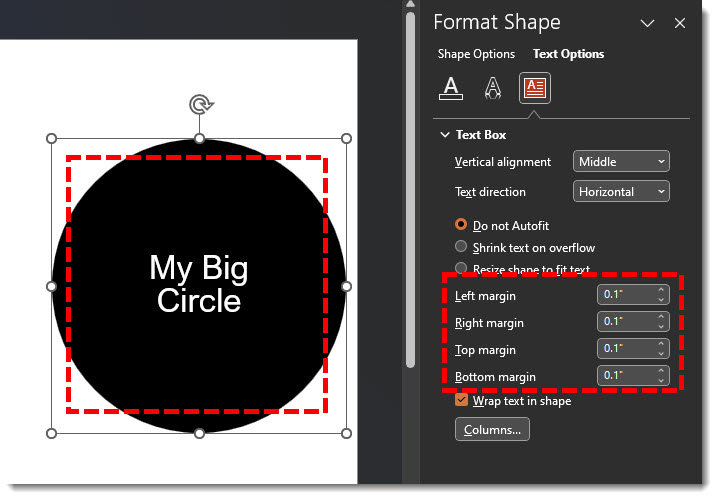
Looking at the circle and its text properties reveals the problem. The circle has an interior text margin applied, making full circle not available for the text.

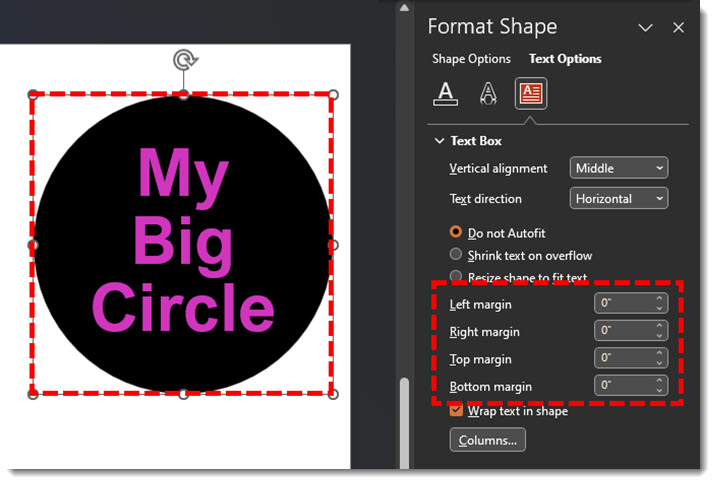
If we remove the interior margin and set the Left/Right/Top/Bottom to zero, the text now has room to fit inside the circle! Same font and font size, the text just needed to be able to get closer to the edge of the circle.

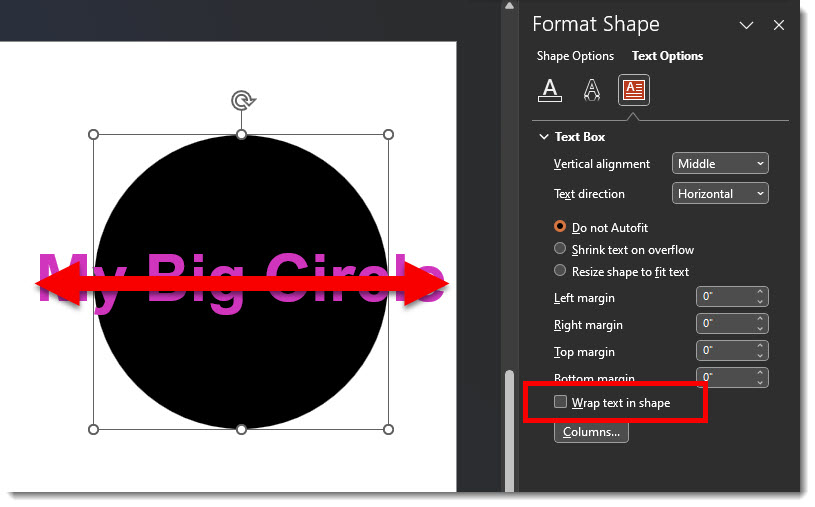
Here I do not want the text to fit, I want it large and overlapping the circle. But PowerPoint is being too helpful and keeping the text inside the circle. Note: the shape margins are set to zero’s (which is great).

In this situation, turn off the text wrap. This allows the big text to stay as part of the circle, but go beyond the circle shape

Troy @ TLC
By |2023-08-16T09:32:16-07:00August 29th, 2023|Tutorial|

Why Do My Slides Start at Zero? (an update)

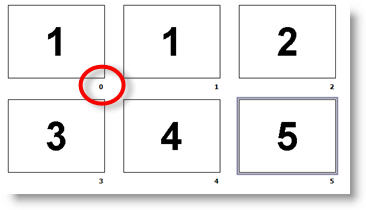
The question is why do the slides in this deck start with zero!?

Back in January 2007 I answered this question in the blog post. Fast forward 15 years and I just had a slide deck that started with zero. I do not hide that this blog is as much my resource as anyone’s. So, a quick search gave me the answer to a long forgotten how-to in PowerPoint and I was able to finish the presentation makeover project.

But I noted that back in 2007, PowerPoint’s interface was bit different and getting to this setting is a bit different now.

To change the starting slide number:

  • Go to the DESIGN tab
  • Click the SLIDE SIZE drop down menu
  • Select CUSTOM SLIDE SIZE
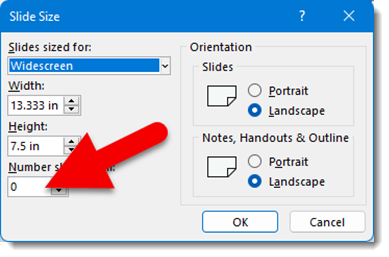
  • The Slide Size dialog is much the same today as it was in 2007 (now with Microsoft’s flat design aesthetic)
  • Set the starting slide number in the NUMBER SLIDES FROM field

Troy @ TLC
 

By |2022-10-07T07:32:13-07:00October 6th, 2022|Tutorial|

Clipchamp – Text-to-Speech

Clipchamp has an amazing a text-to-speech feature!

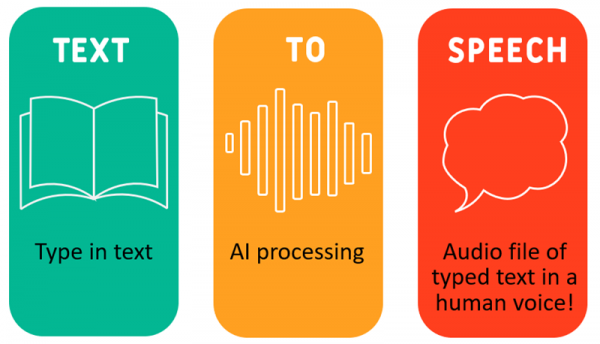
With text-to-speech, type in the text and Clipchamp’s AI engine will add the typed text as a human voice.

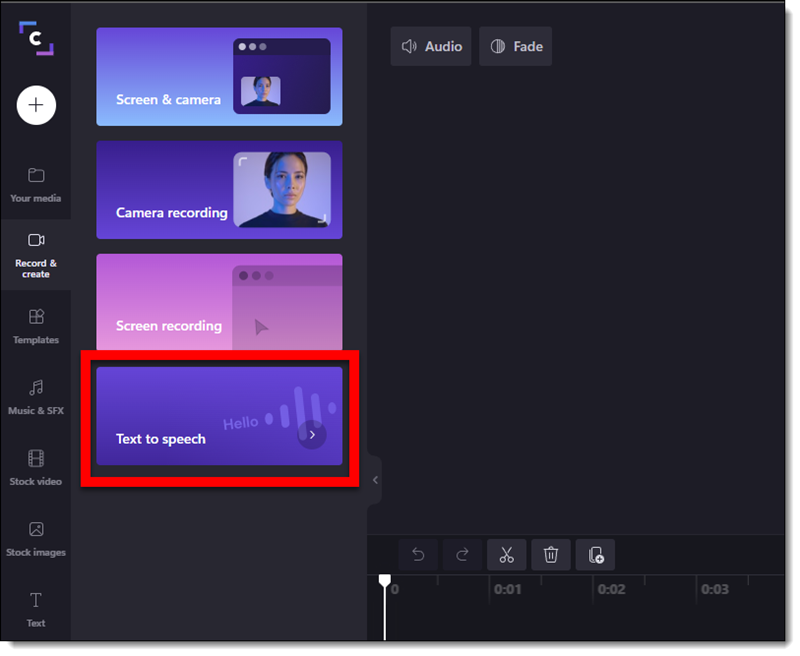
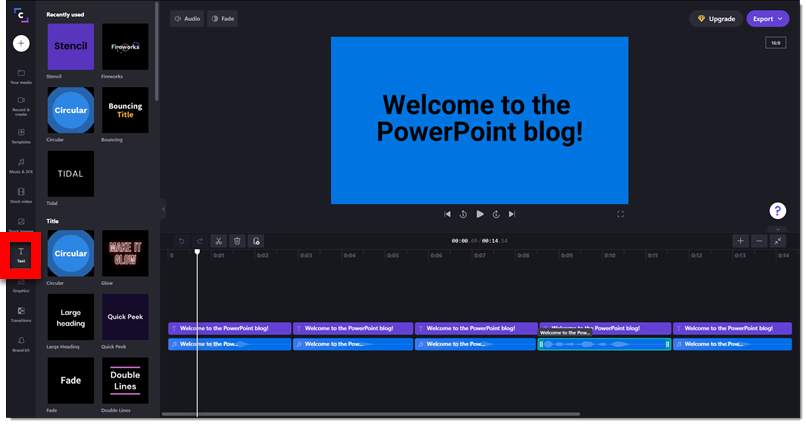
In Clipchamp, start a new video project, click “Record & Create” on the left, and click the “Text to speech” button.

In the pop-up window, type or paste in the text that will be spoken.

  • Select the LANGUAGE (wow!)
  • Select the VOICE from the 20+ options.
  • Select the SPEED the text is spoken (eg. for a narration, slower. For an announcement, faster).
  • TIP: click the PREVIEW play button to hear the spoken text. Update any of the options (eg. different voice or speed) and click the preview again.
  • Clicking “SAVE TO MEDIA” adds to the video timelines – and no further editing (just repeat the above process with a new speech to text if an edit is needed).

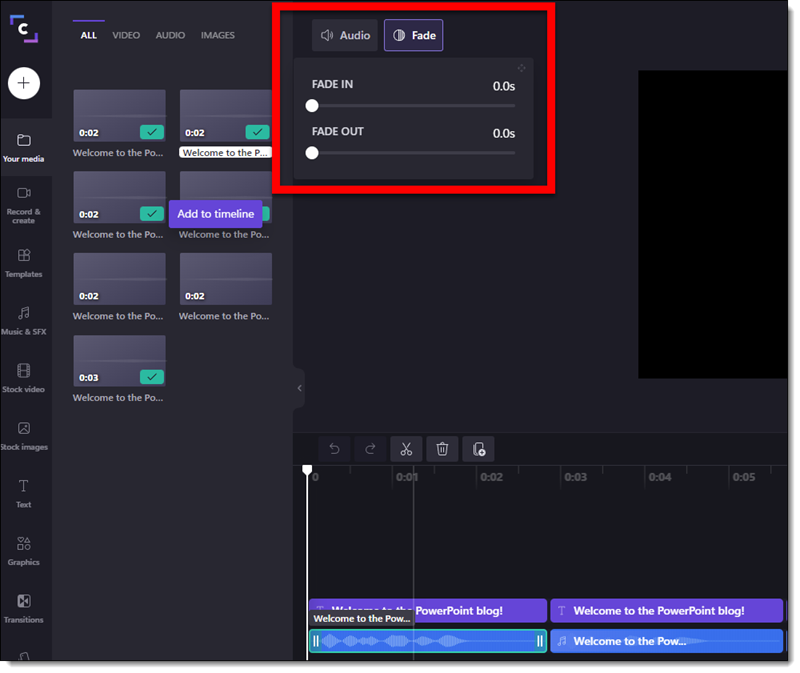
A new element is added to the timeline. There are some additional editing options to the video timeline text, such as Fade in/out.


EXPORT the video. This creates a video with no image, just the audio. Unfortunately, Clipchamp does not let you only export audio. Either insert the video file off slide, which adds the audio to the slide. Or use another app to convert the video file to a .mp3 audio file to insert onto the slide.

Our demo – we used a few of the preset text animations to create a demo video of the same phrase spoken by 5 of the different voices in the Clipchamp text-t0-speech library.

Here is what is sounds (and looks) like:

[videopack id=”16339″]https://thepowerpointblog.com/wp-content/uploads/2022/07/Clipchamp_text-speech_video.mp4[/videopack]


By |2022-06-29T08:56:16-07:00July 1st, 2022|Software/Add-Ins, Tutorial|

Clipchamp Screen Capture Videos

The Clipchamp video editing app also has a video screen capture feature. Capture on-screen content such as a software demo. The video can also record your live narration, or include you via live webcam.


For this post, let’s go with a software demo that we want to include as a video on a slide.

  • Open Clipchamp
  • Click “Create a video” on the top right.
  • On the RECORD & CREATE tab=choose the type of content (screen & camera, camera only, screen only).
  • OR, use the quick access “START WITH A RECODING” section on the main screen and choose the type of content (screen & camera, camera only, screen only).

  • The pop-up in the lower left is the screen recording dock. The red button is how the screen capture is started. The Mic icon – if recording a narration – is where the record mic setup. The record duration starts when the record button is clicked.

  • RED means ready to record. PURPLE means the recording is in process.

  • TIP: one really nice option is the “retake recording” available on the screen-sharing notification bar.

  • After stopping the screen capture record, Clipchamp’s post editing options can be used to add music, accent graphics, text, transition effects and more.

  • Export the video and add it to the presentation slide!


By |2022-06-22T13:00:07-07:00June 24th, 2022|Software/Add-Ins, Tutorial|
Go to Top